
If you’ve worked with cloud applications, you know the pain of managing configuration across environments. Hardcoding values in appsettings.json works for local development, but production demands something more secure and centralized. AWS offers two primary services for this: Secrets Manager and Parameter Store.
I’ve already covered Secrets Manager in a previous article - it’s excellent for sensitive credentials that need automatic rotation. But here’s the thing: Secrets Manager costs $0.40 per secret per month. If you have dozens of configuration values that don’t require rotation, those costs add up quickly.
Enter AWS Systems Manager Parameter Store - the free-tier friendly alternative that integrates seamlessly with ASP.NET Core’s IConfiguration system. In this article, we’ll explore how to use Parameter Store for managing your .NET application configurations, when to choose it over Secrets Manager, and how to wire it up with the Options pattern you’re already familiar with.
This article is sponsored by AWS. Huge thanks for helping me produce more .NET on AWS content!
Parameter Store vs Secrets Manager – When to Use Which
Before diving into implementation, let’s clarify when to use each service. This decision can save you significant costs and complexity.
| Feature | Parameter Store (Standard) | Secrets Manager |
|---|---|---|
| Cost | FREE (up to 10,000 parameters) | $0.40/secret/month |
| API Calls | Free (Standard tier) | $0.05 per 10,000 calls |
| Automatic Rotation | No | Yes (built-in Lambda integration) |
| Max Size | 4 KB (Standard) / 8 KB (Advanced) | 64 KB |
| Versioning | Yes | Yes |
| Encryption | Optional (SecureString with KMS) | Always encrypted |
| Cross-account Access | Yes | Yes |
Use Parameter Store when:
- You need to store configuration values (feature flags, URLs, non-sensitive settings)
- Cost is a concern and you have many parameters
- You don’t need automatic secret rotation
- You want simple key-value storage with hierarchical organization
Use Secrets Manager when:
- You’re storing database credentials, API keys, or tokens that need rotation
- You need automatic rotation with Lambda
- You require cross-region replication for secrets
- The cost is justified by the security requirements
For most applications, you’ll use both: Parameter Store for general configuration and Secrets Manager for credentials that need rotation. In this article, we focus on Parameter Store.
Prerequisites
Here’s what you need to follow along:
- AWS Account (Free Tier works perfectly)
- .NET 10 SDK
- Visual Studio 2026 or VS Code
- AWS CLI configured with your credentials (setup guide here)
- Basic familiarity with ASP.NET Core configuration
The complete source code for this article is available on GitHub.
Understanding Parameter Store Concepts
Parameter Store organizes parameters using a hierarchical path structure, similar to a file system. This is incredibly powerful for organizing configurations by application and environment.
/production/myapp/database/connectionstring/production/myapp/features/enablecaching/development/myapp/database/connectionstring/development/myapp/features/enablecachingParameter Types
Parameter Store supports three types:
- String – Plain text values (URLs, feature flags, simple settings)
- StringList – Comma-separated values stored as a single parameter
- SecureString – Encrypted values using AWS KMS (for sensitive data that doesn’t need rotation)
Standard vs Advanced Tier
| Feature | Standard | Advanced |
|---|---|---|
| Max parameters | 10,000 | 100,000+ |
| Max size | 4 KB | 8 KB |
| Parameter policies | No | Yes |
| Cost | Free | $0.05 per parameter/month |
For most .NET applications, Standard tier is more than sufficient.
Creating Parameters via AWS Console
Let’s start by creating some parameters in the AWS Console to understand the workflow.
- Navigate to AWS Systems Manager → Parameter Store
- Click Create parameter
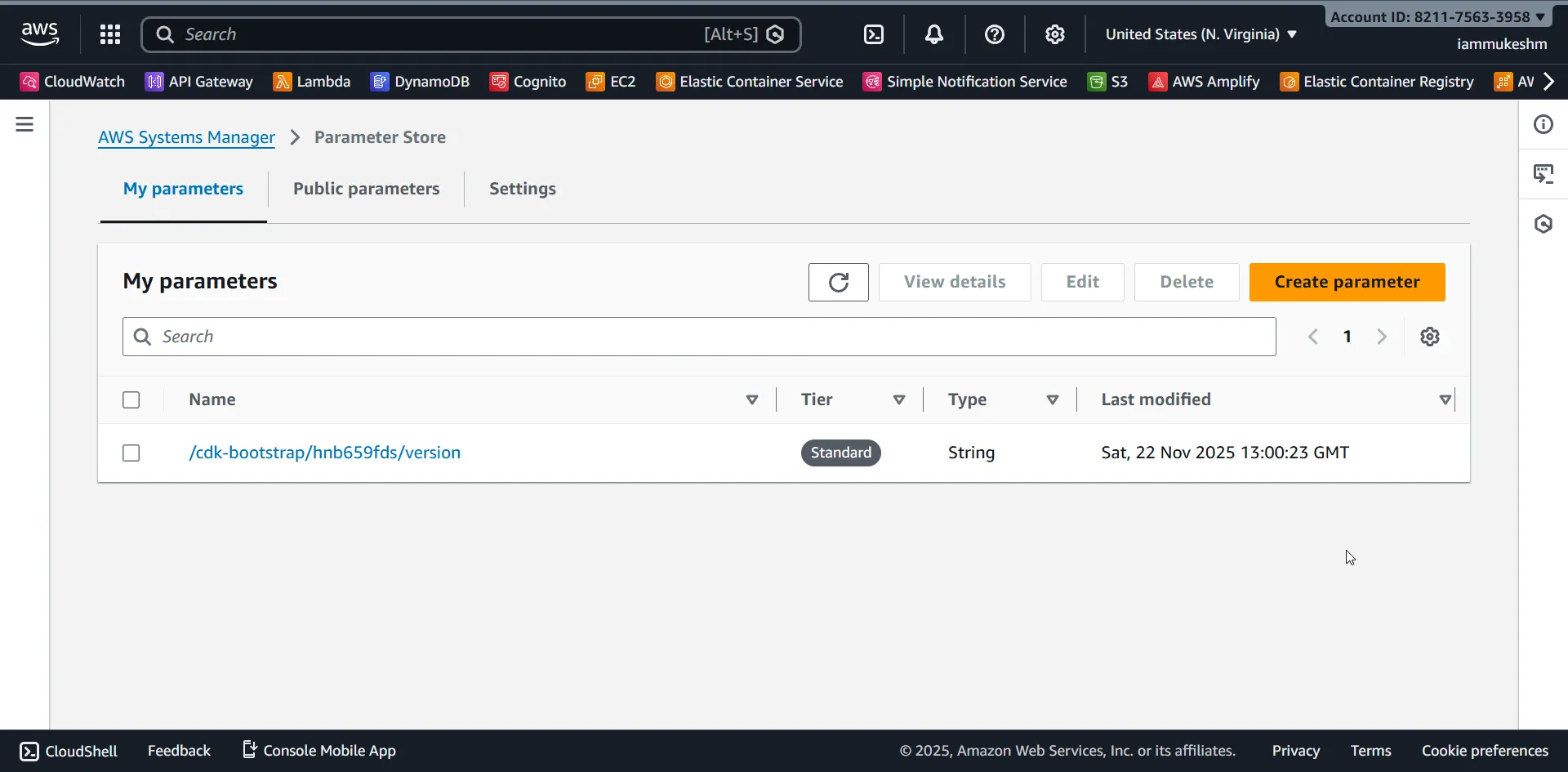
Let’s create a hierarchical structure for our demo application. We’ll create parameters for both development and production environments.
Creating Your First Parameter
For the first parameter:
- Name:
/development/demoapp/AppSettings__ApplicationName - Tier: Standard
- Type: String
- Value:
Demo API - Development
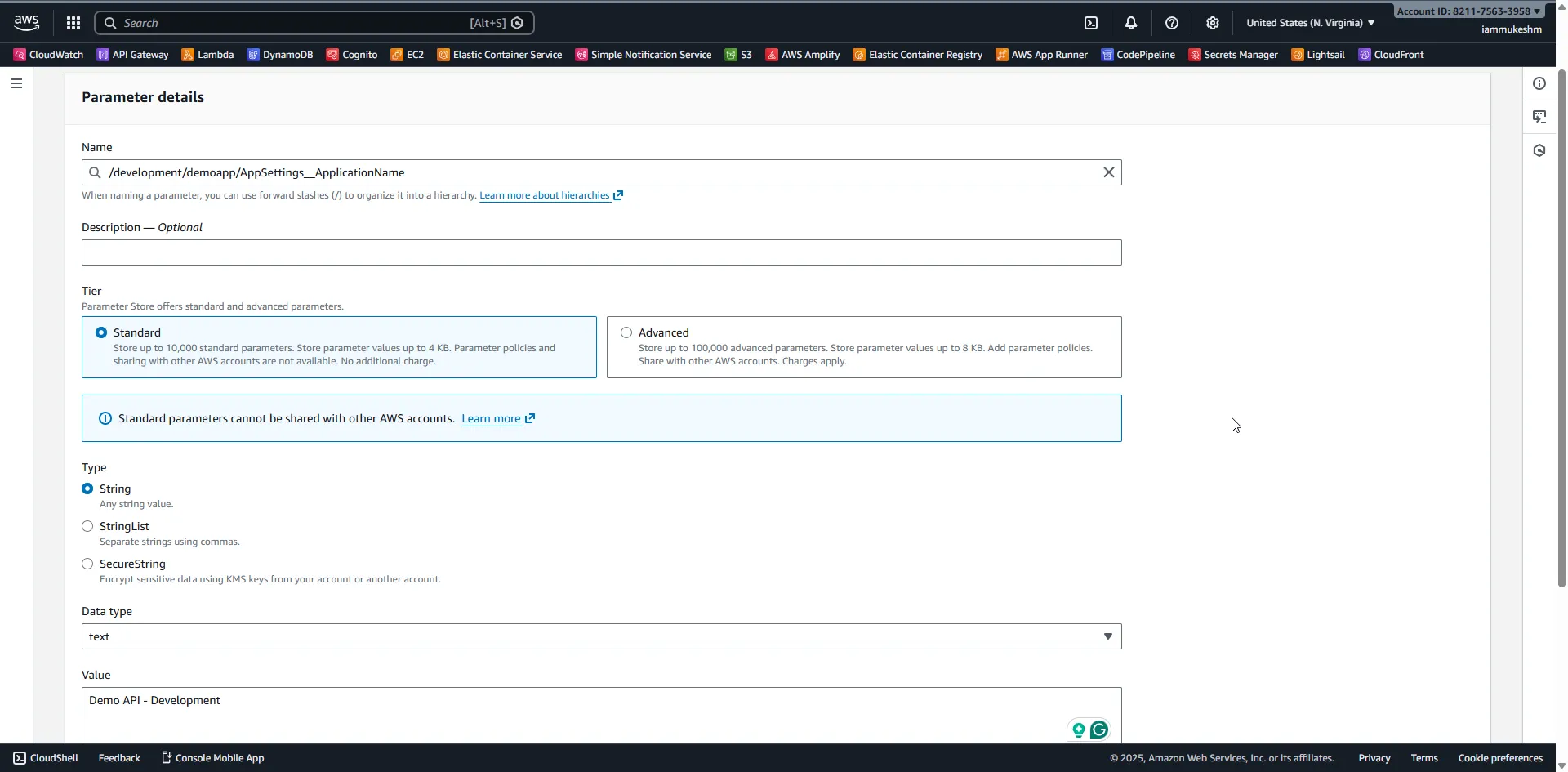
Notice the naming convention: we use double underscores (__) to represent the hierarchy that ASP.NET Core’s configuration system expects. When loaded, /development/demoapp/AppSettings__ApplicationName becomes AppSettings:ApplicationName in your configuration.
Create Additional Parameters
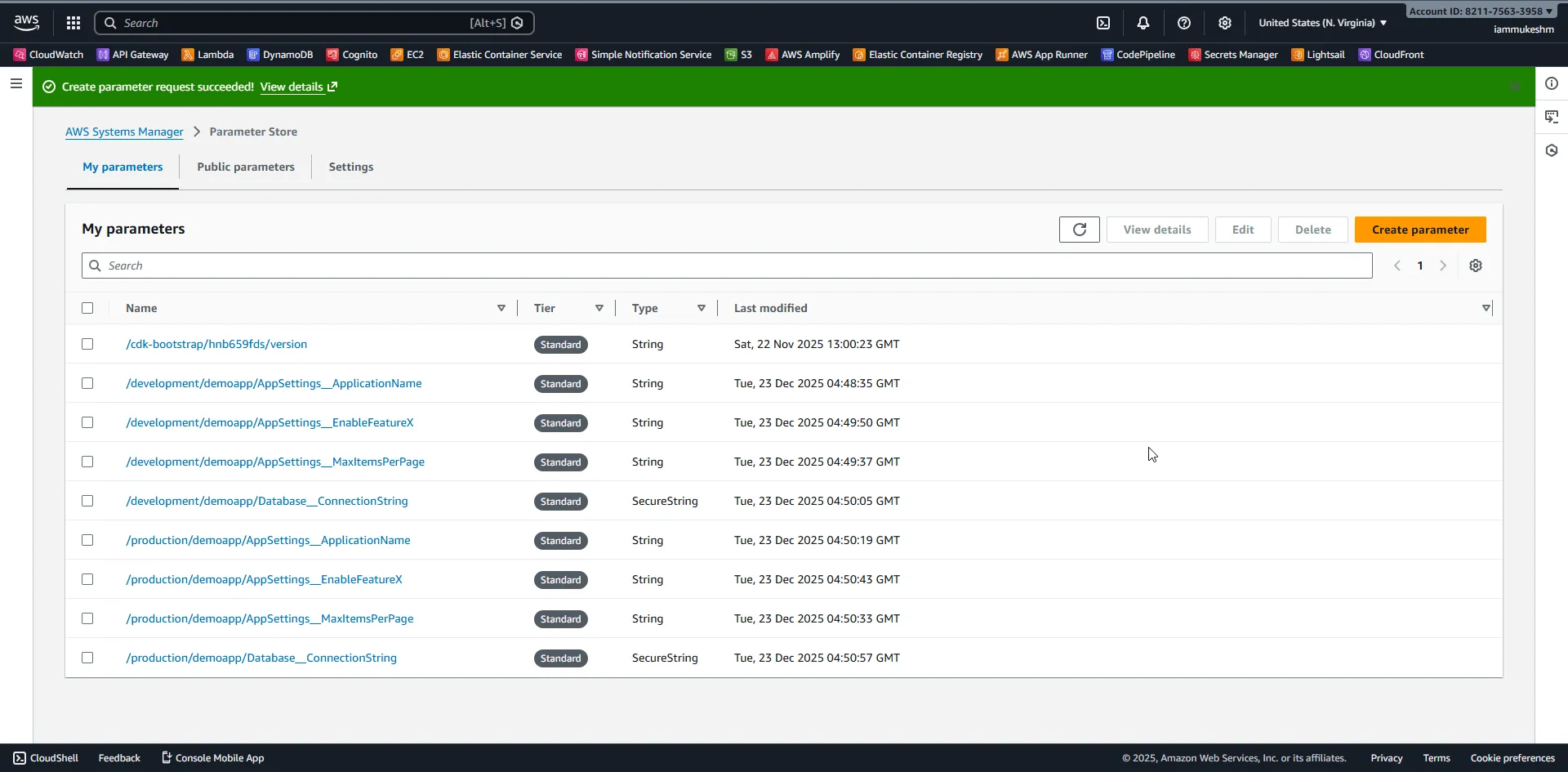
Create the following parameters for our demo:
| Name | Type | Value |
|---|---|---|
/development/demoapp/AppSettings__ApplicationName | String | Demo API - Development |
/development/demoapp/AppSettings__MaxItemsPerPage | String | 25 |
/development/demoapp/AppSettings__EnableFeatureX | String | true |
/development/demoapp/Database__ConnectionString | SecureString | Host=devserver;Database=devdb;Username=dev;Password=devpass123 |
/production/demoapp/AppSettings__ApplicationName | String | Demo API - Production |
/production/demoapp/AppSettings__MaxItemsPerPage | String | 50 |
/production/demoapp/AppSettings__EnableFeatureX | String | false |
/production/demoapp/Database__ConnectionString | SecureString | Host=prodserver;Database=proddb;Username=prod;Password=supersecret |
For SecureString parameters, AWS will encrypt the value using your default KMS key (or you can specify a custom one).
Reading Parameters with AWS SDK
Let’s start with the basics - reading parameters directly using the AWS SDK. Create a new ASP.NET Core Web API project:
dotnet new webapi -n ParameterStoreDemocd ParameterStoreDemoInstall the required NuGet packages:
dotnet add package AWSSDK.SimpleSystemsManagementdotnet add package AWSSDK.Extensions.NETCore.Setupdotnet add package Scalar.AspNetCoreBasic Parameter Retrieval
Here’s a minimal API that reads a single parameter:
using Amazon.SimpleSystemsManagement;using Amazon.SimpleSystemsManagement.Model;using Scalar.AspNetCore;
var builder = WebApplication.CreateBuilder(args);
builder.Services.AddOpenApi();
// Register AWS servicesbuilder.Services.AddDefaultAWSOptions(builder.Configuration.GetAWSOptions());builder.Services.AddAWSService<IAmazonSimpleSystemsManagement>();
var app = builder.Build();
app.MapOpenApi();app.MapScalarApiReference();
app.MapGet("/parameter", async (string name, IAmazonSimpleSystemsManagement ssm) =>{    var request = new GetParameterRequest    {        Name = name,        WithDecryption = true // Required for SecureString parameters    };
    try    {        var response = await ssm.GetParameterAsync(request);        return Results.Ok(new        {            Name = response.Parameter.Name,            Value = response.Parameter.Value,            Type = response.Parameter.Type.Value,            Version = response.Parameter.Version,            LastModified = response.Parameter.LastModifiedDate        });    }    catch (ParameterNotFoundException)    {        return Results.NotFound($"Parameter '{name}' not found");    }});
app.Run();
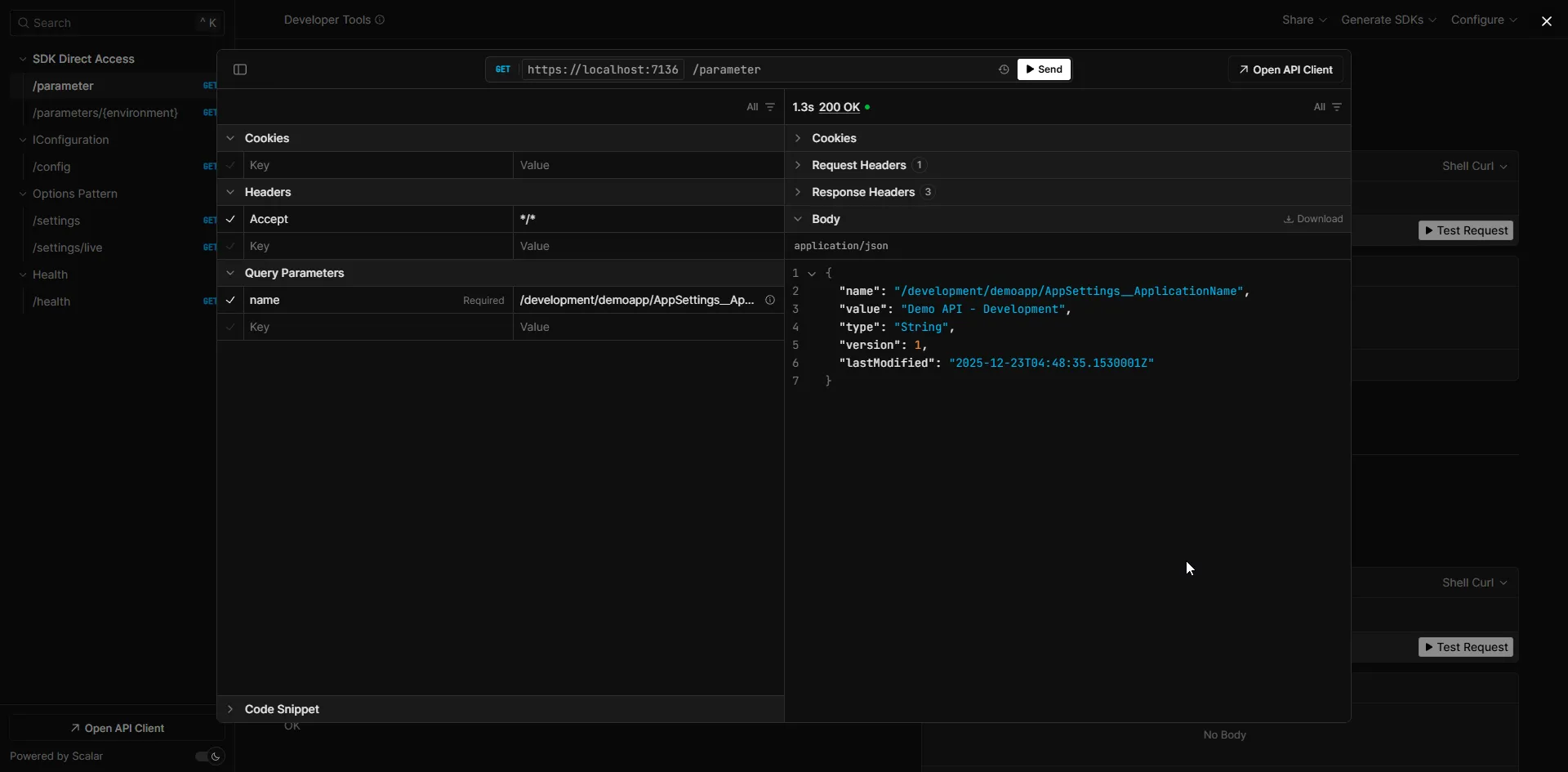
Run the application and navigate to /scalar/v1 to test the API. Use the name query parameter with a value like /development/demoapp/AppSettings__ApplicationName. You should see the parameter value returned.
Retrieving Multiple Parameters by Path
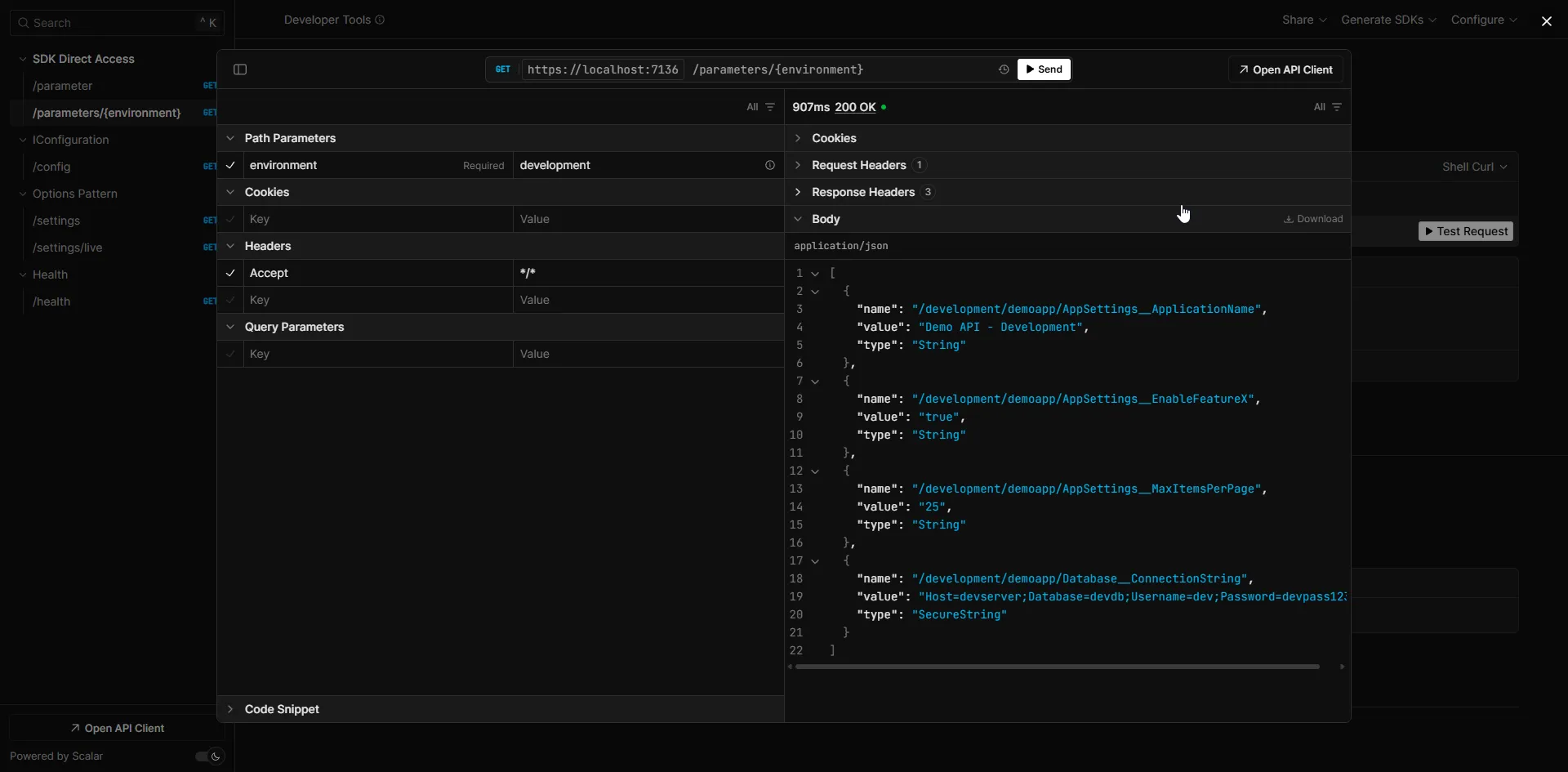
The real power of Parameter Store comes from hierarchical retrieval. You can fetch all parameters under a path with a single API call:
app.MapGet("/parameters/{environment}", async (string environment, IAmazonSimpleSystemsManagement ssm) =>{    var request = new GetParametersByPathRequest    {        Path = $"/{environment}/demoapp/",        Recursive = true,        WithDecryption = true    };
    var parameters = new List<Parameter>();    string? nextToken = null;
    do    {        request.NextToken = nextToken;        var response = await ssm.GetParametersByPathAsync(request);        parameters.AddRange(response.Parameters);        nextToken = response.NextToken;    } while (!string.IsNullOrEmpty(nextToken));
    return Results.Ok(parameters.Select(p => new    {        Name = p.Name,        Value = p.Value,        Type = p.Type.Value    }));});
Now you can call /parameters/development to get all parameters for the development environment in a single request. This is exactly how the configuration provider works under the hood.
Integrating with ASP.NET Core Configuration
Manually calling the SDK works, but the real magic happens when you integrate Parameter Store directly into ASP.NET Core’s configuration system. This allows you to use IConfiguration, IOptions<T>, and all the patterns you’re already familiar with.
Install the official AWS configuration provider:
dotnet add package Amazon.Extensions.Configuration.SystemsManagerBasic Configuration Setup
Update your Program.cs to add Parameter Store as a configuration source:
using Amazon.Extensions.Configuration.SystemsManager;using Scalar.AspNetCore;
var builder = WebApplication.CreateBuilder(args);
// Add Parameter Store as a configuration sourcevar environment = builder.Environment.EnvironmentName.ToLower();builder.Configuration.AddSystemsManager($"/{environment}/demoapp/");
builder.Services.AddOpenApi();
var app = builder.Build();
app.MapOpenApi();app.MapScalarApiReference();
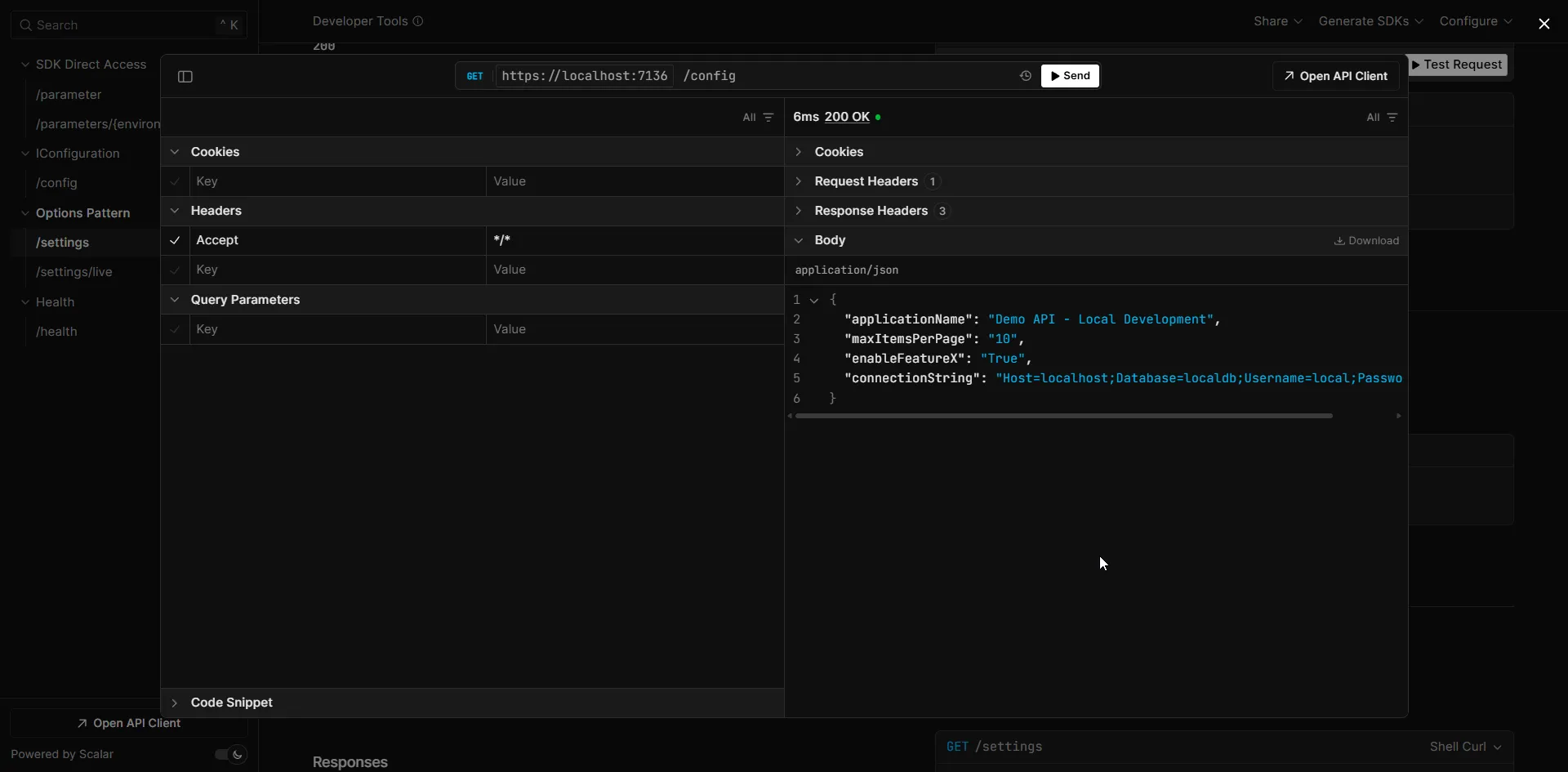
app.MapGet("/config", (IConfiguration config) =>{    return Results.Ok(new    {        ApplicationName = config["AppSettings:ApplicationName"],        MaxItemsPerPage = config["AppSettings:MaxItemsPerPage"],        EnableFeatureX = config["AppSettings:EnableFeatureX"],        ConnectionString = config["Database:ConnectionString"]    });});
app.Run();
The AddSystemsManager method loads all parameters under the specified path and transforms them into the standard configuration format. The double underscores (__) in parameter names become colons (:) in the configuration keys.
When you run this with ASPNETCORE_ENVIRONMENT=Development, it loads from /development/demoapp/. Change it to Production, and it loads from /production/demoapp/.
Using the Options Pattern
Now let’s bind these configurations to strongly-typed classes using the Options Pattern.
Create the settings classes:
public class AppSettings{    public string ApplicationName { get; set; } = string.Empty;    public int MaxItemsPerPage { get; set; }    public bool EnableFeatureX { get; set; }}
public class DatabaseSettings{    public string ConnectionString { get; set; } = string.Empty;}
Register them in Program.cs:
using Amazon.Extensions.Configuration.SystemsManager;using Scalar.AspNetCore;
var builder = WebApplication.CreateBuilder(args);
// Add Parameter Store configurationvar environment = builder.Environment.EnvironmentName.ToLower();builder.Configuration.AddSystemsManager($"/{environment}/demoapp/");
// Register Optionsbuilder.Services.AddOptions<AppSettings>()    .BindConfiguration(nameof(AppSettings))    .ValidateDataAnnotations()    .ValidateOnStart();
builder.Services.AddOptions<DatabaseSettings>()    .BindConfiguration(nameof(DatabaseSettings));
builder.Services.AddOpenApi();
var app = builder.Build();
app.MapOpenApi();app.MapScalarApiReference();
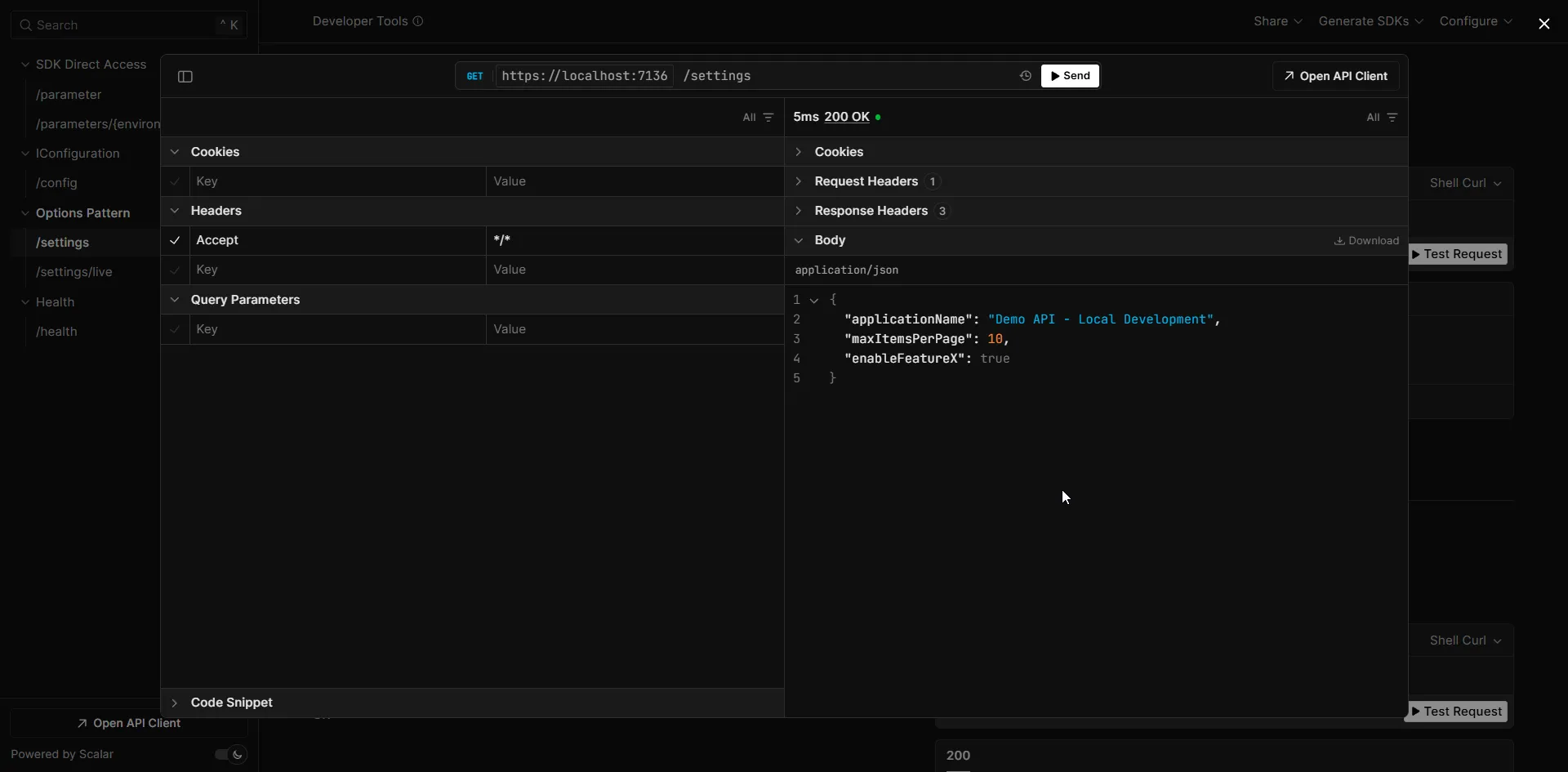
app.MapGet("/settings", (IOptions<AppSettings> appSettings, IOptions<DatabaseSettings> dbSettings) =>{    return Results.Ok(new    {        App = appSettings.Value,        Database = new { dbSettings.Value.ConnectionString } // Be careful exposing this!    });});
app.Run();
The configuration from Parameter Store seamlessly integrates with ASP.NET Core’s Options pattern. You get all the benefits: strong typing, validation, and IntelliSense support.
Environment-Based Configuration Loading
In real applications, you want to load different configurations based on the environment without changing code. Here’s the recommended pattern:
using Amazon.Extensions.Configuration.SystemsManager;using Scalar.AspNetCore;
var builder = WebApplication.CreateBuilder(args);
// Only load from Parameter Store in non-development environmentsif (!builder.Environment.IsDevelopment()){    var environment = builder.Environment.EnvironmentName.ToLower();    builder.Configuration.AddSystemsManager(config =>    {        config.Path = $"/{environment}/demoapp/";        config.ReloadAfter = TimeSpan.FromMinutes(5); // Optional: auto-reload    });}
builder.Services.AddOptions<AppSettings>()    .BindConfiguration(nameof(AppSettings));
builder.Services.AddOptions<DatabaseSettings>()    .BindConfiguration(nameof(DatabaseSettings));
builder.Services.AddOpenApi();
var app = builder.Build();
app.MapOpenApi();app.MapScalarApiReference();
app.MapGet("/settings", (IOptions<AppSettings> appSettings) =>{    return Results.Ok(appSettings.Value);});
app.Run();
With this setup:
- Development: Uses
appsettings.Development.json(local development, no AWS calls) - Production/Staging: Loads from Parameter Store with environment-specific paths
Your appsettings.Development.json provides local defaults:
{ "AppSettings": { "ApplicationName": "Demo API - Local Development", "MaxItemsPerPage": 10, "EnableFeatureX": true }, "DatabaseSettings": { "ConnectionString": "Host=localhost;Database=localdb;Username=local;Password=local" }}Auto-Reloading Configuration Changes
One powerful feature of the Parameter Store configuration provider is automatic reloading. If someone updates a parameter in AWS, your application can pick up the change without restarting.
builder.Configuration.AddSystemsManager(config =>{ config.Path = $"/{environment}/demoapp/"; config.ReloadAfter = TimeSpan.FromMinutes(5);});To react to these changes in your code, use IOptionsMonitor<T> instead of IOptions<T>:
app.MapGet("/settings/live", (IOptionsMonitor<AppSettings> appSettings) =>{ return Results.Ok(appSettings.CurrentValue);});Important: Be mindful of API costs if you set a very short reload interval. Every reload triggers GetParametersByPath API calls. For Standard tier, these calls are free, but it’s still good practice to use reasonable intervals (5-15 minutes).
Working with SecureString Parameters
For sensitive values that don’t need automatic rotation (like internal service URLs with embedded credentials, or encryption keys), use SecureString parameters. These are encrypted at rest using AWS KMS.
When using the configuration provider, SecureString parameters are automatically decrypted - no additional code required. The provider handles the WithDecryption = true flag internally.
However, if you’re using the SDK directly, remember to set WithDecryption:
var request = new GetParameterRequest{ Name = "/production/demoapp/Database__ConnectionString", WithDecryption = true // Essential for SecureString!};Without WithDecryption = true, you’ll get the encrypted ciphertext instead of the actual value.
When to Use SecureString vs Secrets Manager
| Scenario | Recommendation |
|---|---|
| Database password that changes rarely | SecureString in Parameter Store |
| API key for external service (no rotation) | SecureString in Parameter Store |
| Database credentials with auto-rotation | Secrets Manager |
| OAuth client secrets | Secrets Manager |
| Simple feature flags | Plain String in Parameter Store |
Complete Example
Here’s the complete Program.cs bringing everything together. You can find the full source code with additional files on GitHub.
using Amazon.Extensions.Configuration.SystemsManager;using Microsoft.Extensions.Options;using Scalar.AspNetCore;
var builder = WebApplication.CreateBuilder(args);
// Add Parameter Store configuration for non-development environmentsif (!builder.Environment.IsDevelopment()){    var environment = builder.Environment.EnvironmentName.ToLower();    builder.Configuration.AddSystemsManager(config =>    {        config.Path = $"/{environment}/demoapp/";        config.ReloadAfter = TimeSpan.FromMinutes(5);    });}
// Register strongly-typed configurationbuilder.Services.AddOptions<AppSettings>()    .BindConfiguration(nameof(AppSettings))    .ValidateDataAnnotations()    .ValidateOnStart();
builder.Services.AddOptions<DatabaseSettings>()    .BindConfiguration(nameof(DatabaseSettings));
builder.Services.AddOpenApi();
var app = builder.Build();
app.MapOpenApi();app.MapScalarApiReference();
// Endpoint using IOptions (cached at startup)app.MapGet("/settings", (IOptions<AppSettings> appSettings) =>{    return Results.Ok(appSettings.Value);});
// Endpoint using IOptionsMonitor (reflects live changes)app.MapGet("/settings/live", (IOptionsMonitor<AppSettings> appSettings) =>{    return Results.Ok(appSettings.CurrentValue);});
// Health check endpointapp.MapGet("/health", (IOptions<AppSettings> appSettings, IWebHostEnvironment env) =>{    return Results.Ok(new    {        Status = "Healthy",        Application = appSettings.Value.ApplicationName,        Environment = env.EnvironmentName    });});
app.Run();
public class AppSettings{    public string ApplicationName { get; set; } = string.Empty;    public int MaxItemsPerPage { get; set; } = 20;    public bool EnableFeatureX { get; set; }}
public class DatabaseSettings{    public string ConnectionString { get; set; } = string.Empty;}
IAM Permissions
Your application needs the following IAM permissions to read from Parameter Store:
{ "Version": "2012-10-17", "Statement": [ { "Effect": "Allow", "Action": [ "ssm:GetParameter", "ssm:GetParameters", "ssm:GetParametersByPath" ], "Resource": "arn:aws:ssm:us-east-1:YOUR_ACCOUNT_ID:parameter/production/demoapp/*" }, { "Effect": "Allow", "Action": [ "kms:Decrypt" ], "Resource": "arn:aws:kms:us-east-1:YOUR_ACCOUNT_ID:key/YOUR_KMS_KEY_ID", "Condition": { "StringEquals": { "kms:EncryptionContext:PARAMETER_ARN": "arn:aws:ssm:us-east-1:YOUR_ACCOUNT_ID:parameter/production/demoapp/*" } } } ]}The kms:Decrypt permission is only needed if you’re using SecureString parameters. Scope your policies to specific paths for better security - avoid wildcards like parameter/*.
Best Practices
- Use hierarchical naming: Organize parameters by
/{environment}/{application}/{category}/{key}for easy management and access control. - Environment isolation: Use IAM policies to restrict which environments an application can access. Production workloads should never be able to read development parameters.
- Prefer SecureString for sensitive data: Even if you don’t need rotation, SecureString adds encryption at rest.
- Use reasonable reload intervals: 5-15 minutes is typically sufficient. Shorter intervals increase API calls unnecessarily.
- Local development fallback: Always provide
appsettings.Development.jsonso developers can work without AWS access. - Validate on startup: Use
ValidateOnStart()to catch configuration issues immediately rather than at runtime. - Tag your parameters: Use AWS tags for cost allocation, ownership tracking, and easier management.
Summary
AWS Systems Manager Parameter Store provides a free, simple, and powerful way to manage configuration for your .NET applications. With native integration into ASP.NET Core’s configuration system, you get:
- Zero cost for Standard tier (up to 10,000 parameters)
- Hierarchical organization with path-based retrieval
- Environment separation using naming conventions
- Encryption support via SecureString and KMS
- Auto-reload capability for dynamic configuration updates
- Seamless integration with IOptions, IConfiguration, and the patterns you already use
For most configuration needs, Parameter Store is the right choice. Reserve Secrets Manager for credentials that genuinely need automatic rotation.
The complete source code for this article is available on GitHub. Clone it, try it out, and adapt it to your needs!
If this article helped you, share it with your colleagues - and let me know in the comments what AWS + .NET topics you’d like me to cover next.


What's your Feedback?
Do let me know your thoughts around this article.