
You’ve built a .NET API that handles file uploads. Users select a file, your API receives the binary stream, then uploads it to S3. It works - until it doesn’t. Large files timeout, your server becomes a bottleneck, and bandwidth costs skyrocket because every byte passes through your infrastructure.
There’s a better way: presigned URLs. Instead of proxying files through your server, you generate a secure, time-limited URL that lets users upload directly to S3. Your server never touches the file. The same approach works for downloads - grant temporary access to private objects without making your bucket public.
In this article, we’ll build a complete .NET API that generates presigned URLs for both uploads and downloads, implement direct browser uploads, and cover security best practices you need to know.
This article is sponsored by AWS. Huge thanks for helping me produce more .NET on AWS content!
The complete source code for this article is available on GitHub.
What Are Presigned URLs?
A presigned URL is a URL that grants temporary access to a private S3 object. The URL contains authentication information embedded as query parameters - specifically, a signature generated using your AWS credentials. Anyone with the URL can perform the specified operation (GET, PUT, or DELETE) until the URL expires.
Key characteristics:
- Time-limited: You specify an expiration time (up to 7 days for IAM users)
- Operation-specific: A URL for uploading cannot be used for downloading
- Credential-bound: The URL inherits permissions from whoever generated it
- Reusable: The same URL can be used multiple times until it expires
Why Use Presigned URLs?
| Traditional Upload | Presigned URL Upload |
|---|---|
| Client → Your Server → S3 | Client → S3 directly |
| Server bandwidth consumed | Zero server bandwidth |
| Server memory for file buffering | No buffering needed |
| Timeout issues with large files | Handles any file size |
| Complex multipart handling | S3 handles everything |
For downloads, presigned URLs let you share private objects temporarily without:
- Making your bucket public
- Creating IAM users for each consumer
- Building a proxy endpoint
Prerequisites
Before we start, ensure you have:
- AWS Account with S3 access
- .NET 10 SDK
- Visual Studio 2026 or VS Code
- AWS CLI configured with credentials (setup guide here)
- An existing S3 bucket (or we’ll create one)
Project Setup
Create a new ASP.NET Core Web API:
dotnet new webapi -n PresignedUrlDemocd PresignedUrlDemoInstall the required NuGet packages:
dotnet add package AWSSDK.S3dotnet add package AWSSDK.Extensions.NETCore.Setupdotnet add package Scalar.AspNetCoreConfigure your appsettings.json with your AWS profile:
{ "Logging": { "LogLevel": { "Default": "Information", "Microsoft.AspNetCore": "Warning" } }, "AllowedHosts": "*", "AWS": { "Profile": "default", "Region": "us-east-1" }}Generating Presigned URLs for Downloads
Let’s start with the simpler case: generating URLs that allow users to download private objects.
Note: For this section, I’m assuming you already have files uploaded to your S3 bucket. If you need help uploading files first, check out my Working with AWS S3 using ASP.NET Core article which covers file uploads in detail.
Basic Download URL Generation
Create a Program.cs with the S3 service registered:
using Amazon.S3;using Amazon.S3.Model;using Scalar.AspNetCore;
var builder = WebApplication.CreateBuilder(args);
// Register AWS S3 servicebuilder.Services.AddDefaultAWSOptions(builder.Configuration.GetAWSOptions());builder.Services.AddAWSService<IAmazonS3>();
builder.Services.AddOpenApi();
var app = builder.Build();
app.MapOpenApi();app.MapScalarApiReference();
// Generate presigned URL for downloading a fileapp.MapGet("/download-url", (string bucket, string key, int expiresInMinutes, IAmazonS3 s3) =>{    var request = new GetPreSignedUrlRequest    {        BucketName = bucket,        Key = key,        Verb = HttpVerb.GET,        Expires = DateTime.UtcNow.AddMinutes(expiresInMinutes)    };
    var url = s3.GetPreSignedURL(request);
    return Results.Ok(new    {        Url = url,        ExpiresAt = request.Expires,        Bucket = bucket,        Key = key    });}).WithName("GetDownloadUrl").WithTags("Downloads");
app.Run();
The GetPreSignedUrlRequest takes:
- BucketName: The S3 bucket containing the object
- Key: The object key (file path within the bucket)
- Verb: The HTTP method (
GETfor downloads) - Expires: When the URL should stop working
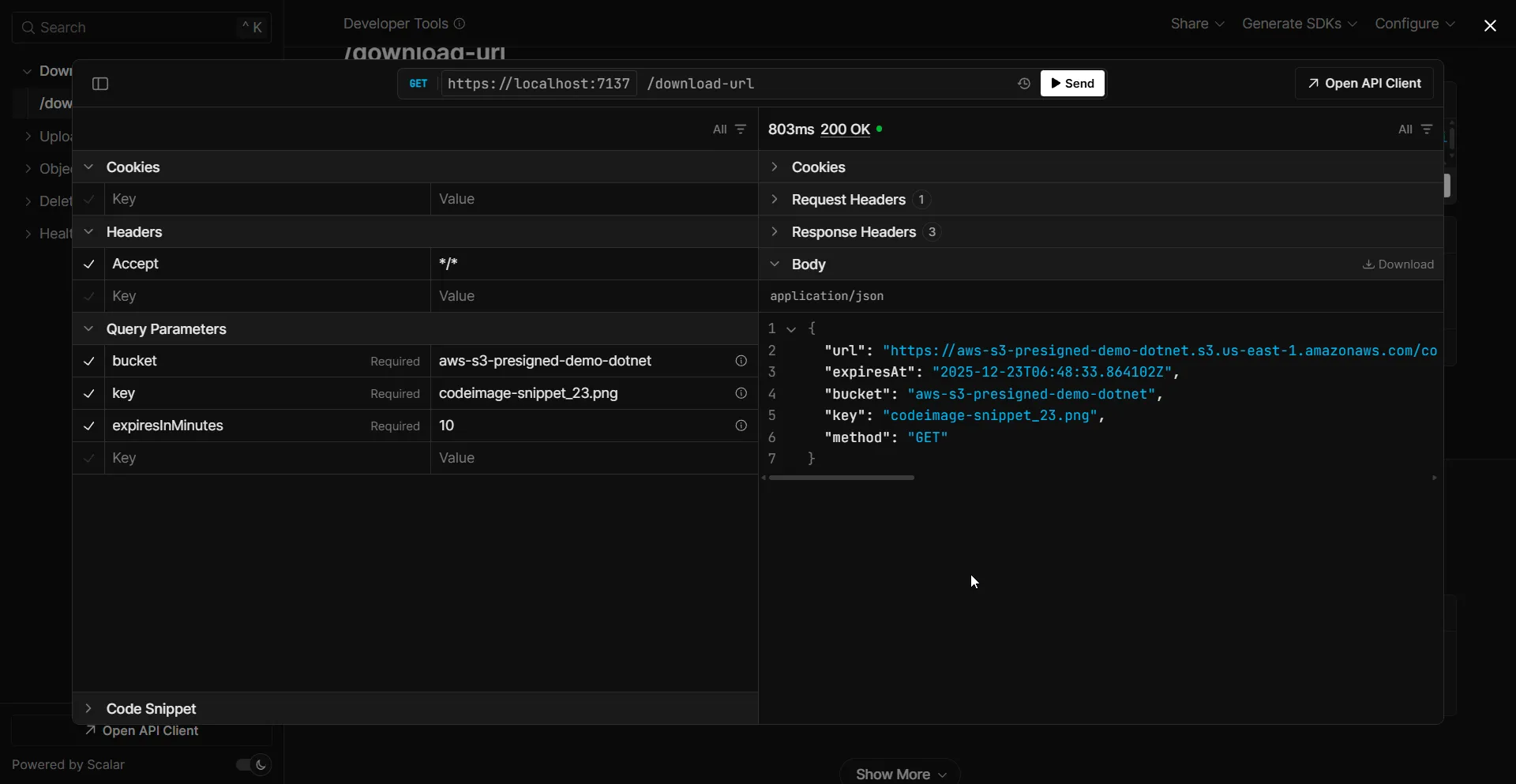
Testing the Download URL
Run the application and call the endpoint:
GET /download-url?bucket=aws-s3-presigned-demo-dotnet&key=codeimage-snippet_23.png&expiresInMinutes=10The response contains a URL like:
https://my-bucket.s3.us-east-1.amazonaws.com/documents/report.pdf?X-Amz-Algorithm=AWS4-HMAC-SHA256&X-Amz-Credential=...&X-Amz-Expires=3600&X-Amz-Signature=...Paste this URL in a browser - the file downloads immediately. After 60 minutes, the same URL returns an AccessDenied error.
Generating Presigned URLs for Uploads
Upload URLs are more powerful - they let clients upload files directly to S3 without your server handling the bytes.
How Upload Flow Works
Here’s the typical flow for presigned URL uploads:
- Client requests upload URL: Your frontend calls your API asking for permission to upload a file
- API generates presigned URL: Your backend creates a time-limited URL with PUT permissions
- Client uploads directly to S3: The frontend sends the file directly to S3 using the presigned URL
- S3 stores the file: The file lands in your bucket without ever touching your server
Your server never receives the file bytes - it only generates the permission slip (the presigned URL).
Basic Upload URL Generation
// Generate presigned URL for uploading a fileapp.MapGet("/upload-url", (string bucket, string key, int expiresInMinutes, IAmazonS3 s3) =>{    var request = new GetPreSignedUrlRequest    {        BucketName = bucket,        Key = key,        Verb = HttpVerb.PUT,        Expires = DateTime.UtcNow.AddMinutes(expiresInMinutes)    };
    var url = s3.GetPreSignedURL(request);
    return Results.Ok(new    {        Url = url,        ExpiresAt = request.Expires,        Bucket = bucket,        Key = key,        Method = "PUT"    });}).WithName("GetUploadUrl").WithTags("Uploads");
The only difference from download URLs is Verb = HttpVerb.PUT.
Testing Upload with cURL
Once you have the presigned URL, you can test it directly from the command line:
# Get the presigned URL from your APIcurl "http://localhost:5268/upload-url?bucket=my-bucket&key=test.txt&expiresInMinutes=15"
# Use the returned URL to upload a filecurl -X PUT -T "./myfile.txt" "https://my-bucket.s3.amazonaws.com/test.txt?X-Amz-Algorithm=..."
Or test with PowerShell:
# Upload a file using the presigned URLInvoke-RestMethod -Method PUT -Uri $presignedUrl -InFile ".\myfile.txt"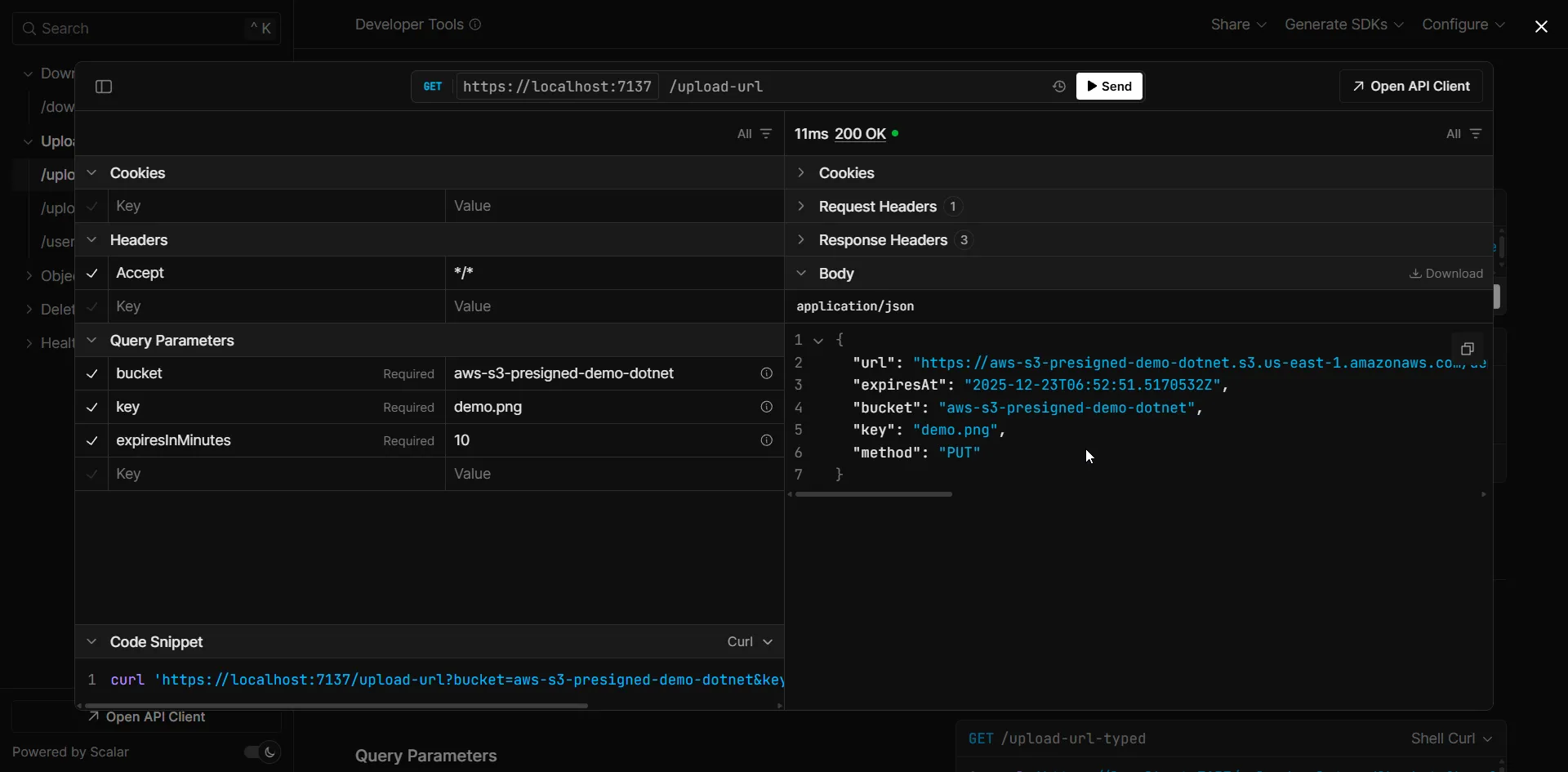
Upload URL with Content Type
For better control, specify the expected content type:
app.MapGet("/upload-url-typed", (string bucket, string key, string contentType, int expiresInMinutes, IAmazonS3 s3) =>{    var request = new GetPreSignedUrlRequest    {        BucketName = bucket,        Key = key,        Verb = HttpVerb.PUT,        Expires = DateTime.UtcNow.AddMinutes(expiresInMinutes),        ContentType = contentType    };
    var url = s3.GetPreSignedURL(request);
    return Results.Ok(new    {        Url = url,        ExpiresAt = request.Expires,        ContentType = contentType,        Method = "PUT"    });}).WithName("GetUploadUrlWithContentType").WithTags("Uploads");
When ContentType is specified, the upload request must include a matching Content-Type header, or S3 rejects it. This prevents clients from uploading unexpected file types.
Building a Blazor WebAssembly Client
Let’s build a complete Blazor WASM app that demonstrates both uploading and downloading files directly to/from S3 using presigned URLs. This showcases the full client-side flow without any file bytes passing through your API server.
Important: Before the Blazor app can communicate directly with S3, you must configure CORS on your S3 bucket. See the Handling CORS for Browser Uploads section below - without this, all direct S3 requests will fail.
Setting Up the Blazor Project
Create a Blazor WebAssembly project:
dotnet new blazorwasm -n PresignedUrlDemo.BlazorThe key is using HttpClient to first get the presigned URL from our API, then upload or download directly to/from S3.
The Complete Blazor Component
Here’s the full Home.razor component with upload, download, and delete functionality:
@page "/"@inject HttpClient Http
<h1>S3 Presigned URL Demo</h1>
<div class="bucket-config">    <label>Bucket Name:</label>    <input type="text" @bind="bucketName" placeholder="my-bucket" /></div>
<div class="tabs">    <button class="tab @(activeTab == "upload" ? "active" : "")"            @onclick="@(() => activeTab = "upload")">        Upload Files    </button>    <button class="tab @(activeTab == "download" ? "active" : "")"            @onclick="@(() => activeTab = "download")">        Download Files    </button></div>
@if (activeTab == "upload"){    <div class="section">        <h2>Upload File to S3</h2>        <div class="form-group">            <label>Select File:</label>            <InputFile OnChange="HandleFileSelection" />        </div>
        @if (selectedFile != null)        {            <div class="file-info">                <p><strong>Selected:</strong> @selectedFile.Name</p>                <p><strong>Size:</strong> @FormatFileSize(selectedFile.Size)</p>            </div>        }
        <button class="btn-primary" @onclick="UploadFile"                disabled="@(selectedFile == null || isUploading)">            @if (isUploading) { <span>Uploading...</span> }            else { <span>Upload to S3</span> }        </button>    </div>}
@if (activeTab == "download"){    <div class="section">        <h2>Browse & Download Files</h2>        <div class="form-group">            <label>Prefix (folder path):</label>            <input type="text" @bind="prefix" placeholder="uploads/" />        </div>        <button class="btn-primary" @onclick="ListObjects" disabled="@isLoading">            @if (isLoading) { <span>Loading...</span> }            else { <span>List Files</span> }        </button>    </div>
    @if (s3Objects.Count > 0)    {        <div class="section">            <h2>Files in Bucket</h2>            <table class="file-table">                <thead>                    <tr>                        <th>Key</th>                        <th>Size</th>                        <th>Last Modified</th>                        <th>Actions</th>                    </tr>                </thead>                <tbody>                    @foreach (var obj in s3Objects)                    {                        <tr>                            <td>@obj.Key</td>                            <td>@FormatFileSize(obj.Size)</td>                            <td>@obj.LastModified.ToString("yyyy-MM-dd HH:mm")</td>                            <td>                                <button @onclick="() => GetDownloadUrl(obj.Key)">Download</button>                                <button @onclick="() => GetDeleteUrl(obj.Key)">Delete</button>                            </td>                        </tr>                    }                </tbody>            </table>        </div>    }}
@if (!string.IsNullOrEmpty(statusMessage)){    <div class="status @statusClass">@statusMessage</div>}
@if (!string.IsNullOrEmpty(generatedUrl)){    <div class="url-section">        <h3>@urlTitle (expires in @urlExpiry minutes)</h3>        <textarea readonly>@generatedUrl</textarea>        <div class="url-actions">            @if (urlType == "download")            {                <a href="@generatedUrl" target="_blank">Open / Download</a>            }            else if (urlType == "delete")            {                <button @onclick="ExecuteDelete">Confirm Delete</button>            }        </div>    </div>}
@code {    private string bucketName = "my-bucket";    private string prefix = "";    private string activeTab = "upload";
    // Upload state    private IBrowserFile? selectedFile;    private bool isUploading = false;
    // Download/List state    private bool isLoading = false;    private List<S3ObjectInfo> s3Objects = new();
    // Status and URL display    private string statusMessage = "";    private string statusClass = "";    private string generatedUrl = "";    private string urlTitle = "";    private string urlType = "";    private int urlExpiry = 10;    private string? pendingDeleteKey;
    private void HandleFileSelection(InputFileChangeEventArgs e)    {        selectedFile = e.File;        statusMessage = "";    }
    private async Task UploadFile()    {        if (selectedFile == null) return;
        isUploading = true;        statusMessage = "Getting presigned URL...";        statusClass = "info";        StateHasChanged();
        try        {            // Step 1: Get presigned URL from our API            var key = $"uploads/{Guid.NewGuid()}/{selectedFile.Name}";            var response = await Http.GetFromJsonAsync<PresignedUrlResponse>(                $"/upload-url?bucket={bucketName}&key={key}&expiresInMinutes=15");
            statusMessage = "Uploading directly to S3...";            StateHasChanged();
            // Step 2: Upload directly to S3 using the presigned URL            using var fileStream = selectedFile.OpenReadStream(maxAllowedSize: 50 * 1024 * 1024);            using var content = new StreamContent(fileStream);            content.Headers.ContentType = new System.Net.Http.Headers.MediaTypeHeaderValue(                selectedFile.ContentType ?? "application/octet-stream");
            // Create a NEW HttpClient for S3 (separate from our API client)            using var s3Client = new HttpClient();            var uploadResponse = await s3Client.PutAsync(response!.Url, content);
            if (uploadResponse.IsSuccessStatusCode)            {                statusMessage = "File uploaded successfully!";                statusClass = "success";                selectedFile = null;            }            else            {                statusMessage = $"Upload failed: {uploadResponse.StatusCode}";                statusClass = "error";            }        }        catch (Exception ex)        {            statusMessage = $"Error: {ex.Message}";            statusClass = "error";        }        finally        {            isUploading = false;        }    }
    private async Task ListObjects()    {        isLoading = true;        statusMessage = "";        StateHasChanged();
        try        {            var url = $"/list-objects?bucket={bucketName}";            if (!string.IsNullOrWhiteSpace(prefix))                url += $"&prefix={Uri.EscapeDataString(prefix)}";
            s3Objects = await Http.GetFromJsonAsync<List<S3ObjectInfo>>(url) ?? new();        }        catch (Exception ex)        {            statusMessage = $"Error: {ex.Message}";            statusClass = "error";        }        finally        {            isLoading = false;        }    }
    private async Task GetDownloadUrl(string key)    {        var response = await Http.GetFromJsonAsync<PresignedUrlResponse>(            $"/download-url?bucket={bucketName}&key={key}&expiresInMinutes=10");
        if (response != null)        {            generatedUrl = response.Url;            urlTitle = $"Download URL for {key}";            urlType = "download";            urlExpiry = 10;        }    }
    private async Task GetDeleteUrl(string key)    {        var response = await Http.GetFromJsonAsync<PresignedUrlResponse>(            $"/delete-url?bucket={bucketName}&key={key}&expiresInMinutes=5");
        if (response != null)        {            generatedUrl = response.Url;            urlTitle = $"Delete URL for {key}";            urlType = "delete";            urlExpiry = 5;            pendingDeleteKey = key;        }    }
    private async Task ExecuteDelete()    {        using var client = new HttpClient();        var response = await client.DeleteAsync(generatedUrl);
        if (response.IsSuccessStatusCode)        {            statusMessage = "File deleted successfully!";            statusClass = "success";            s3Objects.RemoveAll(o => o.Key == pendingDeleteKey);            generatedUrl = "";        }    }
    private string FormatFileSize(long bytes)    {        string[] sizes = { "B", "KB", "MB", "GB" };        int order = 0;        double size = bytes;        while (size >= 1024 && order < sizes.Length - 1) { order++; size /= 1024; }        return $"{size:0.##} {sizes[order]}";    }
    private class PresignedUrlResponse    {        public string Url { get; set; } = "";        public DateTime ExpiresAt { get; set; }    }
    private class S3ObjectInfo    {        public string Key { get; set; } = "";        public long Size { get; set; }        public DateTime LastModified { get; set; }    }}
How It Works
Upload Flow:
- User selects a file using Blazor’s
InputFilecomponent - Blazor calls your API to get a presigned PUT URL
- Blazor uploads directly to S3 using
HttpClient.PutAsync()with the presigned URL - S3 stores the file - your API server never sees the file bytes
Download Flow:
- User clicks “List Files” to browse the bucket
- API returns the list of objects (this call goes through your server)
- User clicks “Download” on a file
- Blazor gets a presigned GET URL from your API
- Browser opens the URL directly, downloading from S3
Delete Flow:
- User clicks “Delete” on a file
- Blazor gets a presigned DELETE URL from your API
- User confirms, and Blazor sends a DELETE request directly to S3
The critical part is creating a separate HttpClient for S3 operations. Your injected Http client has a base address pointing to your backend API, but presigned URLs point directly to S3 - so you need a fresh HttpClient without a base address.
Configure Program.cs
var builder = WebAssemblyHostBuilder.CreateDefault(args);builder.RootComponents.Add<App>("#app");
// Configure HttpClient for your APIbuilder.Services.AddScoped(sp => new HttpClient{    BaseAddress = new Uri("http://localhost:5268") // Your API URL});
await builder.Build().RunAsync();
Running the Demo
- Start the API:
cd PresignedUrlDemo.Api && dotnet run - Start the Blazor app:
cd PresignedUrlDemo.Blazor && dotnet run - Open
http://localhost:5269in your browser
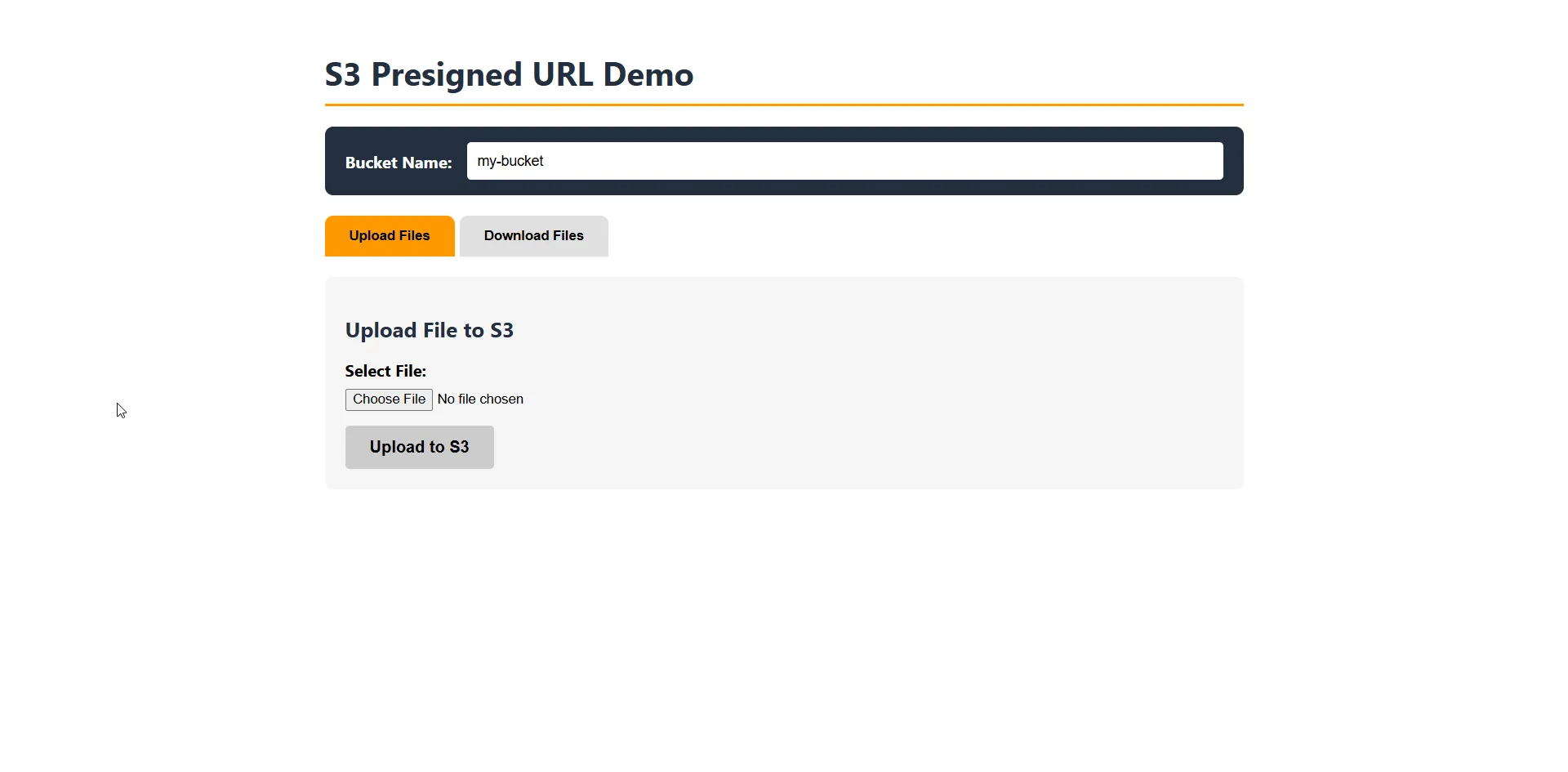
Select a file and click “Upload to S3”. The file goes directly from the browser to S3 - your API only generates the permission slip.
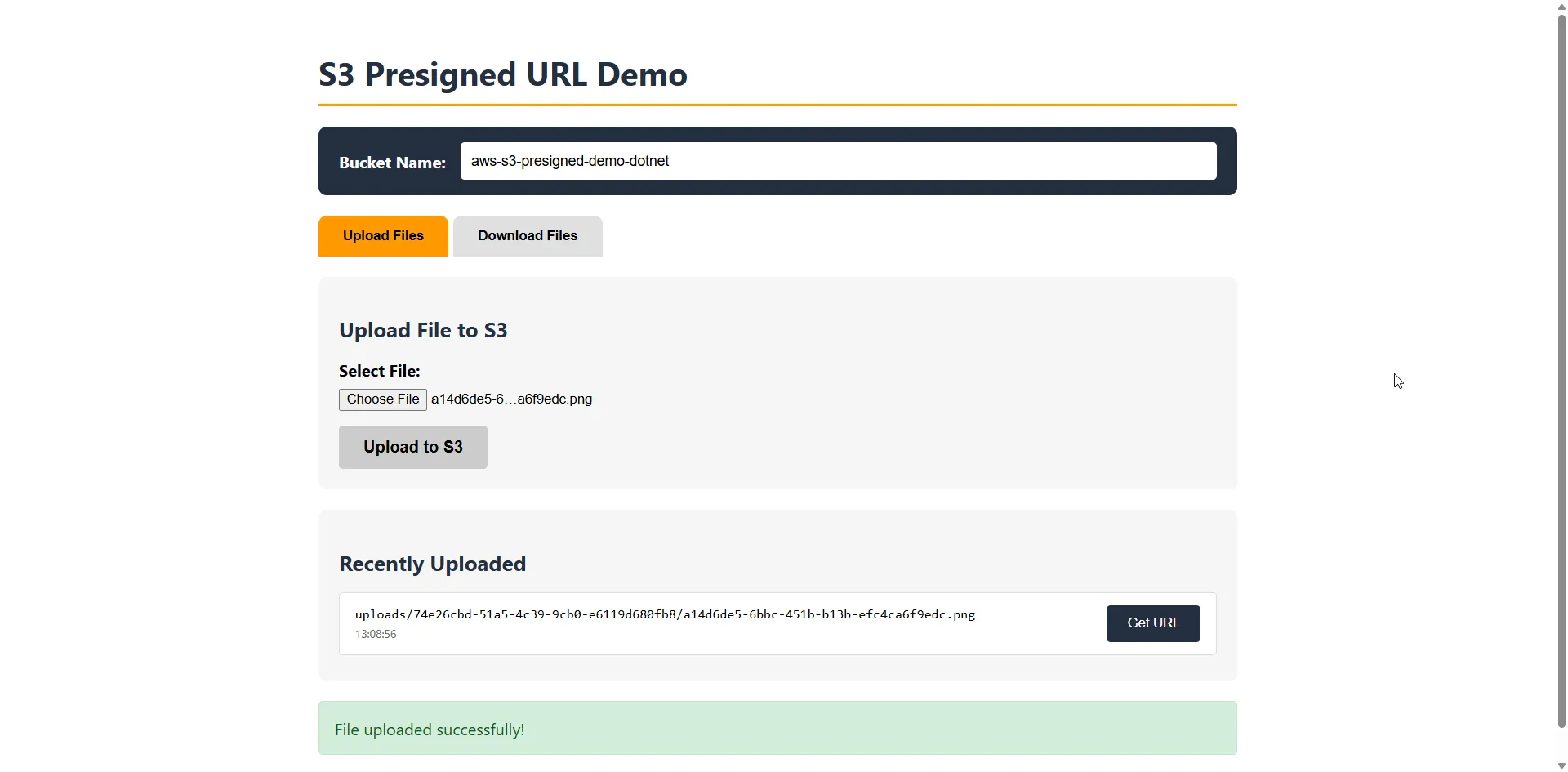
Downloading Files with Blazor
The demo also includes a Download Files tab that lets you browse your S3 bucket contents and download files using presigned URLs. Switch to the Download tab, enter an optional prefix (folder path), and click “List Files” to see what’s in your bucket.
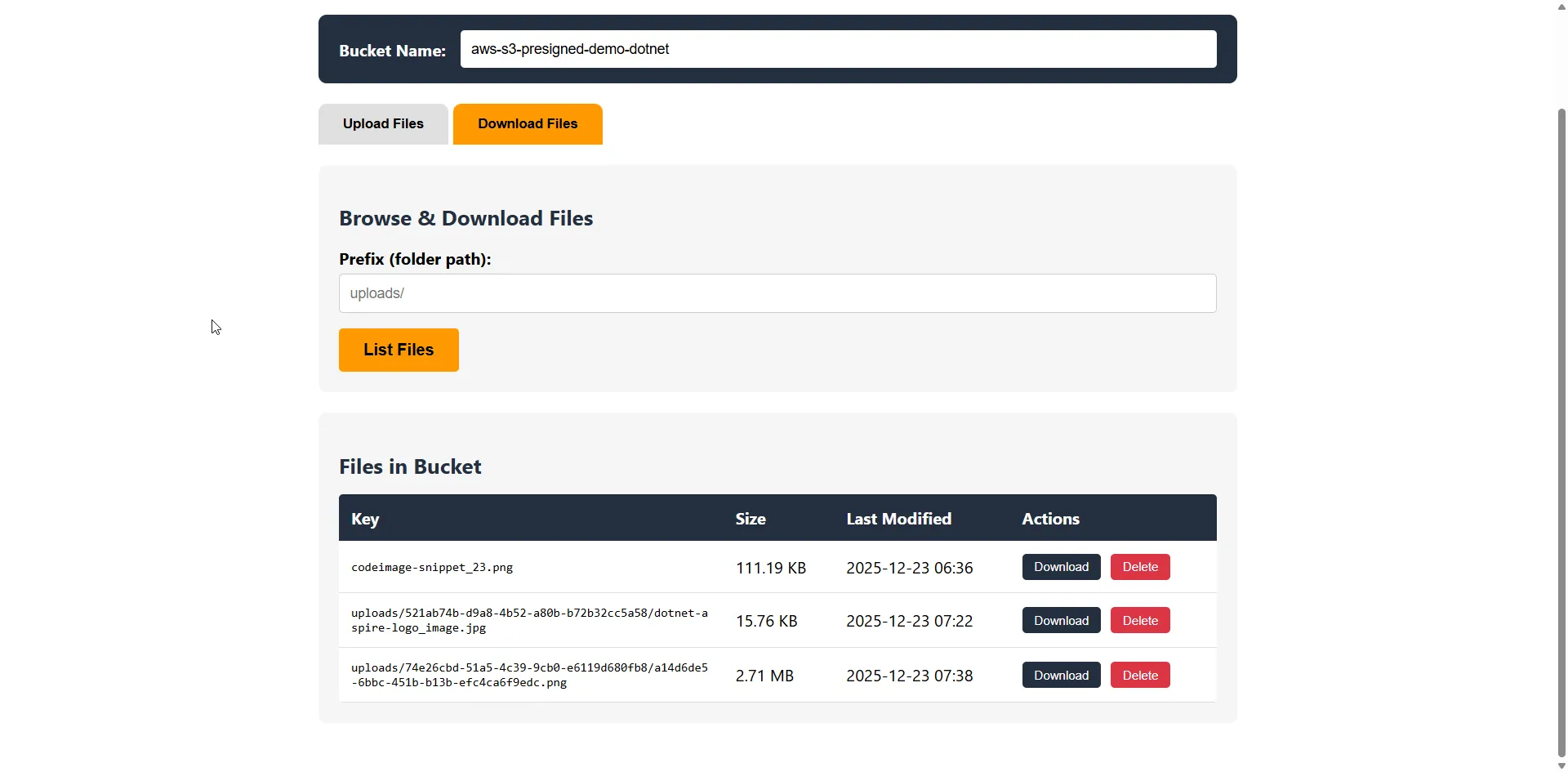
The download flow works similarly to uploads:
- User clicks Download on a file in the list
- Blazor calls your API to get a presigned GET URL for that object
- Browser opens the URL directly, downloading the file from S3
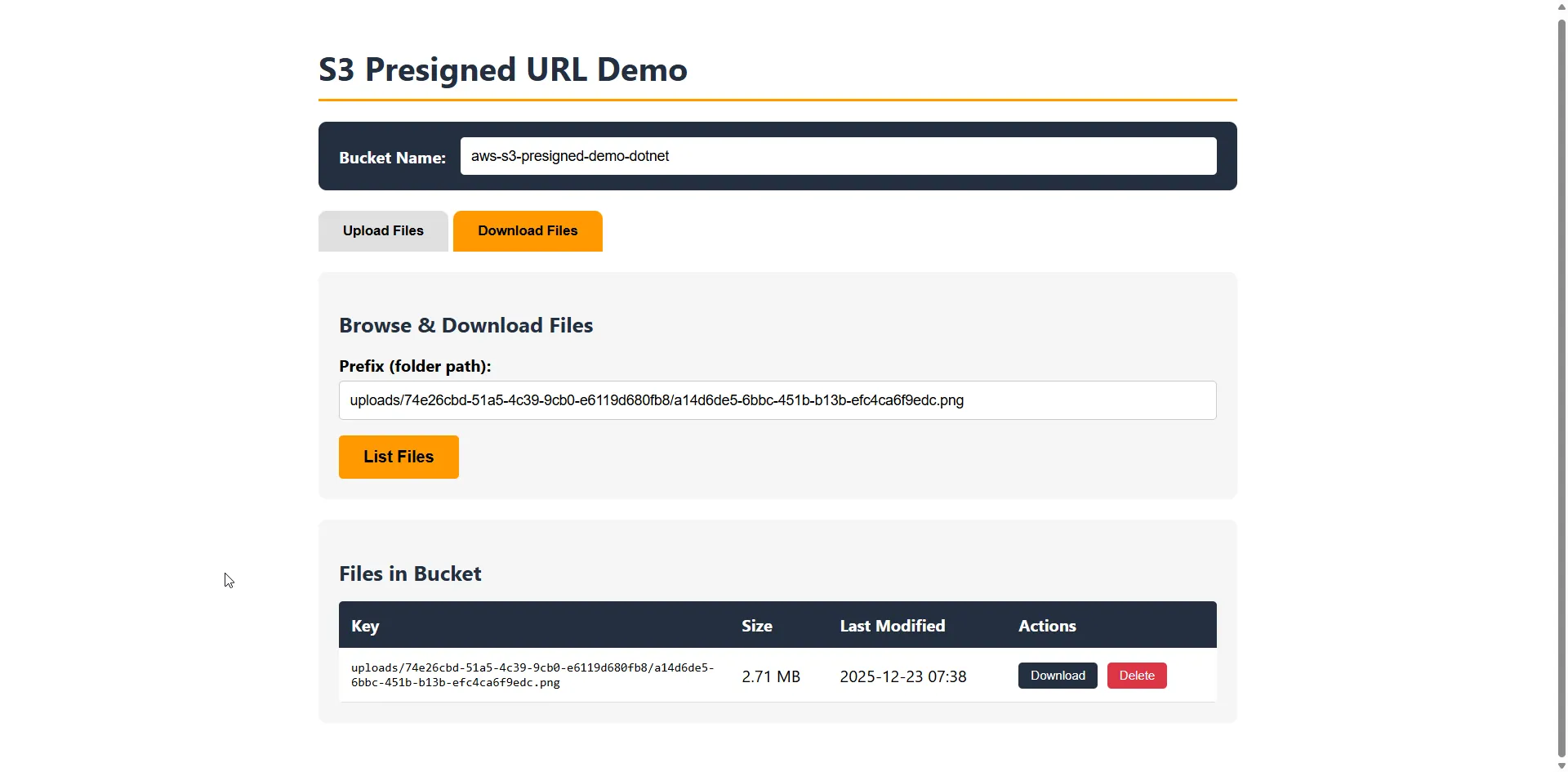
The app also supports deleting files using presigned DELETE URLs - click the Delete button, confirm, and the file is removed directly from S3.
Here’s the key code for fetching a download URL and triggering the download:
private async Task GetDownloadUrl(string key){    var response = await Http.GetFromJsonAsync<PresignedUrlResponse>(        $"/download-url?bucket={bucketName}&key={key}&expiresInMinutes=10");
    if (response != null)    {        generatedUrl = response.Url;        // User can click "Open / Download" to fetch the file directly from S3    }}
The presigned URL opens in a new tab, and the browser downloads the file directly from S3 - your server never touches the bytes.
Handling CORS for Browser Uploads
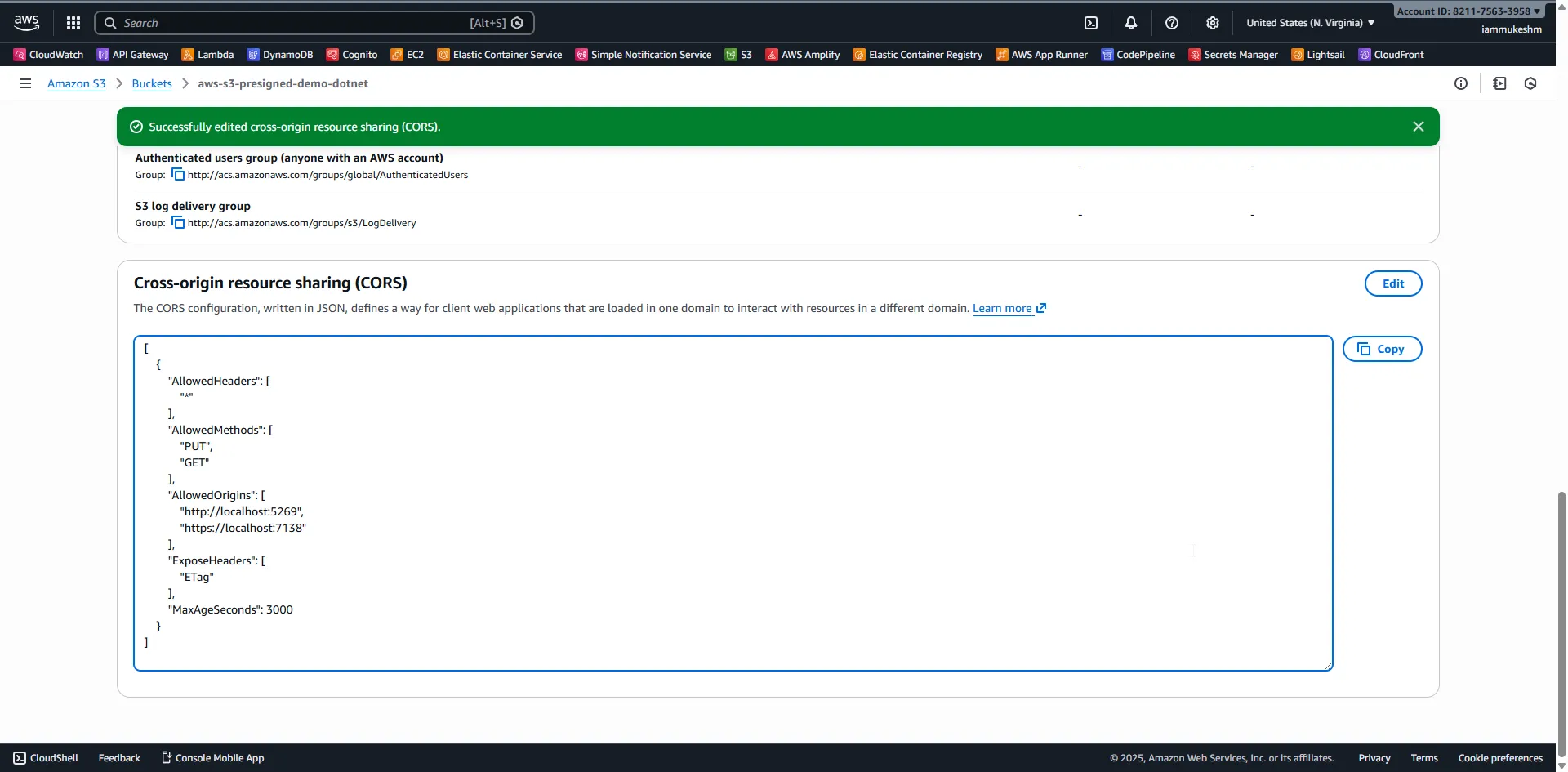
This step is critical for the Blazor app to work. When your Blazor WebAssembly app tries to upload or download files directly to/from S3, the browser sends a cross-origin request. Without proper CORS configuration on your S3 bucket, these requests will fail with an error like:
Access to fetch at 'https://your-bucket.s3.amazonaws.com/...' from origin 'https://localhost:7138'has been blocked by CORS policy: No 'Access-Control-Allow-Origin' header is presentAdd this CORS configuration to your S3 bucket:
[ { "AllowedHeaders": ["*"], "AllowedMethods": ["PUT", "GET", "DELETE"], "AllowedOrigins": ["http://localhost:5269", "https://localhost:7138"], "ExposeHeaders": ["ETag"], "MaxAgeSeconds": 3000 }]Note: Include
DELETEinAllowedMethodsif you want the Blazor app to delete files using presigned URLs.
Configuring CORS via AWS Console
- Navigate to your S3 bucket in the AWS Console
- Go to the Permissions tab
- Scroll down to Cross-origin resource sharing (CORS)
- Click Edit and paste the JSON configuration above
- Click Save changes
Configuring CORS via AWS CLI
Alternatively, configure CORS using the AWS CLI:
aws s3api put-bucket-cors --bucket my-bucket --cors-configuration file://cors.jsonSecurity tip: Don’t use "AllowedOrigins": ["*"] in production. Specify your actual domain(s).
Expiration Time Limits
Presigned URL expiration depends on how you created your AWS credentials:
| Credential Type | Maximum Expiration |
|---|---|
| IAM User (permanent credentials) | 7 days |
| AWS Console | 12 hours |
| IAM Role / STS Temporary Credentials | Credential lifetime |
| EC2 Instance Profile | ~6 hours |
| ECS Task Role | 1-6 hours |
Important: A presigned URL expires at whichever comes first - the configured expiration or when the credentials used to generate it expire.
// This works for IAM usersvar request = new GetPreSignedUrlRequest{    BucketName = bucket,    Key = key,    Verb = HttpVerb.GET,    Expires = DateTime.UtcNow.AddDays(7) // Maximum for IAM users};
// But if you're running on Lambda/ECS with role credentials,// the URL may expire sooner when the role session ends
Security Best Practices
1. Limit Expiration Time
Don’t generate URLs with longer expiration than necessary:
// For immediate downloads, use short expirationExpires = DateTime.UtcNow.AddMinutes(5)
// For scheduled uploads, match the expected windowExpires = DateTime.UtcNow.AddHours(1)
2. Validate User Permissions Before Generating URLs
Just because you can generate a presigned URL doesn’t mean you should:
app.MapGet("/secure-download-url", async (string key, HttpContext context, IAmazonS3 s3) =>{    // Validate user has access to this file    var userId = context.User.FindFirst("sub")?.Value;
    if (!await UserCanAccessFile(userId, key))    {        return Results.Forbid();    }
    var request = new GetPreSignedUrlRequest    {        BucketName = "my-bucket",        Key = key,        Verb = HttpVerb.GET,        Expires = DateTime.UtcNow.AddMinutes(15)    };
    return Results.Ok(new { Url = s3.GetPreSignedURL(request) });});
3. Restrict Maximum Signature Age with Bucket Policies
Add a bucket policy to reject URLs older than a threshold:
{ "Version": "2012-10-17", "Statement": [ { "Sid": "DenyOldSignatures", "Effect": "Deny", "Principal": "*", "Action": "s3:*", "Resource": "arn:aws:s3:::my-bucket/*", "Condition": { "NumericGreaterThan": { "s3:signatureAge": "600000" } } } ]}This rejects any presigned URL where the signature is older than 10 minutes (600,000 milliseconds), regardless of the Expires parameter.
4. Use Separate Prefixes for User Uploads
Don’t let users overwrite each other’s files:
app.MapGet("/user-upload-url", (string filename, HttpContext context, IAmazonS3 s3) =>{    var userId = context.User.FindFirst("sub")?.Value;    var key = $"user-uploads/{userId}/{Guid.NewGuid()}/{filename}";
    var request = new GetPreSignedUrlRequest    {        BucketName = "my-bucket",        Key = key,        Verb = HttpVerb.PUT,        Expires = DateTime.UtcNow.AddMinutes(15)    };
    return Results.Ok(new    {        Url = s3.GetPreSignedURL(request),        Key = key    });});
Complete API Example
Here’s the complete Program.cs bringing everything together:
using Amazon.S3;using Amazon.S3.Model;using Scalar.AspNetCore;
var builder = WebApplication.CreateBuilder(args);
builder.Services.AddDefaultAWSOptions(builder.Configuration.GetAWSOptions());builder.Services.AddAWSService<IAmazonS3>();builder.Services.AddOpenApi();
var app = builder.Build();
app.MapOpenApi();app.MapScalarApiReference();
// Generate presigned URL for downloadingapp.MapGet("/download-url", (string bucket, string key, int expiresInMinutes, IAmazonS3 s3) =>{    var request = new GetPreSignedUrlRequest    {        BucketName = bucket,        Key = key,        Verb = HttpVerb.GET,        Expires = DateTime.UtcNow.AddMinutes(expiresInMinutes)    };
    return Results.Ok(new    {        Url = s3.GetPreSignedURL(request),        ExpiresAt = request.Expires,        Method = "GET"    });}).WithName("GetDownloadUrl").WithTags("Downloads");
// Generate presigned URL for uploadingapp.MapGet("/upload-url", (string bucket, string key, int expiresInMinutes, IAmazonS3 s3) =>{    var request = new GetPreSignedUrlRequest    {        BucketName = bucket,        Key = key,        Verb = HttpVerb.PUT,        Expires = DateTime.UtcNow.AddMinutes(expiresInMinutes)    };
    return Results.Ok(new    {        Url = s3.GetPreSignedURL(request),        ExpiresAt = request.Expires,        Method = "PUT"    });}).WithName("GetUploadUrl").WithTags("Uploads");
// Generate presigned URL with content type restrictionapp.MapGet("/upload-url-typed", (string bucket, string key, string contentType, int expiresInMinutes, IAmazonS3 s3) =>{    var request = new GetPreSignedUrlRequest    {        BucketName = bucket,        Key = key,        Verb = HttpVerb.PUT,        Expires = DateTime.UtcNow.AddMinutes(expiresInMinutes),        ContentType = contentType    };
    return Results.Ok(new    {        Url = s3.GetPreSignedURL(request),        ExpiresAt = request.Expires,        ContentType = contentType,        Method = "PUT"    });}).WithName("GetUploadUrlWithContentType").WithTags("Uploads");
// Health checkapp.MapGet("/health", () => Results.Ok(new { Status = "Healthy", Timestamp = DateTime.UtcNow })).WithName("HealthCheck").WithTags("Health");
app.Run();
You can find the full source code with additional files on GitHub.
Troubleshooting Common Issues
SignatureDoesNotMatch
Cause: The request doesn’t match what was signed. Common triggers:
- Different
Content-Typeheader than specified - Clock drift between your server and AWS
- URL was modified after generation
Solution:
- Sync your server clock with NTP
- Ensure headers match exactly
- Don’t URL-encode the presigned URL again
AccessDenied (403)
Cause: Either the URL expired, or the credentials used to generate it lack permissions.
Solution:
- Verify the IAM user/role has
s3:GetObjectors3:PutObjectpermissions - Check bucket policies for explicit denies
- Confirm the URL hasn’t expired
CORS Errors
Cause: Browser blocking cross-origin request to S3.
Solution:
- Add CORS configuration to your bucket
- Ensure
AllowedOriginsincludes your domain - Verify
AllowedMethodsincludes the HTTP verb you’re using
Summary
Presigned URLs are a powerful pattern for handling file operations in .NET applications:
- Zero bandwidth through your server for uploads and downloads
- Secure by default - your bucket stays private
- Time-limited access - URLs automatically expire
- Scalable - S3 handles all the heavy lifting
Use them whenever you need to:
- Allow file uploads without proxying through your API
- Share private files temporarily
- Reduce server load and bandwidth costs
- Handle large file uploads without timeout issues
The complete source code is available on GitHub. Clone it, try it out, and let me know in the comments how you’re using presigned URLs in your projects!



What's your Feedback?
Do let me know your thoughts around this article.