
You’ve been running your application for months. Users upload files, your system generates logs, and temporary data accumulates. One day you check your AWS bill and realize S3 storage costs have quietly ballooned. Sound familiar?
The problem isn’t S3 - it’s manual storage management. Deleting old files by hand doesn’t scale. Moving infrequently accessed data to cheaper storage tiers? Nobody has time for that.
The solution: S3 Lifecycle Policies. These are automated rules that transition objects between storage classes and delete them when they’re no longer needed. Set them once, and AWS handles everything - forever.
In this article, we’ll build a complete system: a .NET API that manages lifecycle policies programmatically, and a Blazor WASM client that lets you upload files, view bucket contents with storage class information, and create lifecycle rules from predefined templates.
This article is sponsored by AWS. Huge thanks for helping me produce more .NET on AWS content!
The complete source code for this article is available on GitHub.
Prerequisites
Before diving in, make sure you’re comfortable with basic S3 operations. If you’re new to S3, start with these articles:
You’ll also need:
- .NET 10 SDK
- AWS account with S3 access
- AWS CLI configured with credentials
- Visual Studio 2022/VS Code
What Are S3 Lifecycle Policies?
S3 Lifecycle Policies are automated rules that manage objects throughout their lifecycle. Instead of manually moving or deleting files, you define rules and AWS executes them automatically.
A lifecycle policy consists of:
- Rules: Named configurations that define what happens to objects
- Filters: Prefix and/or tag-based selectors that target specific objects
- Transitions: Actions that move objects between storage classes
- Expiration: Actions that delete objects after a specified period
How Lifecycle Evaluation Works
AWS evaluates lifecycle rules once per day at midnight UTC. This means:
- Changes aren’t immediate - expect up to 24 hours for rules to take effect
- Objects uploaded today won’t transition until the rule evaluates tomorrow (at earliest)
- The “days” counter starts from the object’s creation date
Lifecycle policies are eventually consistent. Don’t expect real-time transitions - plan for daily batch processing.
S3 Storage Classes Explained
Before creating lifecycle rules, you need to understand where objects can transition to. S3 offers multiple storage classes optimized for different access patterns:
| Storage Class | Best For | Retrieval Time | Min Duration | Relative Cost |
|---|---|---|---|---|
| Standard | Frequently accessed data | Instant | None | $$$$$ |
| Standard-IA | Infrequent access, immediate need | Instant | 30 days | $$$ |
| One Zone-IA | Reproducible infrequent data | Instant | 30 days | $$ |
| Glacier Instant Retrieval | Archive with instant access | Milliseconds | 90 days | $$ |
| Glacier Flexible Retrieval | Archive, flexible timing | 1-12 hours | 90 days | $ |
| Glacier Deep Archive | Long-term compliance archive | 12-48 hours | 180 days | ¢ |
| Intelligent-Tiering | Unknown/changing access patterns | Auto | None | Auto-optimized |
Key Considerations
Minimum storage duration: If you delete or transition an object before the minimum duration, you’re still charged for the full period. Transitioning a file to Glacier and deleting it after 30 days? You pay for 90 days.
Retrieval costs: Cheaper storage classes have retrieval fees. Glacier Deep Archive is incredibly cheap for storage but expensive to retrieve frequently.
Transition waterfall: Objects can only transition “downward” in terms of access frequency. You can’t transition from Glacier back to Standard via lifecycle rules (that requires a restore operation).
Common Lifecycle Patterns
Here are four practical patterns we’ll implement as templates in our application:
Pattern 1: Archive Logs After 30 Days
Application logs are accessed frequently when debugging recent issues but rarely needed after a month.
logs/* → Standard-IA (30 days) → Glacier Flexible (90 days) → Delete (365 days)This pattern:
- Keeps recent logs instantly accessible
- Moves older logs to cheaper storage
- Automatically deletes logs after one year
Pattern 2: Delete Temp Files After 7 Days
Temporary files, upload chunks, and processing artifacts should be cleaned up automatically.
temp/* → Delete (7 days)Simple and effective - no transitions, just deletion.
Pattern 3: Move to Glacier After 90 Days
For data that must be retained but is rarely accessed (compliance, legal holds, historical records).
archive/* → Glacier Flexible Retrieval (90 days)Pattern 4: Cleanup Incomplete Multipart Uploads
Failed or abandoned multipart uploads consume storage indefinitely. This rule cleans them up.
Abort incomplete multipart uploads after 7 daysThis is often overlooked but can save significant costs in high-upload-volume applications.
Creating Lifecycle Policies via AWS Console
Before we automate everything with .NET, let’s walk through creating a lifecycle rule manually. This helps you understand what the SDK is doing behind the scenes.
Step 1: Navigate to Your Bucket
Open the S3 console, select your bucket, and click the Management tab.
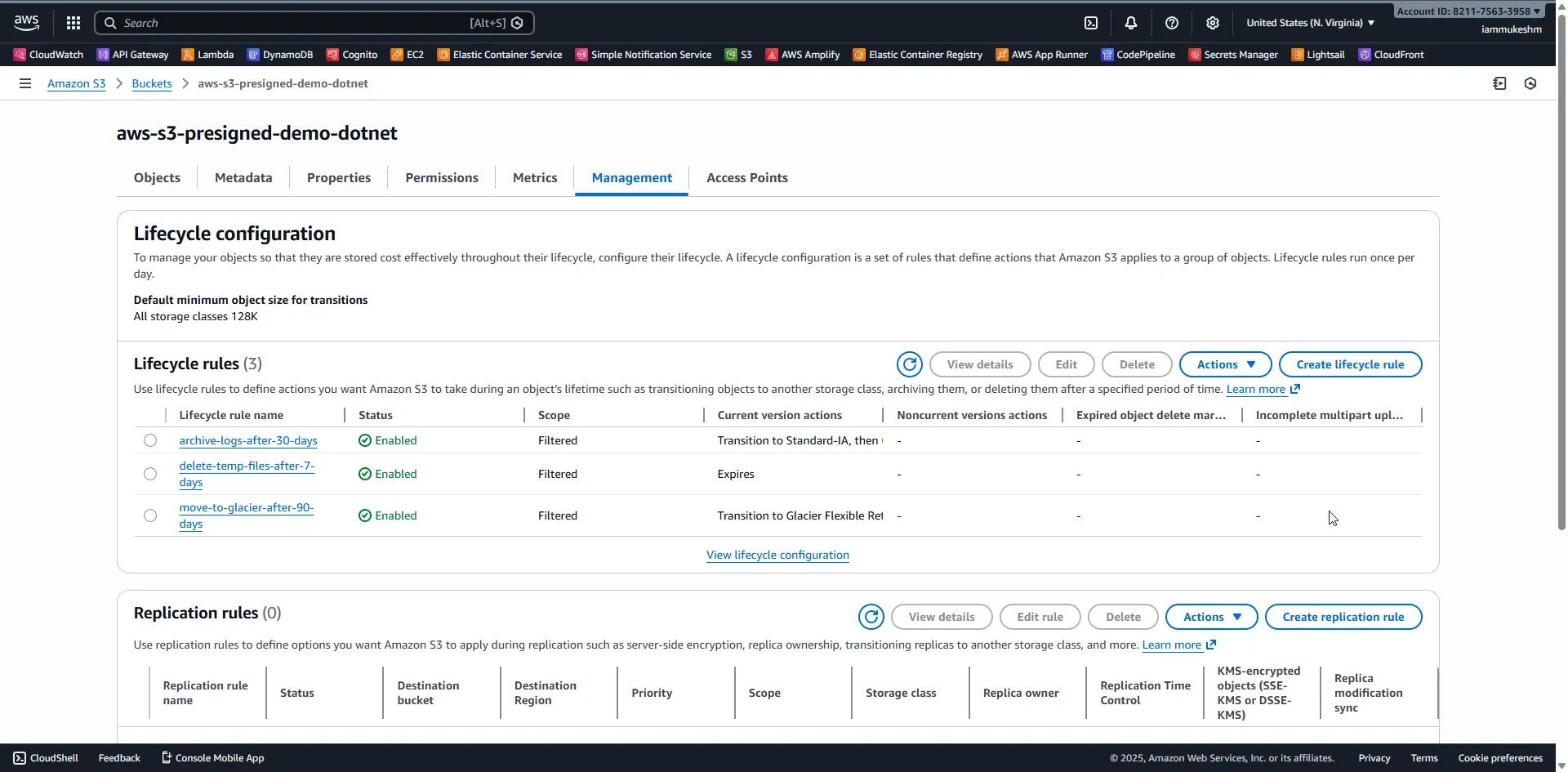
Step 2: Create a Lifecycle Rule
Click Create lifecycle rule. You’ll see a form with several sections.
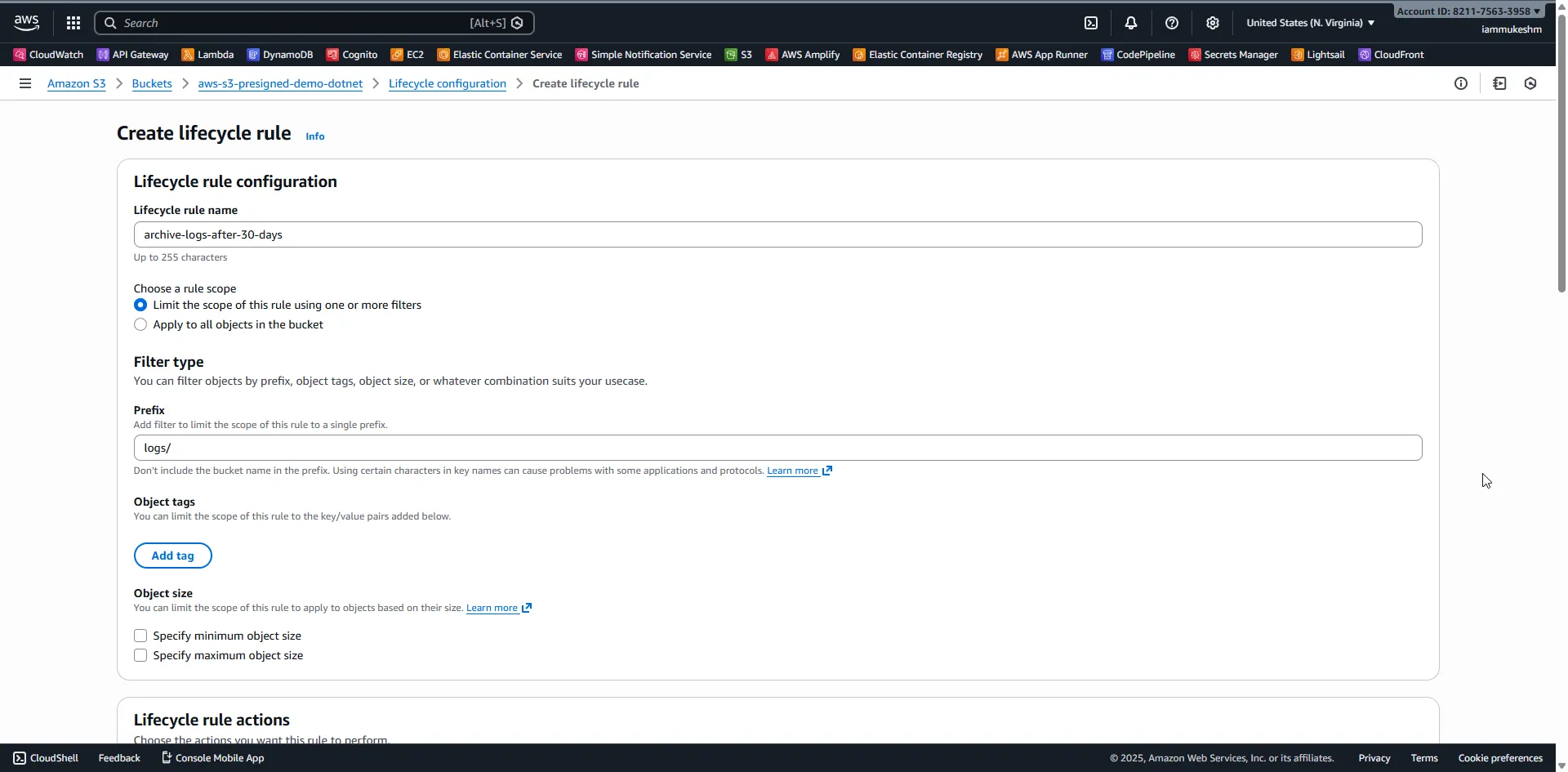
Configure the following:
- Rule name:
archive-logs-after-30-days - Rule scope: Choose “Limit the scope using filters”
- Prefix:
logs/
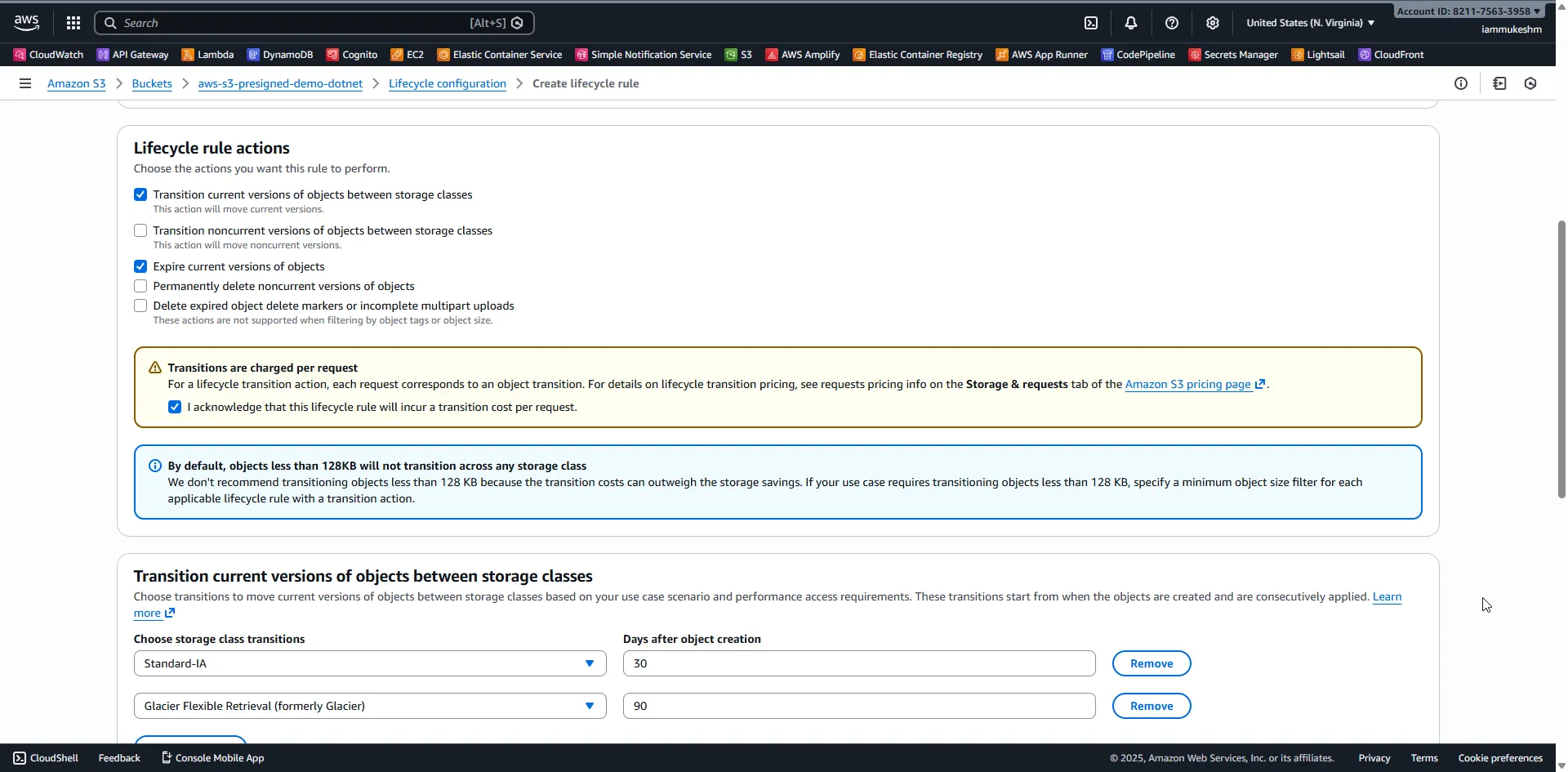
Step 3: Configure Transitions
Under “Lifecycle rule actions”, check:
- ✅ Transition current versions of objects between storage classes
- ✅ Expire current versions of objects
Add transitions:
- Move to Standard-IA after 30 days
- Move to Glacier Flexible Retrieval after 90 days
Set expiration:
- Expire objects after 365 days
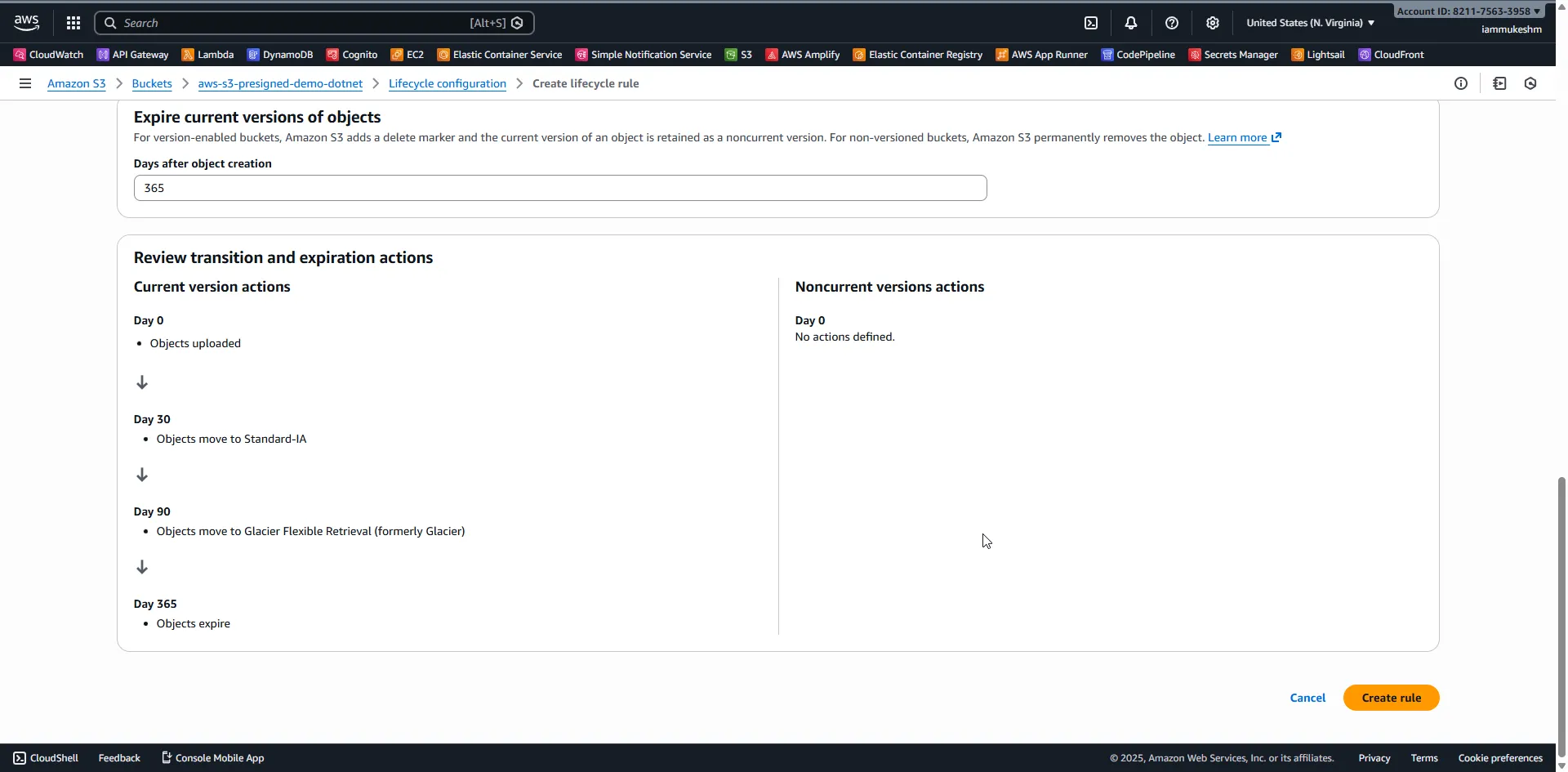
Step 4: Review and Create
Review your configuration and click Create rule. The rule is now active and will be evaluated daily at midnight UTC.
Solution Architecture
Now let’s build a complete system to manage lifecycle policies programmatically. Here’s what we’re building:
The Blazor client handles:
- File uploads via presigned URLs (anonymous, direct to S3)
- Displaying files with storage class and transition estimates
- Creating/deleting lifecycle rules from templates
The .NET API handles:
- Generating presigned URLs for uploads
- Listing objects with metadata
- CRUD operations on lifecycle configuration
- Seeding demo data for testing
Building the .NET API
Let’s start with the backend API. Create a new .NET 10 Minimal API project.
Want to skip ahead? Clone the complete solution from GitHub and follow along with the finished code.
Project Setup
Create the solution structure:
dotnet new web -n S3LifecyclePolicies.Api -f net10.0dotnet new blazorwasm -n S3LifecyclePolicies.Client -f net10.0dotnet new classlib -n S3LifecyclePolicies.Shared -f net10.0Add the required NuGet packages to the API project:
cd S3LifecyclePolicies.Apidotnet add package AWSSDK.S3dotnet add package AWSSDK.Extensions.NETCore.Setupdotnet add package Microsoft.AspNetCore.OpenApidotnet add package Scalar.AspNetCoreConfiguration
Add S3 settings to appsettings.json:
{ "Logging": { "LogLevel": { "Default": "Information", "Microsoft.AspNetCore": "Warning" } }, "AllowedHosts": "*", "AWS": { "Profile": "default", "Region": "us-east-1" }, "S3": { "BucketName": "your-lifecycle-demo-bucket" }}Shared Models
Before diving into the services, we need to define the data contracts that both the API and Blazor client will use. By placing these in a shared project, we ensure type safety across the entire stack - the same models serialize on the server and deserialize on the client.
File Information Model
When listing files, we want to show more than just the filename. The S3FileInfo record captures everything a user needs to understand a file’s lifecycle status:
namespace S3LifecyclePolicies.Shared.Models;
public record S3FileInfo( string Key, long Size, string StorageClass, DateTime LastModified, string? NextTransition, DateTime? ExpirationDate);- Key: The full S3 object path (e.g.,
logs/app-2024-01-15.log) - StorageClass: Current storage tier - helps users understand current costs
- NextTransition: A human-readable string like “GLACIER in 45 days” - we calculate this by comparing the object’s age against matching lifecycle rules
- ExpirationDate: When this file will be automatically deleted (if applicable)
Lifecycle Rule DTOs
The AWS SDK returns lifecycle rules in a complex nested structure. We flatten this into a simpler DTO that’s easy to display in the UI:
namespace S3LifecyclePolicies.Shared.Models;
public record LifecycleRuleDto(    string Id,    string? Prefix,    string Status,    List<TransitionDto> Transitions,    int? ExpirationDays);
public record TransitionDto(    int Days,    string StorageClass);
The LifecycleRuleDto captures the essential rule properties: which prefix it targets, what transitions it applies, and when objects expire. The TransitionDto pairs a day count with a target storage class - for example, “move to GLACIER after 90 days”.
Lifecycle Templates
Rather than exposing the full complexity of lifecycle rule creation (filters, predicates, transitions, expiration), we use an enum-based template system. This gives users preset configurations that cover common scenarios:
namespace S3LifecyclePolicies.Shared.Models;
public enum LifecycleTemplate{    ArchiveLogsAfter30Days,    DeleteTempFilesAfter7Days,    MoveToGlacierAfter90Days,    CleanupIncompleteUploads}
public record CreateLifecycleRuleRequest(LifecycleTemplate Template);
The CreateLifecycleRuleRequest wraps the template enum. This wrapper is necessary because ASP.NET Core’s minimal API parameter binding needs a concrete type to deserialize from the JSON request body - raw enums don’t bind correctly.
Upload Request/Response
For presigned URL uploads, we need to exchange file metadata with the server:
namespace S3LifecyclePolicies.Shared.Models;
public record UploadUrlRequest(    string FileName,    string Prefix,    string ContentType);
public record UploadUrlResponse(    string Url,    string Key);
The client sends the filename, target prefix (logs/, temp/, archive/), and content type. The server returns a presigned URL the browser can PUT directly to S3, along with the final object key. This approach lets users upload files without our server ever touching the file bytes - reducing bandwidth costs and latency.
S3 Service
The S3 service handles file operations: listing objects with their storage metadata, generating presigned URLs for uploads, and seeding test data. Let’s start with the interface that defines what this service can do:
using S3LifecyclePolicies.Shared.Models;
namespace S3LifecyclePolicies.Api.Services;
public interface IS3Service{    Task<List<S3FileInfo>> ListFilesAsync(CancellationToken cancellationToken = default);    Task<UploadUrlResponse> GenerateUploadUrlAsync(UploadUrlRequest request, CancellationToken cancellationToken = default);    Task SeedDemoDataAsync(CancellationToken cancellationToken = default);}
Now for the implementation. The service uses primary constructor syntax to inject dependencies: the AWS S3 client, configuration for the bucket name, and the lifecycle service (we’ll need it to calculate transition estimates).
using Amazon.S3;using Amazon.S3.Model;using S3LifecyclePolicies.Shared.Models;
namespace S3LifecyclePolicies.Api.Services;
public class S3Service(IAmazonS3 s3Client, IConfiguration configuration, ILifecycleService lifecycleService) : IS3Service{    private readonly string _bucketName = configuration["S3:BucketName"]        ?? throw new InvalidOperationException("S3:BucketName not configured");
Listing Files with Lifecycle Information
The ListFilesAsync method does more than list objects - it enriches each file with lifecycle predictions. Here’s the key insight: S3 doesn’t tell you when an object will transition. We have to calculate it ourselves by combining the object’s age with the active lifecycle rules.
    public async Task<List<S3FileInfo>> ListFilesAsync(CancellationToken cancellationToken = default)    {        var request = new ListObjectsV2Request        {            BucketName = _bucketName        };
        var response = await s3Client.ListObjectsV2Async(request, cancellationToken);
        // Fetch current lifecycle rules to calculate transition estimates        var rules = await lifecycleService.GetLifecycleRulesAsync(cancellationToken);
        return response.S3Objects.Select(obj =>        {            var (nextTransition, expirationDate) = CalculateTransitions(obj, rules);            return new S3FileInfo(                obj.Key,                obj.Size,                obj.StorageClass?.Value ?? "STANDARD",                obj.LastModified,                nextTransition,                expirationDate            );        }).ToList();    }
Note on AWS SDK v4: Properties like
obj.Size,obj.StorageClass, andobj.LastModifiedare nullable in v4 of the SDK. We use null coalescing (??) to provide sensible defaults.
The transition calculation logic finds the first matching rule based on the object’s key prefix, then determines which transitions haven’t happened yet:
    private static (string? NextTransition, DateTime? ExpirationDate) CalculateTransitions(        S3Object obj,        List<LifecycleRuleDto> rules)    {        // Find the first enabled rule whose prefix matches this object's key        var matchingRule = rules.FirstOrDefault(r =>            r.Status == "Enabled" &&            !string.IsNullOrEmpty(r.Prefix) &&            obj.Key.StartsWith(r.Prefix));
        if (matchingRule == null)            return (null, null);
        // Calculate how old this object is (in days)        var objectAge = (DateTime.UtcNow - obj.LastModified).Days;
        // Find transitions that haven't happened yet (Days > current age)        string? nextTransition = null;        var pendingTransitions = matchingRule.Transitions            .Where(t => t.Days > objectAge)            .OrderBy(t => t.Days)            .ToList();
        if (pendingTransitions.Count > 0)        {            var next = pendingTransitions.First();            var daysUntil = next.Days - objectAge;            nextTransition = $"{next.StorageClass} in {daysUntil} days";        }
        // Calculate when this object will be deleted (if ever)        DateTime? expirationDate = null;        if (matchingRule.ExpirationDays.HasValue)        {            expirationDate = obj.LastModified.AddDays(matchingRule.ExpirationDays.Value);        }
        return (nextTransition, expirationDate);    }
For example, if a file in logs/ is 45 days old and the rule says “move to GLACIER at 90 days”, this method returns “GLACIER in 45 days”.
Generating Presigned URLs
Presigned URLs let the Blazor client upload files directly to S3 without routing bytes through our API server. We generate a unique key by combining the prefix, a GUID (to prevent collisions), and the original filename:
    public Task<UploadUrlResponse> GenerateUploadUrlAsync(UploadUrlRequest request, CancellationToken cancellationToken = default)    {        // Build a unique key: prefix/guid_filename        var key = $"{request.Prefix.TrimEnd('/')}/{Guid.NewGuid()}_{request.FileName}";
        var presignRequest = new GetPreSignedUrlRequest        {            BucketName = _bucketName,            Key = key,            Verb = HttpVerb.PUT,          // Allow PUT operations (uploads)            Expires = DateTime.UtcNow.AddMinutes(15),  // URL valid for 15 minutes            ContentType = request.ContentType        };
        var url = s3Client.GetPreSignedURL(presignRequest);
        return Task.FromResult(new UploadUrlResponse(url, key));    }
The 15-minute expiration is a security measure - if a URL leaks, it’s only useful briefly.
Seeding Demo Data
For testing lifecycle policies, we need files of varying ages. The seed method creates sample files across all three prefixes (logs, temp, archive):
    public async Task SeedDemoDataAsync(CancellationToken cancellationToken = default)    {        var seedFiles = new List<(string Key, int DaysOld)>        {            // Log files with varying ages - simulates real log accumulation            ("logs/app-2024-01-15.log", 340),            ("logs/app-2024-06-01.log", 200),            ("logs/app-2024-10-15.log", 70),            ("logs/app-2024-11-20.log", 35),            ("logs/app-2024-12-20.log", 3),
            // Temp files that should be cleaned up            ("temp/upload-chunk-abc123.tmp", 5),            ("temp/processing-xyz789.tmp", 3),            ("temp/cache-data.tmp", 1),
            // Archive files for long-term storage testing            ("archive/report-q1-2024.pdf", 180),            ("archive/report-q2-2024.pdf", 120)        };
        foreach (var (key, daysOld) in seedFiles)        {            var content = $"Demo file created for lifecycle testing. Original age: {daysOld} days.";            var putRequest = new PutObjectRequest            {                BucketName = _bucketName,                Key = key,                ContentBody = content,                ContentType = "text/plain"            };
await s3Client.PutObjectAsync(putRequest, cancellationToken); } }}Important: The “DaysOld” values in the tuple are for documentation purposes only - they show what age we’re simulating. However, S3 uses the actual upload timestamp as
LastModified. In production, these files would all appear as “just created”. For real testing of transitions, you’d need to wait for actual time to pass or use S3 Batch Operations to backdate objects.
Lifecycle Service
This is the heart of our application - the service that reads, creates, and deletes lifecycle rules on your S3 bucket. The AWS SDK provides a comprehensive API for lifecycle management, but it has some quirks we need to handle.
using S3LifecyclePolicies.Shared.Models;
namespace S3LifecyclePolicies.Api.Services;
public interface ILifecycleService{    Task<List<LifecycleRuleDto>> GetLifecycleRulesAsync(CancellationToken cancellationToken = default);    Task CreateRuleFromTemplateAsync(LifecycleTemplate template, CancellationToken cancellationToken = default);    Task DeleteRuleAsync(string ruleId, CancellationToken cancellationToken = default);}
Now let’s implement each method with detailed explanations.
Reading Lifecycle Configuration
The GetLifecycleRulesAsync method retrieves all lifecycle rules configured on the bucket and transforms them into our simplified DTO format:
using Amazon.S3;using Amazon.S3.Model;using S3LifecyclePolicies.Shared.Models;
namespace S3LifecyclePolicies.Api.Services;
public class LifecycleService(IAmazonS3 s3Client, IConfiguration configuration) : ILifecycleService{    private readonly string _bucketName = configuration["S3:BucketName"]        ?? throw new InvalidOperationException("S3:BucketName not configured");
    public async Task<List<LifecycleRuleDto>> GetLifecycleRulesAsync(CancellationToken cancellationToken = default)    {        try        {            var request = new GetLifecycleConfigurationRequest            {                BucketName = _bucketName            };
            var response = await s3Client.GetLifecycleConfigurationAsync(request, cancellationToken);
            return response.Configuration.Rules.Select(r => new LifecycleRuleDto(                r.Id,                GetPrefixFromFilter(r.Filter),                r.Status.Value,                (r.Transitions ?? []).Select(t => new TransitionDto(t.Days ?? 0, t.StorageClass?.Value ?? "Unknown")).ToList(),                r.Expiration?.Days            )).ToList();        }        catch (AmazonS3Exception ex) when (ex.ErrorCode == "NoSuchLifecycleConfiguration")        {            // This isn't an error - it just means no rules exist yet            return [];        }    }
A few important points here:
- NoSuchLifecycleConfiguration exception: S3 throws this specific error when a bucket has no lifecycle configuration at all. We catch it and return an empty list - this is expected behavior, not an error.
- Null handling for Transitions: Some rules (like “delete after 7 days”) don’t have transitions - they only have expiration. The
r.Transitionsproperty will benullin these cases, so we use?? []to safely handle it. - AWS SDK v4 nullable types: Properties like
t.Daysandt.StorageClassare nullable in SDK v4. We provide defaults with the null coalescing operator.
The helper method extracts the prefix from the filter’s predicate structure:
private static string? GetPrefixFromFilter(LifecycleFilter filter){ // S3 lifecycle filters use a predicate pattern // We only support prefix-based filtering in this demo if (filter.LifecycleFilterPredicate is LifecyclePrefixPredicate prefixPredicate) { return prefixPredicate.Prefix; } return null; // Rule applies to all objects (no prefix filter)}Template-Based Rule Creation
Rather than exposing raw lifecycle rule construction to users, we map enum templates to fully-configured rules. This is where the real lifecycle logic lives:
public async Task CreateRuleFromTemplateAsync(LifecycleTemplate template, CancellationToken cancellationToken = default){    var rule = CreateRuleFromTemplate(template);    await AddRuleToConfigurationAsync(rule, cancellationToken);}
private static LifecycleRule CreateRuleFromTemplate(LifecycleTemplate template){    return template switch    {
Template 1: Archive Logs After 30 Days
This is the most comprehensive template - it demonstrates a multi-stage transition pipeline:
LifecycleTemplate.ArchiveLogsAfter30Days => new LifecycleRule{ Id = "archive-logs-after-30-days", Filter = new LifecycleFilter { // Only apply to objects with the "logs/" prefix LifecycleFilterPredicate = new LifecyclePrefixPredicate { Prefix = "logs/" } }, Status = LifecycleRuleStatus.Enabled, Transitions = [ // Day 30: Move to Standard-IA (cheaper, still instant access) new LifecycleTransition { Days = 30, StorageClass = S3StorageClass.StandardInfrequentAccess }, // Day 90: Move to Glacier (much cheaper, 1-12 hour retrieval) new LifecycleTransition { Days = 90, StorageClass = S3StorageClass.Glacier } ], // Day 365: Delete the object entirely Expiration = new LifecycleRuleExpiration { Days = 365 }},Template 2: Delete Temp Files After 7 Days
The simplest template - no transitions, just expiration:
LifecycleTemplate.DeleteTempFilesAfter7Days => new LifecycleRule { Id = "delete-temp-files-after-7-days", Filter = new LifecycleFilter { LifecycleFilterPredicate = new LifecyclePrefixPredicate { Prefix = "temp/" } }, Status = LifecycleRuleStatus.Enabled, // No Transitions - objects stay in STANDARD until deletion Expiration = new LifecycleRuleExpiration { Days = 7 } },Template 3: Move to Glacier After 90 Days
For archive data that must be retained indefinitely but rarely accessed:
LifecycleTemplate.MoveToGlacierAfter90Days => new LifecycleRule { Id = "move-to-glacier-after-90-days", Filter = new LifecycleFilter { LifecycleFilterPredicate = new LifecyclePrefixPredicate { Prefix = "archive/" } }, Status = LifecycleRuleStatus.Enabled, Transitions = [ new LifecycleTransition { Days = 90, StorageClass = S3StorageClass.Glacier } ] // No Expiration - objects live forever in Glacier },Template 4: Cleanup Incomplete Multipart Uploads
This one’s different - it doesn’t target objects, it targets failed upload attempts:
            LifecycleTemplate.CleanupIncompleteUploads => new LifecycleRule            {                Id = "cleanup-incomplete-uploads",                Filter = new LifecycleFilter(),  // Empty filter = applies to entire bucket                Status = LifecycleRuleStatus.Enabled,                AbortIncompleteMultipartUpload = new LifecycleRuleAbortIncompleteMultipartUpload                {                    DaysAfterInitiation = 7                }            },
            _ => throw new ArgumentOutOfRangeException(nameof(template), template, "Unknown template")        };    }
When large file uploads fail midway, S3 keeps the uploaded parts. Without this rule, those orphaned parts accumulate indefinitely, silently increasing your storage costs.
Adding Rules to Existing Configuration
S3 lifecycle configuration is all-or-nothing - you can’t add a single rule. You must read the entire configuration, modify it, and write it back. This method handles that pattern:
    private async Task AddRuleToConfigurationAsync(LifecycleRule newRule, CancellationToken cancellationToken)    {        // Step 1: Get existing configuration (if any)        var existingRules = new List<LifecycleRule>();        try        {            var getRequest = new GetLifecycleConfigurationRequest { BucketName = _bucketName };            var getResponse = await s3Client.GetLifecycleConfigurationAsync(getRequest, cancellationToken);            existingRules = getResponse.Configuration.Rules;        }        catch (AmazonS3Exception ex) when (ex.ErrorCode == "NoSuchLifecycleConfiguration")        {            // No existing configuration - we'll create one from scratch        }
        // Step 2: Replace existing rule with same ID (idempotent operation)        existingRules.RemoveAll(r => r.Id == newRule.Id);        existingRules.Add(newRule);
        // Step 3: Write the complete configuration back        var putRequest = new PutLifecycleConfigurationRequest        {            BucketName = _bucketName,            Configuration = new LifecycleConfiguration            {                Rules = existingRules            }        };
        await s3Client.PutLifecycleConfigurationAsync(putRequest, cancellationToken);    }
The RemoveAll + Add pattern makes this operation idempotent - calling it twice with the same template doesn’t create duplicate rules.
Deleting Rules
Deletion follows a similar read-modify-write pattern, with one special case: if we’re deleting the last rule, we must delete the entire lifecycle configuration (S3 doesn’t allow empty configurations):
    public async Task DeleteRuleAsync(string ruleId, CancellationToken cancellationToken = default)    {        var getRequest = new GetLifecycleConfigurationRequest { BucketName = _bucketName };        var getResponse = await s3Client.GetLifecycleConfigurationAsync(getRequest, cancellationToken);
        var rules = getResponse.Configuration.Rules;        rules.RemoveAll(r => r.Id == ruleId);
        if (rules.Count == 0)        {            // S3 doesn't allow empty lifecycle configurations            // We must delete the entire configuration instead            var deleteRequest = new DeleteLifecycleConfigurationRequest { BucketName = _bucketName };            await s3Client.DeleteLifecycleConfigurationAsync(deleteRequest, cancellationToken);        }        else        {            // Write back the configuration without the deleted rule            var putRequest = new PutLifecycleConfigurationRequest            {                BucketName = _bucketName,                Configuration = new LifecycleConfiguration { Rules = rules }            };            await s3Client.PutLifecycleConfigurationAsync(putRequest, cancellationToken);        }    }}
API Endpoints
With both services implemented, we can wire them together using .NET 10’s minimal API pattern. The Program.cs file defines all endpoints, registers dependencies, and configures the application.
You can find the complete
Program.csin the GitHub repository.
Service Registration
First, we set up dependency injection for AWS services and our custom services:
using Amazon.S3;using S3LifecyclePolicies.Api.Services;using S3LifecyclePolicies.Shared.Models;using Scalar.AspNetCore;
var builder = WebApplication.CreateBuilder(args);
// OpenAPI documentation (available at /openapi/v1.json)builder.Services.AddOpenApi();
// CORS - allow the Blazor client to call our APIbuilder.Services.AddCors(options =>{    options.AddDefaultPolicy(policy =>    {        policy.AllowAnyOrigin()              .AllowAnyMethod()              .AllowAnyHeader();    });});
// AWS SDK configuration - reads from appsettings.json and AWS credential chainbuilder.Services.AddDefaultAWSOptions(builder.Configuration.GetAWSOptions());builder.Services.AddAWSService<IAmazonS3>();
// Our application services - scoped lifetime for per-request instancesbuilder.Services.AddScoped<ILifecycleService, LifecycleService>();builder.Services.AddScoped<IS3Service, S3Service>();
var app = builder.Build();
app.UseCors();app.MapOpenApi();app.MapScalarApiReference();  // Interactive API docs at /scalar/v1
The AddDefaultAWSOptions method reads the AWS section from configuration and sets up credential resolution (profile-based in development, IAM roles in production). AddAWSService<IAmazonS3> registers the S3 client with proper lifecycle management.
Endpoint Definitions
Each endpoint is a thin layer that delegates to our services. Let’s walk through them:
Health Check - A simple endpoint to verify the API is running:
app.MapGet("/", () => "S3 Lifecycle Policies API is running") .WithTags("Health");List Files - Returns all objects in the bucket with enriched lifecycle information:
app.MapGet("/files", async (IS3Service s3Service, CancellationToken ct) =>{ var files = await s3Service.ListFilesAsync(ct); return Results.Ok(files);}).WithName("ListFiles").WithTags("Files").WithDescription("Lists all files in the bucket with storage class and transition information");The CancellationToken is automatically bound from the HTTP request - if the client disconnects, the token triggers and we can stop processing early.
Generate Upload URL - Creates a presigned URL for direct-to-S3 uploads:
app.MapPost("/files/upload-url", async (UploadUrlRequest request, IS3Service s3Service, CancellationToken ct) =>{ var response = await s3Service.GenerateUploadUrlAsync(request, ct); return Results.Ok(response);}).WithName("GenerateUploadUrl").WithTags("Files").WithDescription("Generates a presigned URL for uploading a file");Get Lifecycle Rules - Retrieves all configured lifecycle rules:
app.MapGet("/lifecycle/rules", async (ILifecycleService lifecycleService, CancellationToken ct) =>{ var rules = await lifecycleService.GetLifecycleRulesAsync(ct); return Results.Ok(rules);}).WithName("GetLifecycleRules").WithTags("Lifecycle").WithDescription("Gets all lifecycle rules configured on the bucket");Create Lifecycle Rule - Creates a rule from a predefined template:
app.MapPost("/lifecycle/rules", async (CreateLifecycleRuleRequest request, ILifecycleService lifecycleService, CancellationToken ct) =>{ await lifecycleService.CreateRuleFromTemplateAsync(request.Template, ct); return Results.Created($"/lifecycle/rules", new { Template = request.Template.ToString() });}).WithName("CreateLifecycleRule").WithTags("Lifecycle").WithDescription("Creates a lifecycle rule from a predefined template");Note that we accept CreateLifecycleRuleRequest (a record containing the template enum), not the raw enum. This is because minimal APIs bind complex types from the JSON body, but enums alone don’t deserialize correctly without a wrapper type.
Delete Lifecycle Rule - Removes a rule by its ID:
app.MapDelete("/lifecycle/rules/{ruleId}", async (string ruleId, ILifecycleService lifecycleService, CancellationToken ct) =>{ await lifecycleService.DeleteRuleAsync(ruleId, ct); return Results.NoContent();}).WithName("DeleteLifecycleRule").WithTags("Lifecycle").WithDescription("Deletes a lifecycle rule by ID");Seed Demo Data - Populates the bucket with test files:
app.MapPost("/seed", async (IS3Service s3Service, CancellationToken ct) =>{    await s3Service.SeedDemoDataAsync(ct);    return Results.Ok(new { Message = "Demo data seeded successfully" });}).WithName("SeedDemoData").WithTags("Demo").WithDescription("Creates sample log, temp, and archive files for testing lifecycle policies");
app.Run();
The .WithTags() and .WithDescription() calls enrich the OpenAPI documentation - you’ll see these in the Scalar UI at /scalar/v1.
Building the Blazor WASM Client
The Blazor WebAssembly client runs entirely in the browser, making HTTP calls to our API. It provides an intuitive interface for:
- Viewing files with their storage class and lifecycle predictions
- Uploading files directly to S3 (via presigned URLs)
- Creating and deleting lifecycle rules from templates
- Seeding demo data for testing
The complete Blazor client code is available in the GitHub repository.
Project Setup
First, add a reference to the Shared project so we can use the same model types:
cd S3LifecyclePolicies.Clientdotnet add reference ../S3LifecyclePolicies.SharedHTTP Client Configuration
The Blazor client needs an HttpClient configured with our API’s base address. Update Program.cs:
using Microsoft.AspNetCore.Components.Web;using Microsoft.AspNetCore.Components.WebAssembly.Hosting;using S3LifecyclePolicies.Client;
var builder = WebAssemblyHostBuilder.CreateDefault(args);builder.RootComponents.Add<App>("#app");builder.RootComponents.Add<HeadOutlet>("head::after");
// Configure HttpClient to point to our API// In production, use environment-specific configurationbuilder.Services.AddScoped(sp => new HttpClient{    BaseAddress = new Uri("http://localhost:5156")  // Match your API's port});
await builder.Build().RunAsync();
Port Configuration: The API port (5156 in this example) may differ on your machine. Check the console output when running the API to confirm the actual port.
Main Layout
The layout component wraps all pages with consistent styling. We use AWS’s color palette (#232f3e) for a professional look:
@inherits LayoutComponentBase
<div class="container">    <header>        <h1>S3 Lifecycle Manager</h1>    </header>    <main>        @Body    </main></div>
<style>    .container {        max-width: 1200px;        margin: 0 auto;        padding: 20px;        font-family: -apple-system, BlinkMacSystemFont, 'Segoe UI', Roboto, sans-serif;    }
    header {        border-bottom: 1px solid #e0e0e0;        padding-bottom: 10px;        margin-bottom: 20px;    }
    h1 {        color: #232f3e;  /* AWS dark blue */        margin: 0;    }</style>
Home Page
The home page is a dashboard that brings together file listing, uploads, and lifecycle rule management. It’s structured in two panels: one for files, one for rules.
Let’s break down the key parts:
Component Structure
The page loads files on initialization and refreshes when rules change (since rule changes affect transition predictions):
@page "/"@using S3LifecyclePolicies.Shared.Models@inject HttpClient Http
<div class="dashboard">    <div class="panel">        <h2>Files</h2>        <div class="actions">            <button @onclick="SeedDemoData" disabled="@isLoading">Seed Demo Data</button>            <button @onclick="LoadFiles" disabled="@isLoading">Refresh</button>        </div>
        <!-- FileUpload component handles presigned URL flow -->        <FileUpload OnUploadComplete="LoadFiles" />
File List with Lifecycle Information
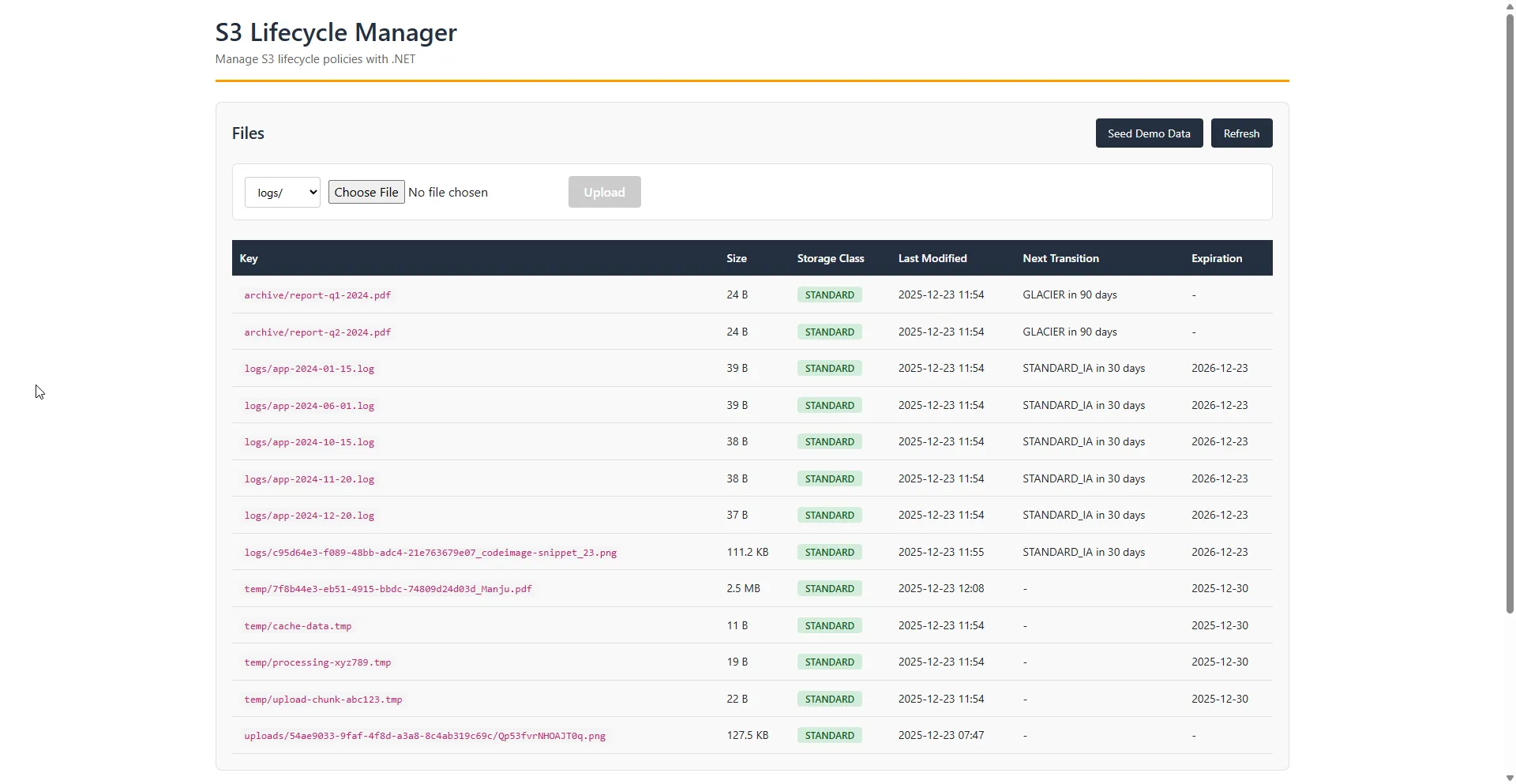
The file table shows each object’s current state and predicted future:
        @if (files == null)        {            <p>Loading files...</p>        }        else if (files.Count == 0)        {            <p>No files found. Click "Seed Demo Data" to create sample files.</p>        }        else        {            <table>                <thead>                    <tr>                        <th>Key</th>                        <th>Size</th>                        <th>Storage Class</th>                        <th>Last Modified</th>                        <th>Next Transition</th>                        <th>Expiration</th>                    </tr>                </thead>                <tbody>                    @foreach (var file in files)                    {                        <tr>                            <td>@file.Key</td>                            <td>@FormatSize(file.Size)</td>                            <!-- Color-coded badges help visualize storage tiers -->                            <td><span class="badge @GetStorageClassColor(file.StorageClass)">@file.StorageClass</span></td>                            <td>@file.LastModified.ToString("yyyy-MM-dd")</td>                            <td>@(file.NextTransition ?? "-")</td>                            <td>@(file.ExpirationDate?.ToString("yyyy-MM-dd") ?? "-")</td>                        </tr>                    }                </tbody>            </table>        }    </div>
    <div class="panel">        <h2>Lifecycle Rules</h2>        <!-- When rules change, we reload files to update transition predictions -->        <LifecycleRules OnRulesChanged="LoadFiles" />    </div></div>
@if (!string.IsNullOrEmpty(message)){    <div class="message @messageType">@message</div>}
Component Logic
The @code block contains the component’s state and event handlers:
@code {    private List<S3FileInfo>? files;    private bool isLoading = false;    private string message = "";    private string messageType = "";
    // Load files when the component first renders    protected override async Task OnInitializedAsync()    {        await LoadFiles();    }
    private async Task LoadFiles()    {        isLoading = true;        try        {            // GetFromJsonAsync deserializes the JSON response into our shared model            files = await Http.GetFromJsonAsync<List<S3FileInfo>>("files");        }        catch (Exception ex)        {            ShowMessage($"Error loading files: {ex.Message}", "error");        }        finally        {            isLoading = false;        }    }
    private async Task SeedDemoData()    {        isLoading = true;        try        {            // POST with null body - the API doesn't need any request payload            await Http.PostAsync("seed", null);            ShowMessage("Demo data seeded successfully!", "success");            await LoadFiles();  // Refresh the file list        }        catch (Exception ex)        {            ShowMessage($"Error seeding data: {ex.Message}", "error");        }        finally        {            isLoading = false;        }    }
    private void ShowMessage(string msg, string type)    {        message = msg;        messageType = type;        StateHasChanged();  // Tell Blazor to re-render with the new message    }
    // Helper to format byte sizes in human-readable form    private static string FormatSize(long bytes)    {        if (bytes < 1024) return $"{bytes} B";        if (bytes < 1024 * 1024) return $"{bytes / 1024.0:F1} KB";        return $"{bytes / (1024.0 * 1024.0):F1} MB";    }
    // Map storage classes to CSS color classes for visual distinction    private static string GetStorageClassColor(string storageClass) => storageClass switch    {        "STANDARD" => "green",       // Hot storage - most expensive        "STANDARD_IA" => "blue",     // Infrequent access        "GLACIER" => "purple",       // Cold storage        "DEEP_ARCHIVE" => "gray",    // Coldest storage        _ => "default"    };}
The styling uses color-coded badges to help users quickly identify which storage tier each file is in - green for Standard (hot), blue for Standard-IA (warm), purple for Glacier (cold).
<style>    .dashboard {        display: grid;        gap: 20px;    }
    .panel {        background: #f9f9f9;        border: 1px solid #e0e0e0;        border-radius: 8px;        padding: 20px;    }
    .panel h2 {        margin-top: 0;        color: #232f3e;    }
    .actions {        margin-bottom: 15px;    }
    .actions button {        margin-right: 10px;        padding: 8px 16px;        background: #232f3e;        color: white;        border: none;        border-radius: 4px;        cursor: pointer;    }
    .actions button:disabled {        background: #ccc;        cursor: not-allowed;    }
    table {        width: 100%;        border-collapse: collapse;        margin-top: 10px;    }
    th, td {        padding: 10px;        text-align: left;        border-bottom: 1px solid #e0e0e0;    }
    th {        background: #232f3e;        color: white;    }
    .badge {        padding: 4px 8px;        border-radius: 4px;        font-size: 12px;        font-weight: bold;    }
    .badge.green { background: #d4edda; color: #155724; }    .badge.blue { background: #cce5ff; color: #004085; }    .badge.purple { background: #e2d5f1; color: #4a235a; }    .badge.gray { background: #e0e0e0; color: #333; }
    .message {        padding: 10px 15px;        margin-top: 15px;        border-radius: 4px;    }
    .message.success { background: #d4edda; color: #155724; }    .message.error { background: #f8d7da; color: #721c24; }</style>
File Upload Component
The upload component demonstrates the presigned URL pattern: the browser uploads directly to S3, bypassing our API server entirely. This reduces latency and server load.
Create Components/FileUpload.razor:
Upload UI
The user selects a target prefix (which determines which lifecycle rules will apply) and a file:
@using S3LifecyclePolicies.Shared.Models@inject HttpClient Http
<div class="upload-section">    <div class="upload-controls">        <!-- Prefix dropdown - determines which lifecycle rules apply -->        <select @bind="selectedPrefix">            <option value="logs/">logs/</option>            <option value="temp/">temp/</option>            <option value="archive/">archive/</option>        </select>        <InputFile OnChange="HandleFileSelected" />        <button @onclick="UploadFile" disabled="@(selectedFile == null || isUploading)">            @(isUploading ? "Uploading..." : "Upload")        </button>    </div>    @if (!string.IsNullOrEmpty(uploadMessage))    {        <p class="upload-message @uploadMessageType">@uploadMessage</p>    }</div>
Two-Step Upload Flow
The upload logic follows a two-step process:
- Request a presigned URL from our API (tells S3 we’re authorized to upload)
- PUT the file directly to S3 using that URL (browser → S3, no middleman)
@code {    // EventCallback allows parent components to react when upload completes    [Parameter]    public EventCallback OnUploadComplete { get; set; }
    private string selectedPrefix = "logs/";    private IBrowserFile? selectedFile;    private bool isUploading = false;    private string uploadMessage = "";    private string uploadMessageType = "";
    private void HandleFileSelected(InputFileChangeEventArgs e)    {        selectedFile = e.File;        uploadMessage = "";  // Clear any previous messages    }
    private async Task UploadFile()    {        if (selectedFile == null) return;
        isUploading = true;        uploadMessage = "";
        try        {            // Step 1: Get a presigned URL from our API            var request = new UploadUrlRequest(                selectedFile.Name,                selectedPrefix,                selectedFile.ContentType            );
            var urlResponse = await Http.PostAsJsonAsync("files/upload-url", request);            var uploadUrl = await urlResponse.Content.ReadFromJsonAsync<UploadUrlResponse>();
            if (uploadUrl == null)            {                throw new Exception("Failed to get upload URL");            }
            // Step 2: Upload directly to S3 using the presigned URL            // Note: We create a NEW HttpClient here because the presigned URL            // is a completely different host (S3) than our API            using var content = new StreamContent(selectedFile.OpenReadStream(maxAllowedSize: 10 * 1024 * 1024));            content.Headers.ContentType = new System.Net.Http.Headers.MediaTypeHeaderValue(selectedFile.ContentType);
            using var httpClient = new HttpClient();  // Fresh client for S3            var response = await httpClient.PutAsync(uploadUrl.Url, content);
            if (response.IsSuccessStatusCode)            {                uploadMessage = $"File uploaded successfully to {uploadUrl.Key}";                uploadMessageType = "success";                selectedFile = null;                await OnUploadComplete.InvokeAsync();  // Notify parent to refresh file list            }            else            {                throw new Exception($"Upload failed: {response.StatusCode}");            }        }        catch (Exception ex)        {            uploadMessage = $"Error: {ex.Message}";            uploadMessageType = "error";        }        finally        {            isUploading = false;        }    }}
Why a separate HttpClient? The injected
HttpClienthas a base address pointing to our API. Presigned URLs are full URLs pointing to S3, so we need a freshHttpClientwithout a base address to call them directly.
The 10MB limit (maxAllowedSize) is a Blazor safety guard - adjust as needed for your use case.
<style>    .upload-section {        background: white;        padding: 15px;        border-radius: 4px;        margin-bottom: 15px;    }
    .upload-controls {        display: flex;        gap: 10px;        align-items: center;    }
    .upload-controls select {        padding: 8px;        border: 1px solid #ccc;        border-radius: 4px;    }
    .upload-controls button {        padding: 8px 16px;        background: #ff9900;  /* AWS orange for action buttons */        color: white;        border: none;        border-radius: 4px;        cursor: pointer;    }
    .upload-controls button:disabled {        background: #ccc;    }
    .upload-message {        margin-top: 10px;        padding: 8px;        border-radius: 4px;    }
    .upload-message.success { background: #d4edda; color: #155724; }    .upload-message.error { background: #f8d7da; color: #721c24; }</style>
Lifecycle Rules Component
This component lets users view existing lifecycle rules and create new ones from our predefined templates.
Create Components/LifecycleRules.razor:
Template Selection UI
Users select from a dropdown of human-readable template names. We iterate over the enum values to populate the options:
@using S3LifecyclePolicies.Shared.Models@inject HttpClient Http
<div class="lifecycle-section">    <div class="create-rule">        <select @bind="selectedTemplate">            <option value="">-- Select Template --</option>            @foreach (var template in Enum.GetValues<LifecycleTemplate>())            {                <option value="@template">@FormatTemplateName(template)</option>            }        </select>        <button @onclick="CreateRule" disabled="@(string.IsNullOrEmpty(selectedTemplate) || isLoading)">            Create Rule        </button>    </div>
Rules Table
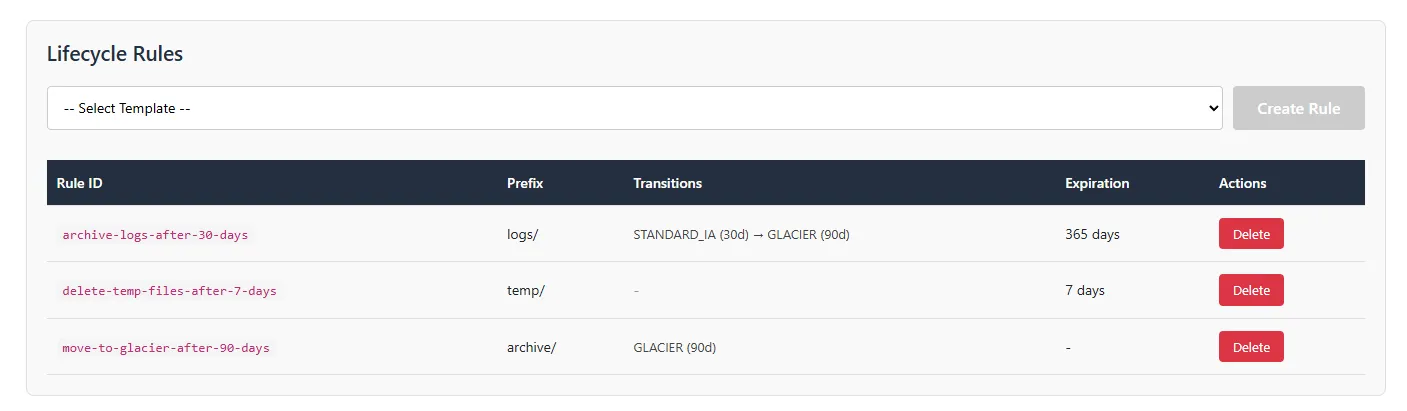
The table displays all configured rules with their key properties - prefix, transitions, and expiration:
@if (rules == null) { <p>Loading rules...</p> } else if (rules.Count == 0) { <p>No lifecycle rules configured. Select a template above to create one.</p> } else { <table> <thead> <tr> <th>Rule ID</th> <th>Prefix</th> <th>Transitions</th> <th>Expiration</th> <th>Actions</th> </tr> </thead> <tbody> @foreach (var rule in rules) { <tr> <td>@rule.Id</td> <td>@(rule.Prefix ?? "All objects")</td> <td> <!-- Format transitions as a visual pipeline --> @if (rule.Transitions.Count > 0) { @string.Join(" → ", rule.Transitions.Select(t => $"{t.StorageClass} ({t.Days}d)")) } else { <span>-</span> } </td> <td>@(rule.ExpirationDays.HasValue ? $"{rule.ExpirationDays} days" : "-")</td> <td> <button class="delete-btn" @onclick="() => DeleteRule(rule.Id)">Delete</button> </td> </tr> } </tbody> </table> }</div>Component Logic
The @code section handles loading, creating, and deleting rules:
@code {    // Notify parent when rules change (so file list can update transition predictions)    [Parameter]    public EventCallback OnRulesChanged { get; set; }
    private List<LifecycleRuleDto>? rules;    private string selectedTemplate = "";    private bool isLoading = false;
    protected override async Task OnInitializedAsync()    {        await LoadRules();    }
    private async Task LoadRules()    {        isLoading = true;        try        {            rules = await Http.GetFromJsonAsync<List<LifecycleRuleDto>>("lifecycle/rules");        }        finally        {            isLoading = false;        }    }
    private async Task CreateRule()    {        if (string.IsNullOrEmpty(selectedTemplate)) return;
        isLoading = true;        try        {            // Parse the string value back to enum            var template = Enum.Parse<LifecycleTemplate>(selectedTemplate);
            // Wrap in request object (required for JSON body binding)            var request = new CreateLifecycleRuleRequest(template);            await Http.PostAsJsonAsync("lifecycle/rules", request);
            selectedTemplate = "";  // Reset selection            await LoadRules();      // Refresh the list            await OnRulesChanged.InvokeAsync();  // Notify parent        }        finally        {            isLoading = false;        }    }
    private async Task DeleteRule(string ruleId)    {        isLoading = true;        try        {            await Http.DeleteAsync($"lifecycle/rules/{ruleId}");            await LoadRules();            await OnRulesChanged.InvokeAsync();        }        finally        {            isLoading = false;        }    }
    // Convert enum values to human-readable descriptions    private static string FormatTemplateName(LifecycleTemplate template) => template switch    {        LifecycleTemplate.ArchiveLogsAfter30Days => "Archive Logs (30d → IA → Glacier → Delete)",        LifecycleTemplate.DeleteTempFilesAfter7Days => "Delete Temp Files (7 days)",        LifecycleTemplate.MoveToGlacierAfter90Days => "Move to Glacier (90 days)",        LifecycleTemplate.CleanupIncompleteUploads => "Cleanup Incomplete Uploads (7 days)",        _ => template.ToString()    };}
The OnRulesChanged callback is important: when a rule is created or deleted, the file list’s “Next Transition” predictions need to update. The parent component subscribes to this callback and refreshes the file list accordingly.
<style>    .lifecycle-section {        margin-top: 10px;    }
    .create-rule {        display: flex;        gap: 10px;        margin-bottom: 15px;    }
    .create-rule select {        flex: 1;        padding: 8px;        border: 1px solid #ccc;        border-radius: 4px;    }
    .create-rule button {        padding: 8px 16px;        background: #28a745;  /* Green for create action */        color: white;        border: none;        border-radius: 4px;        cursor: pointer;    }
    .create-rule button:disabled {        background: #ccc;    }
    table {        width: 100%;        border-collapse: collapse;    }
    th, td {        padding: 10px;        text-align: left;        border-bottom: 1px solid #e0e0e0;    }
    th {        background: #232f3e;        color: white;    }
    .delete-btn {        padding: 4px 12px;        background: #dc3545;  /* Red for delete action */        color: white;        border: none;        border-radius: 4px;        cursor: pointer;    }</style>
Testing the Implementation
Let’s verify everything works. If you haven’t already, clone the complete solution from GitHub:
1. Create an S3 Bucket
Before running the application, create an S3 bucket in your AWS account:
aws s3 mb s3://your-lifecycle-demo-bucket --region us-east-1Update appsettings.json with your bucket name.
2. Run the API
cd S3LifecyclePolicies.Apidotnet runThe API will be available at http://localhost:5000. Visit http://localhost:5000/scalar/v1 for the interactive API documentation.
3. Run the Blazor Client
In a separate terminal:
cd S3LifecyclePolicies.Clientdotnet run4. Test the Workflow
- Open the Blazor client in your browser
- Click “Seed Demo Data” to create sample files
- Observe the files list with storage classes (all STANDARD initially)
- Create the “Archive Logs” lifecycle rule
- Notice the “Next Transition” column now shows estimated dates
- Upload a new file to the
temp/prefix - Create the “Delete Temp Files” rule
- Check the AWS Console to verify rules are applied
Monitoring Lifecycle Execution
Lifecycle rules are evaluated once daily at midnight UTC. You won’t see immediate transitions. Here’s how to verify rules are working:
AWS Console
Navigate to your bucket → Management tab to see all configured rules.
S3 Storage Lens
For larger buckets, enable S3 Storage Lens to get analytics on:
- Storage by class over time
- Objects transitioned per day
- Cost optimization recommendations
CloudWatch Metrics
S3 publishes metrics for:
NumberOfObjectsby storage classBucketSizeBytesby storage class
Create a CloudWatch dashboard to track transitions over time.
Best Practices
Use specific prefixes: Target lifecycle rules to specific folders (logs/, temp/, archive/). Avoid bucket-wide rules unless intentional.
Account for minimum storage duration: Glacier has a 90-day minimum. If you might need to delete objects sooner, consider Standard-IA (30-day minimum) first.
Test on non-production buckets: Always test lifecycle rules on a test bucket before applying to production.
Consider Intelligent-Tiering: For data with unpredictable access patterns, Intelligent-Tiering automatically moves objects between access tiers with no retrieval fees.
Clean up incomplete multipart uploads: The “Cleanup Incomplete Uploads” template prevents storage waste from abandoned uploads.
Document your rules: Use descriptive rule IDs that explain what each rule does.
Wrap-up
In this article, we built a complete S3 lifecycle management system:
- Understood lifecycle policies: Rules, filters, transitions, and expiration
- Compared storage classes: From Standard to Glacier Deep Archive
- Created rules via AWS Console: Step-by-step walkthrough
- Built a .NET API: Programmatic lifecycle management with templates
- Built a Blazor WASM client: Upload files, view storage classes, manage rules
Lifecycle policies are a “set it and forget it” solution for storage cost optimization. Once configured, AWS handles everything automatically - transitioning objects to cheaper storage and deleting them when they expire.
The predefined templates we implemented cover the most common scenarios, but the AWS SDK supports far more complex configurations including tag-based filtering, multiple transitions, and version-specific rules.
Grab the complete source code from GitHub, and start automating your S3 storage management today.
What lifecycle patterns are you implementing? Let me know in the comments below.
Happy Coding :)



What's your Feedback?
Do let me know your thoughts around this article.