


I don’t write code by hand anymore. And no, I’m not exaggerating.
For the past few months, I’ve been using Claude Code as my primary coding companion, and it has fundamentally changed how I build software. Whether I’m scaffolding a new .NET Web API, debugging a tricky race condition, or refactoring a legacy codebase - Claude is right there in my terminal, reasoning through problems like a senior engineer sitting next to me.
But here’s the thing: most developers I talk to either haven’t heard of Claude Code, or they’ve tried it once and didn’t realize its true potential. They treat it like a fancy autocomplete. It’s not.
Claude Code is a full-fledged agentic coding assistant that can read your entire codebase, understand your architecture, plan multi-step implementations, and execute them - all while respecting your coding standards.
In this guide, I’ll show you how to get started with Claude Code in under 15 minutes. I’ll cover installation, the magic of CLAUDE.md, auto memory, Plan Mode, the permission modes that decide how much Claude can do on its own, context management, and an honest comparison with GitHub Copilot and Cursor. Everything here is verified against the official docs as of July 2026.

Let’s get into it.
What is Claude Code? (2026 Overview)
Claude Code is Anthropic’s terminal-native AI coding assistant built on top of Claude (the same model powering claude.ai). Unlike traditional code completion tools that suggest snippets as you type, Claude Code operates as an agentic system - meaning it can:
- Read and understand your entire project structure
- Search through files, grep for patterns, and analyze dependencies
- Plan complex implementations before writing any code
- Execute multi-file changes while respecting your conventions
- Run shell commands, tests, and build processes
- Learn your project’s rules through a
CLAUDE.mdfile
Think of it as having a senior developer in your terminal who never gets tired, never forgets your coding standards, and can hold up to 1 million tokens of context in memory.
Claude Code runs on the current Claude model family, which spans four tiers: a top research-grade tier for the hardest work, an Opus tier that’s the workhorse for agentic coding, a Sonnet tier for daily driving, and a fast Haiku tier for simple tasks. The top three all carry a 1M-token context window. Model names change every few months, so rather than memorising them, switch with the /model command and use the aliases - I cover which to pick later in this guide.
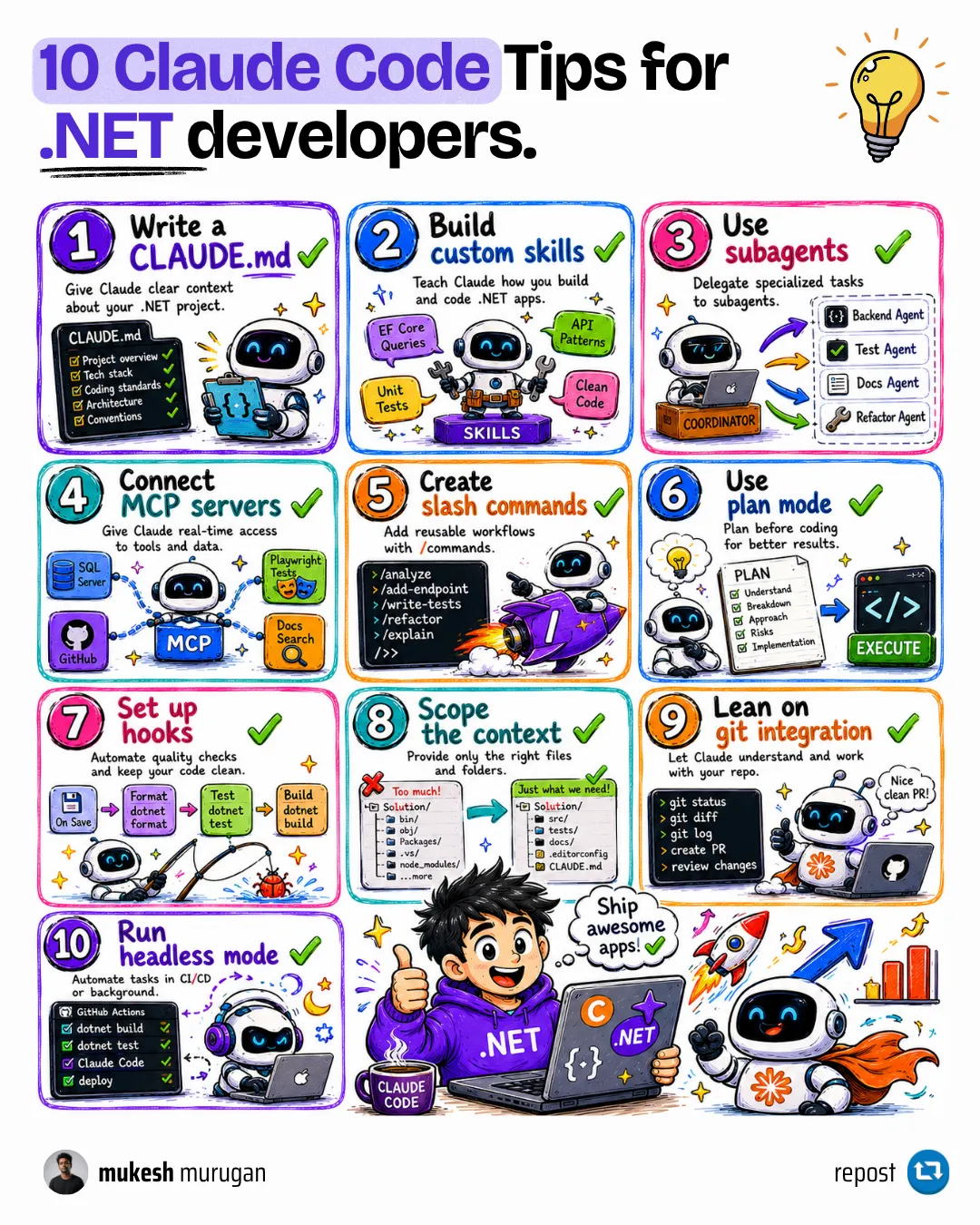
Claude Code launched in February 2025 and reached general availability in May 2025. It passed $1 billion in annualized revenue before the end of that year - that’s how fast developers adopted it. By mid-2026 it’s available in the terminal, a desktop app, VS Code and JetBrains extensions, the web, and even Slack.
Claude Code vs GitHub Copilot vs ChatGPT vs Cursor - Quick Comparison
Before diving in, let’s address the elephant in the room. You’ve probably used GitHub Copilot, ChatGPT, or heard about Cursor. How does Claude Code stack up?
| Feature | Claude Code | GitHub Copilot | ChatGPT/Codex | Cursor |
|---|---|---|---|---|
| Primary Interface | Terminal (CLI) + IDE + Web | IDE Plugin | Web/API | Full IDE (VS Code fork) |
| Context Window | Up to 1M tokens | IDE-managed (much smaller) | Model-dependent | Project-aware |
| Approach | Agentic, multi-step reasoning | Autocomplete, snippets | Conversational, iterative | Multi-file refactoring |
| Best For | Architecture, debugging, explanations | Fast completions, boilerplate | Brainstorming, exploration | Large refactors, IDE comfort |
| Learning Curve | Medium | Low | Low | Low |
| Pricing | $20-200/month (Claude subscription) | $0-39/month | $20-200/month (ChatGPT Plus/Pro) | $20-40/month |
My honest take:
- GitHub Copilot is fantastic for autocomplete and writing boilerplate fast. It’s the easiest to adopt and lives right in your IDE.
- ChatGPT/Codex excels at brainstorming, exploring ideas, and conversational problem-solving. When you need to think through an approach before touching code, it’s a great sparring partner.
- Cursor shines when you’re doing multi-file refactoring and want a familiar VS Code experience with AI baked in.
- Claude Code wins when you need reasoning. When you want the AI to understand why your code is structured a certain way, plan before executing, and explain its decisions.
For .NET developers working on complex architectures (Clean Architecture, microservices, domain-driven design) - Claude Code’s ability to hold massive context and reason through dependencies is a game-changer.
If you’re a .NET developer looking to level up your skills, these resources pair perfectly with Claude Code:
.NET Developer Roadmap
The complete guide to becoming a proficient .NET developer - from fundamentals to advanced architecture patterns.
20+ Tips from a Senior .NET Developer
Hard-won lessons and practical advice for writing better .NET code - perfect for training Claude on your coding standards.
My Journey Through AI Coding Tools
I started with GitHub Copilot, like most developers. The autocomplete is snappy and it genuinely speeds up boilerplate. But on larger tasks I kept re-explaining the same architectural decisions, and it would suggest patterns contradicting what I’d built two files earlier.
Then Codex, which I discovered was bundled with a ChatGPT subscription I’d had for ages. For JavaScript and frontend work it was a real step up, and I used it to refactor modules in FullStackHero - it handled the .NET ecosystem better than I expected.
Claude Code was the one that changed how I work. Not because of code generation, but because of what happened around it. When I described a feature, it asked about edge cases I hadn’t considered. When I pointed it at a bug, it traced the call stack to the root cause instead of patching the symptom. The Blazor reasoning surprised me most - component hierarchies, render lifecycle, cascading parameters handled correctly. On multi-project .NET solutions with Clean Architecture, holding context across dozens of files is where it pulls clearly ahead.
The Real Lesson: Use Every Tool for What It’s Best At
The goal isn’t to pick one tool and abandon the rest. My current split:
- Claude Code for complex implementations, debugging, and architectural decisions - anything where I need the AI to think before it acts
- GitHub Copilot for inline autocomplete and commit messages, where speed beats depth
- ChatGPT for brainstorming and rubber-ducking before I touch the codebase
Copilot for speed. ChatGPT for exploration. Claude Code for depth. Tribal loyalty to one tool is the expensive mistake here.
Let’s get you set up.
Claude Code Installation - Get Running in 5 Minutes
Let’s get Claude Code installed. You’ll need:
- A Claude subscription (Pro at $20/month minimum) or a Claude Console (API) account
- A terminal (Command Prompt, PowerShell, or your IDE’s integrated terminal)
That’s it. The native installer doesn’t need Node.js anymore - that’s only required if you choose the npm route.
CLI vs Desktop vs Cloud - Pick Your Flavor
Here’s something most tutorials skip: Claude Code isn’t just a CLI tool. You have three ways to access it:
- CLI (Terminal) - The original experience. Runs directly in your terminal alongside your code.
- Desktop App - A standalone application with a dedicated window and UI.
- Cloud (claude.ai) - Browser-based access, works anywhere including mobile.
I use all three, and that split is the part nobody mentions:
- CLI for deep work - backend implementation and debugging. Lightweight, fast, stays out of the way.
- Desktop for general development - convenient in its own window, but noticeably more memory hungry. On a machine with limited RAM, stick with the CLI.
- Cloud and mobile for thinking - architecture on a commute, sketching an approach before I sit down. The Claude Android app is smoother than the browser for this; claude.ai covers machines without the CLI installed.
They all share one subscription and one usage pool. Different interfaces, same account.
This guide focuses on the CLI - the option you’ll use for serious coding work.
Windows Installation
The native installer is the recommended path in the official quickstart. It auto-updates in the background, so you’re always on the latest version.
Step 1: Run the installer in PowerShell
irm https://claude.ai/install.ps1 | iexPrefer a package manager? WinGet works too:
winget install Anthropic.ClaudeCodeStep 2: Launch Claude Code
claudeOn first run, you’ll:
- Choose your theme (dark mode, obviously)
- Connect your Anthropic account
- Trust the current directory
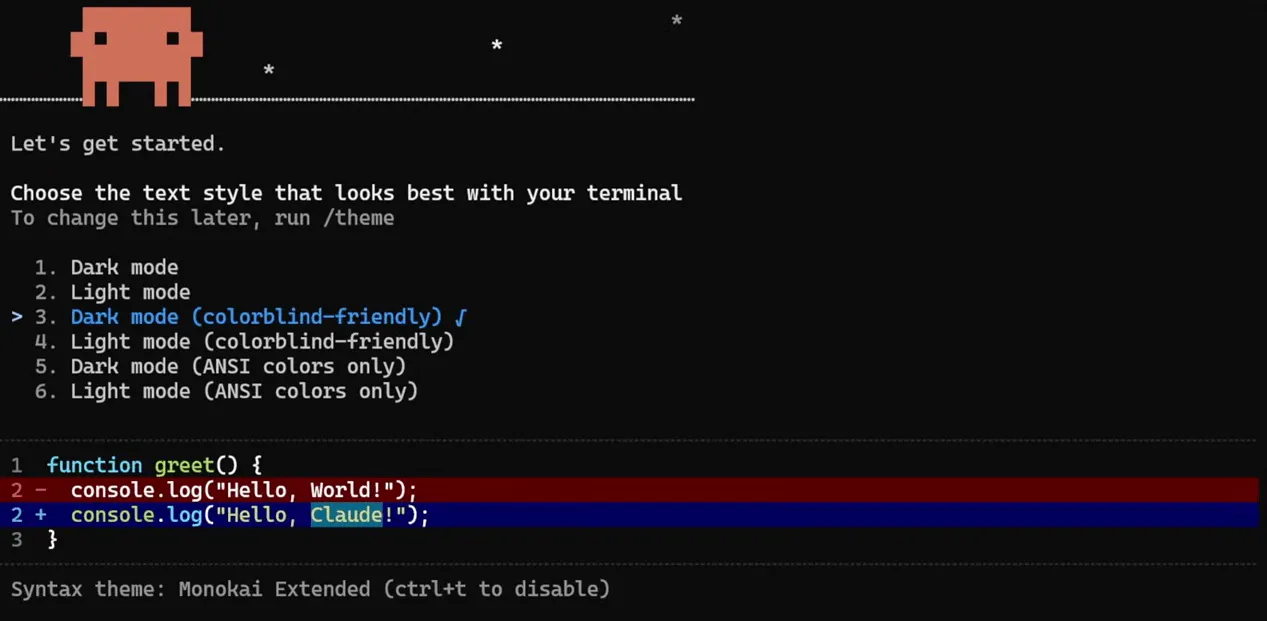
If you prefer npm, npm install -g @anthropic-ai/claude-code still works and needs Node.js 22 or later - but unlike the native installer, it won’t auto-update.
Do You Still Need Git for Windows?
No. This tripped up a lot of Windows developers early on, and the answer changed.
Claude Code runs shell commands through a tool. Which tool it gets depends on what’s installed:
- Without Git for Windows, Claude Code uses the PowerShell tool. Commands run as PowerShell, so
Get-ChildItemanddotnet buildboth work natively. - With Git for Windows, Claude Code uses the Bash tool backed by Git Bash, and commands run as POSIX shell.
Neither is wrong. But the practical difference matters if you live in .NET: PowerShell is the shell most .NET developers already know, and the PowerShell tool means Claude writes commands in the dialect your muscle memory expects. Permission mode understands it too - accept-edits mode auto-approves Set-Content, Add-Content, Clear-Content, and Remove-Item on paths inside your working directory, the same way it auto-approves mkdir and mv on the Bash side.
If you already have Git for Windows installed and want the PowerShell tool anyway, opt in with an environment variable:
$env:CLAUDE_CODE_USE_POWERSHELL_TOOL = "1"And if Claude Code can’t find Git Bash but you want it, point at it explicitly in settings.json:
{ "env": { "CLAUDE_CODE_GIT_BASH_PATH": "C:\\Program Files\\Git\\bin\\bash.exe" }}One tradeoff worth knowing before you pick: sandboxing, which isolates filesystem and network access for shell commands, is not supported on native Windows. If you want sandboxed command execution, run Claude Code inside WSL 2 instead. For most day-to-day .NET work against a local repo, native Windows is fine.
macOS / Linux Installation
You have more options here:
# Official native installer (recommended, auto-updates)curl -fsSL https://claude.ai/install.sh | bash
# Or using Homebrew (does NOT auto-update; run brew upgrade claude-code)brew install --cask claude-code
Then simply run claude in your terminal.
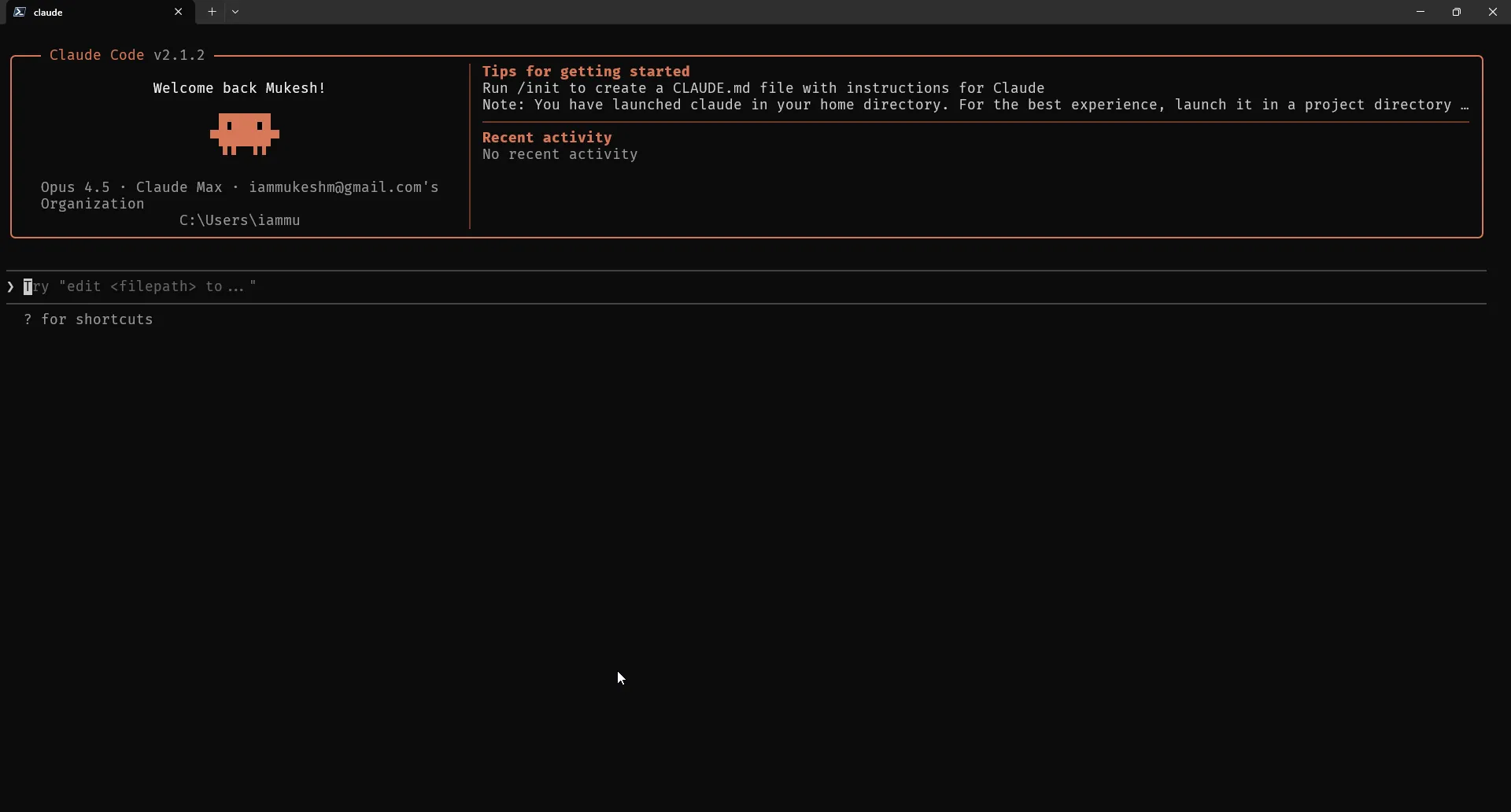
CLAUDE.md File - How to Configure Claude Code for Your Project
Here’s where Claude Code becomes truly powerful.
The CLAUDE.md file is a Markdown file at the root of your project that onboards Claude onto your codebase. Every time you start a Claude session in that directory, the contents of this file are injected into context automatically - the official memory documentation covers the full loading order.
Think of it as writing instructions for a new developer joining your team - except this developer has perfect memory and follows instructions precisely.
What to Put in CLAUDE.md
Structure your CLAUDE.md around three layers:
- The What - Your tech stack, project structure, key packages
- The Why - The purpose of each component, architectural decisions
- The How - How you want Claude to work with the project
Here’s an example for a .NET Web API project:
# CLAUDE.md - MyApp API
## Tech Stack- .NET 10, ASP.NET Core Minimal APIs- Entity Framework Core 10 with PostgreSQL- Mediator for CQRS (source-generated)- FluentValidation for request validation
## Project Structure- `src/MyApp.Api/` - Entry point, endpoints, middleware- `src/MyApp.Application/` - Use cases, handlers, DTOs- `src/MyApp.Domain/` - Entities, value objects, domain events- `src/MyApp.Infrastructure/` - EF Core, external services
## Commands- Build: `dotnet build`- Test: `dotnet test`- Run: `dotnet run --project src/MyApp.Api`
## Coding Standards- Use primary constructors for dependency injection- Always pass CancellationToken to async methods- Validation goes in FluentValidation validators, not handlers- Never hardcode connection strings or secrets
## Workflow Rules- ALWAYS create a git branch before making changes- Run `dotnet test` after every implementation- Keep commits atomic and focused
Creating CLAUDE.md Automatically
The fastest way is the built-in /init command. Claude analyzes your codebase and generates a starter CLAUDE.md with build commands, test instructions, and the conventions it discovers. If a CLAUDE.md already exists, /init suggests improvements instead of overwriting it.
/initYou can also ask Claude in plain language for more control over what goes in:
Analyze this codebase and create a CLAUDE.md file that covers:1. Tech stack and dependencies2. Project structure and purpose of each folder3. Build/test/run commands4. Coding conventions you observe5. Workflow rules I should follow
Use progressive disclosure - keep the main file concise and link todetailed docs in a /docs folder if needed.
Claude will scan your project, identify patterns, and create a comprehensive CLAUDE.md. You can then refine it based on your preferences.
Pro Tip: Treat
CLAUDE.mdas a living document. Commit it to version control so your entire team benefits. When coding standards evolve, update the file.
Does It Actually Work?
Let me show you. After setting up CLAUDE.md with a rule that says “always create a git branch before making changes,” I asked Claude to fix a bug:
There's a bug where clicking on the calendar doesn't set the correcttime for the new event. The time shown in the modal doesn't matchwhere I clicked.Claude found the bug in a TSX file, but before implementing the fix, it asked to create a new branch first - exactly as instructed in my CLAUDE.md.
That’s the power of this file. Claude respects your workflow.
Auto Memory - Claude Takes Its Own Notes Now
Here’s a feature that didn’t exist when I first wrote this guide: auto memory. Since Claude Code v2.1.59, Claude automatically writes notes for itself as it works on your project - build commands it figured out, debugging insights, preferences you corrected it on.
These notes live in ~/.claude/projects/<project>/memory/ as plain markdown files, with a MEMORY.md index that gets loaded at the start of every session. You write CLAUDE.md; Claude writes its own memory. The two work together:
- CLAUDE.md - instructions and rules YOU write (coding standards, architecture, workflows)
- Auto memory - learnings CLAUDE writes (things it discovered or you corrected)
Auto memory is on by default. Run /memory in a session to see everything that’s loaded, browse what Claude has saved, or toggle the feature off. Tell Claude “remember that the API tests need a local Redis instance” and it saves that for every future session.
I go much deeper on CLAUDE.md structure, the memory hierarchy, and ready-to-use .NET templates in the dedicated guide:
CLAUDE.md for .NET Developers - Complete Guide with Templates
Memory hierarchy, the WHAT-WHY-HOW framework, auto memory, and a production-ready CLAUDE.md template you can copy today.
Claude Code Plan Mode - Think Before You Code
Here’s a mistake I see developers make with AI coding tools: they jump straight into implementation without planning.
Claude Code has a Plan Mode specifically designed to prevent this. When you’re in Plan Mode, Claude can only:
- Read files
- Search and grep through code
- Browse the web for documentation
- Ask you clarifying questions
It cannot write, modify, or execute anything. It’s forced to think first.
How to Enter Plan Mode
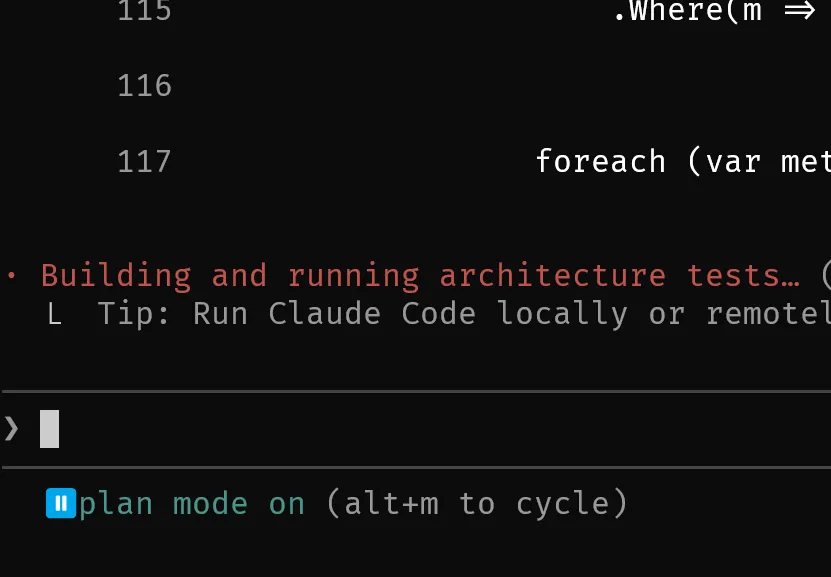
Press Shift + Tab to cycle through permission modes until you reach Plan Mode - you’ll see the indicator in the bottom left corner of the prompt.
Tip: You can also start a session directly in Plan Mode from your terminal with
claude --permission-mode plan. Useful when you know the next task needs thinking before touching files.
When to Use Plan Mode
Use Plan Mode when:
- Starting a new feature with multiple components
- Making architectural changes
- You’re not 100% sure about the approach
- Working on an unfamiliar codebase
A Real Example
Let’s say I want to build a chore management app. Instead of vibe-coding with a vague prompt like “make me a chore app,” I enter Plan Mode and write:
Build a chore management app with these requirements:- Calendar view similar to Outlook- Add/remove chores- Recurring schedules- Assign chores to team members- Manage team members
Ask me questions to clarify requirements, tech stack preferences,engineering constraints, and architecture decisions.
Claude will now ask targeted questions:
- “Should this be React, Vue, or another framework?”
- “Local storage or a backend database?”
- “Do you need authentication?”
- “Any specific UI library preferences?”
After I answer, Claude generates a detailed implementation plan:
- Project structure
- Data models
- Component breakdown
- Implementation phases
- Key design decisions
This is like pair programming with a senior engineer. You discuss the approach, agree on the plan, and only then do you execute.
If I see something I disagree with (like Claude choosing JavaScript instead of TypeScript), I can say:
Use TypeScript instead of JavaScript.Claude regenerates the plan. Once I’m satisfied, I approve it and Claude starts implementing - now with a clear roadmap.
I wrote a full deep-dive on when Plan Mode pays off (and when it’s overkill):
Plan Mode in Claude Code - Think Before You Code
When to use Plan Mode, when to skip it, and how to get the most out of planning sessions on real projects.
Permission Modes - Deciding How Much Claude Can Do
Plan Mode is one of six permission modes. A permission mode decides what Claude can do without stopping to ask you. This is the setting that most shapes how a session feels, and it’s the one beginners tend to leave on the default forever without knowing there’s a choice.
| Mode | Runs without asking | Best for |
|---|---|---|
Manual (default) | Reads only | Sensitive work, learning the tool |
Accept edits (acceptEdits) | Reads, file edits, common filesystem commands | Iterating on code you’re reviewing |
Plan (plan) | Reads, plus exploration | Scoping before you change anything |
Auto (auto) | Everything, with background safety checks | Long tasks, avoiding prompt fatigue |
Don’t ask (dontAsk) | Only pre-approved tools | CI pipelines and scripts |
Bypass permissions (bypassPermissions) | Everything, no checks | Isolated containers and VMs only |
Press Shift + Tab to cycle through the modes available to you. The status bar shows which one is active.
Auto Mode - The One That Changes Your Day
Auto mode is the most significant addition to Claude Code this year, and if you started with an older tutorial you’ve probably never used it.
Here’s the problem it solves. In Manual mode, Claude asks permission before every shell command. Run a build, approve. Run tests, approve. Check git status, approve. On a task that touches a dozen files you’ll click approve thirty times, and after the tenth one you stop reading them - which defeats the entire point of the prompt.
Auto mode replaces that stream of prompts with a separate classifier model that reviews each action before it runs. Routine work proceeds without interrupting you. Anything that escalates beyond what you asked for, targets infrastructure Claude doesn’t recognize, or looks driven by content Claude read rather than by you, gets blocked.
What runs without asking:
- Local file operations inside your working directory
- Installing dependencies already declared in your lock files or manifests
- Read-only HTTP requests
- Pushing to branches of the repo you’re working in
What gets blocked by default:
- Downloading and executing code, like
curl | bash - Production deploys and migrations
- Force pushes, and
git reset --hardorgit clean -fdwhere uncommitted work would be lost - Sending sensitive data to external endpoints
terraform destroyand its equivalents
You can also just say it. Tell Claude “don’t push until I’ve reviewed” and the classifier treats that as a block signal for the rest of the session, even for actions the default rules would have allowed. That boundary is re-read from the conversation on every check, so it survives as long as the message does - if you need a hard guarantee that outlives context compaction, write a deny rule in settings instead.
Auto mode is available on all plans. Cycle to it with Shift + Tab, or set it as your default in ~/.claude/settings.json:
{ "permissions": { "defaultMode": "auto" }}One gotcha worth knowing: that setting only works in your user settings file. Claude Code deliberately ignores defaultMode: "auto" in a project’s .claude/settings.json, so a repository you cloned can’t grant itself auto mode.
When it falls back: if the classifier blocks three actions in a row, or twenty across the session, auto mode pauses and Claude Code goes back to prompting you. Approving the prompted action resumes it. That’s usually a signal the classifier is missing context about your infrastructure rather than a sign Claude is misbehaving.
Auto mode reduces prompts, it does not remove the need to review. It’s a guard against escalation, not a substitute for reading the diff. I still commit before big changes and still read what landed.
Which Mode I Actually Use
For .NET work on a repo I trust, I run auto mode most of the day and drop into Plan Mode whenever a task touches architecture. Manual mode is where I start on any codebase I don’t own yet. I’ve never had a reason to use bypass permissions outside a container, and neither should you.
.NET Claude Kit
Open-source Claude Code companion with 47 skills and 10 specialist agents
Claude Code Context Window - How It Understands Your Codebase
One thing that sets Claude Code apart is its context window. Fable 5, Opus 5, and Sonnet 5 all support a 1 million token context window - per Anthropic’s model documentation, that’s roughly 555,000 to 750,000 words of code and conversation held in memory at once. Haiku 4.5, the fastest model, holds 200K tokens.
When this article first went out in January 2026, 200K tokens was the headline number. The 1M window changed what’s practical: entire mid-sized solutions now fit in a single session.
This means Claude can genuinely understand large codebases. I’ve used it on .NET solutions with 50+ projects, and it navigates them effectively.
How Context Works
When you start a session, Claude doesn’t load your entire codebase into memory immediately. Instead, it:
- Reads your
CLAUDE.mdfile - Scans the project structure
- Loads files on-demand as needed
- Maintains conversation history
If you’re working on a specific feature, Claude will read the relevant files, understand the dependencies, and keep that context as you iterate.
Managing Context
Context can fill up during long sessions. Here are some tips:
Clear conversation history:
Type /clear to reset the conversation while keeping your CLAUDE.md context.
Use subagents for isolated tasks: When Claude spawns a subagent (a focused task), it gets its own context. This prevents bloating your main session.
Keep CLAUDE.md concise:
Since CLAUDE.md is loaded into every session, don’t dump your entire documentation there. Keep it focused and link to external files for details.
If you want to understand exactly what fills up your context window (and what survives /compact), I broke down a full session token by token:
Anatomy of a Claude Code Session
What actually goes into your context window - system prompt, CLAUDE.md, tool results - and how to keep it lean.
Claude Code Hooks - Automate Your Workflow
Hooks let you run custom actions at specific points in Claude’s workflow. They’re event-driven - the hooks reference lists dozens of events, but these three cover most use cases:
- PreToolUse - Runs before Claude uses a tool (like before writing a file)
- PostToolUse - Runs after a tool completes
- Stop - Runs when Claude finishes a task
For example, you could set up a hook to automatically run your linter after every file edit, or validate a deployment script before execution.
# Access the hooks interface/hooksHooks are powerful for teams that want to enforce quality gates automatically. I’ll cover them in depth in a follow-up article.
Claude Code Skills - Create Your Own Shortcuts
You can create your own slash commands to streamline repetitive tasks. The modern way to do this is with skills: a SKILL.md file in a .claude/skills/<name>/ folder.
For example, create .claude/skills/test/SKILL.md:
---name: testdescription: Run the test suite and fix failures---
Run all tests for the solution and report any failures.If tests fail, analyze the error and suggest fixes.
$ARGUMENTS
Now you can type /test in Claude, and it executes your predefined prompt. Claude can also invoke skills automatically when it detects they’re relevant to your prompt - that’s the part plain prompts can’t do.
Note: If you’ve seen older tutorials mention
.claude/commands/, those still work - custom commands were merged into the skills system. A file at.claude/commands/deploy.mdand a skill at.claude/skills/deploy/SKILL.mdboth create/deploy. Skills just add more: supporting files in the folder, frontmatter control, and auto-invocation.
Some ideas for skills:
/pr- Create a pull request with a structured description/review- Review the current changes for code quality/migrate- Generate an EF Core migration
I wrote a complete guide on building skills, including the exact ones I use daily:
Skills in Claude Code - Build Your Own Slash Commands
How skills work, when to use them over CLAUDE.md, and a walkthrough of building reusable workflows step by step.
Claude Code Pricing 2026 - Plans and Rate Limits Explained
Claude Code access comes with your Claude subscription. Exact prices move, so treat the numbers below as a snapshot and the structure as the durable part.
| Tier | Roughly | Claude Code Access | Usage |
|---|---|---|---|
| Free | $0 | No access | - |
| Pro | ~$20/month | Yes | Base allocation per 5-hour session |
| Max 5x | ~$100/month | Yes | 5x the Pro allocation per session |
| Max 20x | ~$200/month | Yes | 20x the Pro allocation per session |
Snapshot taken July 2026. Check Anthropic’s pricing page before you buy.
The structure has held steady even as prices and model names have not: a 5-hour rolling session limit plus weekly limits that apply across all Claude surfaces. Your usage is shared between claude.ai, Claude Code, and the desktop app - it’s one pool.
Anthropic doesn’t publish exact message counts, because usage depends on the model you pick, your codebase size, and how much context each request carries. To see where you stand, type /usage inside Claude Code or check Settings > Usage on claude.ai. Both show progress bars for your current session and weekly limits.
Which Model Do You Actually Get?
This confuses almost everyone, because the answer depends on your plan rather than on anything you configure:
- Pro, Team Standard, and Enterprise subscription seats default to the current mid-tier Sonnet model
- Max, Team Premium, Enterprise pay-as-you-go, and the Anthropic API default to the current top-tier Opus model
Switch at any time with /model. Rather than memorising version numbers, use the aliases - they always point at the current recommended version for your provider:
| Alias | What you get |
|---|---|
sonnet | Latest Sonnet, the daily-driver coding model |
opus | Latest Opus, for complex reasoning |
haiku | Fastest and cheapest, for simple tasks |
opusplan | Opus while planning, then Sonnet to execute |
default | Clears any override, back to your plan’s recommended model |
opusplan is the one worth knowing about as a beginner. Planning is where reasoning quality pays off most and execution is where token spend piles up, so this alias puts the expensive model exactly where it earns its keep. It’s the setting I recommend to anyone on Max who feels like they’re burning through limits too quickly.
My recommendation: start on Pro. It’s enough for most individual developers. If you’re in Claude Code all day, Max 5x is the upgrade that actually changes your workflow.
For teams, the Team plan adds centralized billing and admin dashboards, with a premium seat tier for heavier usage.
No per-message overage fees - you get a fixed allocation per time window, and it resets. No surprise bills.
What Happens When You Hit the Rate Limit?
You’ll get a warning as you approach the ceiling, then new prompts pause until the window resets. Your 5-hour session allocation refreshes on a rolling basis - hit it at 2 PM and you’re working again around 7 PM. The weekly limit sits on top of that and resets at a fixed time assigned to your account; heavy all-day users hit the weekly one first.
Four things that stretch a plan further:
- Check
/usagebefore a big session. Knowing you’re at 80% of your weekly limit changes how you spend the rest of it. - Match the model to the task. Routine work doesn’t need the top-tier model.
/model sonnetfor the bulk of it, oropusplanto reserve the expensive model for planning only. - Plan, then execute. Planning burns far less than implementation. Doing the thinking in Plan Mode means fewer wasted execution cycles on an approach you’d have rejected.
- Batch the scope. Describing a full change once costs less than five rounds of “now fix this other file”.
I’ve been on Max 5x for months and rarely hit the ceiling. On Pro I had to be strategic - mornings for heavy implementation, afternoons for review and planning.
6 Habits That Separate Good Sessions From Bad Ones
These are the things I’d tell anyone on their first week. None of them are clever - they’re just what stops most of the frustration.
- Be specific. “Add FluentValidation to CreateUserCommand: Email required and valid format, Name required max 100 chars” gets you the right code. “Can you help me add some validation?” gets you a guess.
- Commit before you prompt. Claude fixes one thing and occasionally breaks another. A commit after each working change makes rollback a non-event.
- Read the diff. Claude sometimes adds a dependency you didn’t ask for, or writes code that works but doesn’t match your architecture. Review it like any pull request.
- Plan anything non-trivial. More than two or three files, or any architectural call, start in Plan Mode. Assumptions made in the first minute compound for the next hour.
- Invest in
CLAUDE.md. Especially the patterns you don’t want. “No repository pattern, we use EF Core directly” saves the same argument every session. - Push back. Say “no, use X instead” and Claude adapts. The best results come from dialogue, not accepting the first suggestion.
Once these are second nature, there’s a whole layer of sharper technique underneath - subagent delegation, context discipline, and the workflow tricks that only matter once you’re past the basics:
20 Advanced Claude Code Tips for .NET Developers
The techniques that matter after your first month: session control, context management, and the workflow habits that compound.
Troubleshooting Common Claude Code Issues
Here are the problems I get asked about most often, with fixes.
Start With /doctor
Before you debug anything by hand, run the built-in checkup:
/doctorIt diagnoses your install and configuration in one pass - install health, settings-file validation errors, the result of the most recent update attempt - and for a lot of issues it will offer to fix them for you. /checkup is an alias for the same thing.
There’s also a version you can run without starting a session, which is the one to reach for when Claude Code won’t launch at all:
claude doctorThat prints read-only diagnostics and suggested fixes. A surprising share of “Claude Code is broken” reports turn out to be a stale install or a malformed settings.json, and both of these catch that in seconds.
How to Fix npm Install Permission Errors
Don’t use sudo npm install -g. Instead, fix npm’s permissions:
mkdir ~/.npm-globalnpm config set prefix '~/.npm-global'export PATH=~/.npm-global/bin:$PATHAdd that last line to your .bashrc or .zshrc to make it permanent. Then run the install again without sudo.
On Windows, run your terminal as Administrator for the initial install, or use the native installer instead of npm.
Why Doesn’t Claude Code Understand My Project Structure?
This usually means Claude hasn’t read enough context. Try:
- Create a
CLAUDE.mdfile - This is the single biggest improvement you can make. - Explicitly tell Claude to explore - Say “Read the project structure and understand the architecture before making changes.”
- Point Claude to key files - “Look at
src/Application/to understand how we structure commands and handlers.”
Claude doesn’t automatically read every file. It reads on-demand. Guide it to the important parts.
How to Prevent Claude Code From Making Unwanted Changes
This happens. Claude sometimes “improves” code while fixing something else. A few ways to prevent this:
- Be explicit about scope - “Only modify the
UserServiceclass. Don’t touch anything else.” - Add rules to
CLAUDE.md- “Never refactor code unless explicitly asked.” - Use Plan Mode - Review the plan before Claude executes. If you see unrelated changes, tell it to remove them.
And always: commit before asking Claude to make changes. Easy rollback.
What to Do When Claude Code Forgets Earlier Instructions
Long sessions can exhaust context. When this happens:
- Type
/clear- This resets the conversation but keeps yourCLAUDE.mdloaded. - Start a new session - Close and reopen Claude Code. Fresh context.
- Summarize before continuing - After
/clear, paste a brief summary: “We’re building X. We’ve completed Y. Next step is Z.”
For very long tasks, I break them into multiple sessions intentionally. Each session has focused scope.
How to Stop Claude Code From Suggesting Unwanted Patterns
Put your preferences in CLAUDE.md. Be explicit:
## Patterns We Use- Mediator for CQRS- Result<T> pattern for error handling- FluentValidation for all request validation
## Patterns We DON'T Use (Never suggest these)- Repository pattern (we use EF Core directly)- AutoMapper (we write explicit mappings)- Exceptions for control flow
Claude follows these rules reliably once they’re documented.
Is My Code Sent to Anthropic’s Servers?
Yes - Claude Code sends your code to Anthropic’s API for processing. This is how it works.
However, Anthropic has stated that data from Claude Pro/Max subscriptions is not used to train models. If you’re working on sensitive code, check your company’s AI usage policy and Anthropic’s terms of service.
For enterprise needs, there’s a Teams plan with additional compliance features.
Can I Use Claude Code Offline?
No. Claude Code requires an internet connection to communicate with Anthropic’s API. There’s no offline mode.
If you’re working in an air-gapped environment, Claude Code isn’t an option - you’ll need to look at local LLM solutions.
Key Takeaways
- Claude Code is agentic, not autocomplete. It reads your codebase, plans multi-step changes, and executes them - treat it like a senior engineer, not a snippet generator.
- CLAUDE.md is the highest-leverage setup step. Ten minutes writing project rules saves hours of repeated explanations. Auto memory now handles the learnings you’d otherwise have to write down yourself.
- Plan Mode before anything non-trivial. If a task touches more than 2-3 files, plan first. Approve the approach, then execute.
- Start on Pro at $20/month. Upgrade to Max 5x only when you’re consistently hitting the 5-hour or weekly limits - check
/usageto know for sure. - Always review the diff. Claude is a teammate, not a replacement for code review. Commit early so rollbacks stay trivial.
Frequently Asked Questions
What is Claude Code?
Claude Code is Anthropic's agentic AI coding assistant. It runs in your terminal, IDE, desktop app, or browser, and can read your entire codebase, plan multi-step implementations, edit files, and run commands. Unlike autocomplete tools, it reasons through tasks before executing them.
Is Claude Code free to use?
No. Claude Code requires a paid Claude subscription (Pro, Max, Team, or Enterprise) or a pay-as-you-go Claude Console API account. The free Claude plan does not include Claude Code access.
How do I install Claude Code on Windows?
Run the native installer in PowerShell: irm https://claude.ai/install.ps1 followed by iex. Alternatively use winget install Anthropic.ClaudeCode. The native installer is recommended because it auto-updates. Node.js 22 or later is only required if you choose the npm installation method.
Do I need Git for Windows to run Claude Code?
No. Git for Windows is optional. Without it, Claude Code runs shell commands through the PowerShell tool, which suits most .NET developers since PowerShell is the shell they already know. With Git for Windows installed, Claude Code uses the Bash tool backed by Git Bash instead. The one real tradeoff is sandboxing, which is not supported on native Windows and requires WSL 2.
What is auto mode in Claude Code?
Auto mode is a permission mode where a separate classifier model reviews each action before it runs, instead of prompting you for approval every time. Routine work like local file edits, declared dependency installs, and read-only requests proceeds without interruption, while escalating actions such as production deploys, force pushes, and piping downloads into a shell are blocked. It is available on all plans. Cycle to it with Shift+Tab, or set permissions.defaultMode to auto in your user settings file.
How do I fix Claude Code when it stops working?
Run /doctor inside a session, or claude doctor from your terminal if Claude Code will not start. Both run a full setup checkup covering install health, settings-file validation errors, and the most recent update attempt, and can fix many issues automatically. Most reported breakages turn out to be a stale install or a malformed settings.json file.
What is the difference between Claude Code and GitHub Copilot?
GitHub Copilot is primarily an autocomplete tool that suggests code as you type inside your IDE. Claude Code is an agentic assistant that understands your whole project, plans changes across multiple files, runs tests, and executes shell commands. Copilot is faster for boilerplate; Claude Code is stronger for architecture, debugging, and multi-file work.
Which Claude model should I use in Claude Code?
Paid plans default to a current top-tier model, and the full lineup includes Fable 5, Opus 5, Sonnet 5, and Haiku 4.5. Run /model to see what your plan defaults to and what you can switch to. Use the strongest model for complex architectural work and drop to a lighter one for routine tasks to stretch your usage limits.
What is CLAUDE.md and do I need one?
CLAUDE.md is a markdown file at your project root that Claude Code loads at the start of every session. It holds your tech stack, project structure, coding conventions, and workflow rules. You do not strictly need one, but it is the single biggest improvement you can make to output quality.
Does Claude Code send my code to Anthropic?
Yes, Claude Code sends code to Anthropic's API for processing - that is how it works. Anthropic states that data from Pro and Max subscriptions is not used to train models. For sensitive codebases, check your company's AI usage policy first.
Can I use Claude Code offline?
No. Claude Code requires an internet connection to communicate with Anthropic's API. There is no offline mode, so air-gapped environments need local LLM alternatives instead.
What’s Next? - The Complete Claude Code Series
This was just the beginning. When I first published this guide, the rest of the series was a promise. It’s now live - here’s where to go next, in reading order:
CLAUDE.md for .NET Developers - Complete Guide with Templates
My exact template for Clean Architecture, Minimal APIs, and enterprise .NET projects. Copy-paste ready, with the full memory hierarchy explained.
Plan Mode in Claude Code
When to use it, when to skip it, and how to get the most out of planning sessions.
Skills in Claude Code
Build custom slash commands that 10x your workflow - including my personal /pr, /review, and /migrate skills.
Anatomy of the .claude Folder
Rules, skills, agents, hooks, settings - what every file in the .claude directory does and how they fit together.
20 Advanced Claude Code Tips for .NET Developers
The workflow patterns I use daily after a year of Claude Code - beyond the basics covered here.
Prompt Engineering for Claude Code
How to phrase requests so Claude gets it right the first time - with real .NET examples.
Claude Code Prompts for .NET Developers
11 copy-paste prompts covering the full workflow - brainstorming, scaffolding, EF Core, testing, and Aspire - ready to use once the basics here click.
Anatomy of a Claude Code Session
What actually happens between your keystroke and the code change - the agentic loop, tool calls, and where your context window really goes.
Git Worktrees in Claude Code - Run Parallel .NET Sessions
Run several Claude Code sessions against the same repository at once, each on its own branch, without them fighting over your working tree.
I Built a Claude Code Skill That Scaffolds My .NET Architecture
A worked example of taking everything above and turning it into one repeatable skill that generates a full project structure.
How I Use dotnet-claude-kit for Senior-Level .NET
The plugin that bundles the .NET agents, skills, and Roslyn tooling I use daily - the shortcut to everything in this series.
This series is the most comprehensive Claude Code resource for .NET developers on the internet. No fluff, just practical patterns you can use tomorrow.
What are your thoughts on AI coding assistants? Are you using Copilot, Cursor, or something else? Let me know in the comments - I’m curious how other developers are integrating AI into their workflows.
Happy Coding :)



What's your take?
Push back, share a war story, or ask the obvious question someone else is wondering. I read every comment.